Create an AI Assistant App
Is this you?
- You want to build AI Assistant apps that integrate ChatGPT & OpenAI for writing, chat, and image generation—all in one app.
- You already run a WordPress website.
- or No website yet?
Build Android • iOS • PWA apps ✨ AI-powered app building
⚡ CLI & MCP support
🎨 Drag-and-drop UI design
🔔 Push notifications for Free
Not sure this is you?
Want to create recipe, music, e-commerce, multivendor, listing, or booking app from your website? Go to Create a Native App for Your Website 🚀 instead.
Don't have a website at all? Go to Create an App Without a Website.
Whether you already have a WordPress website or don’t have a website yet, we have a simple solution to help you create your AI Assistant app in hours—with no coding required.
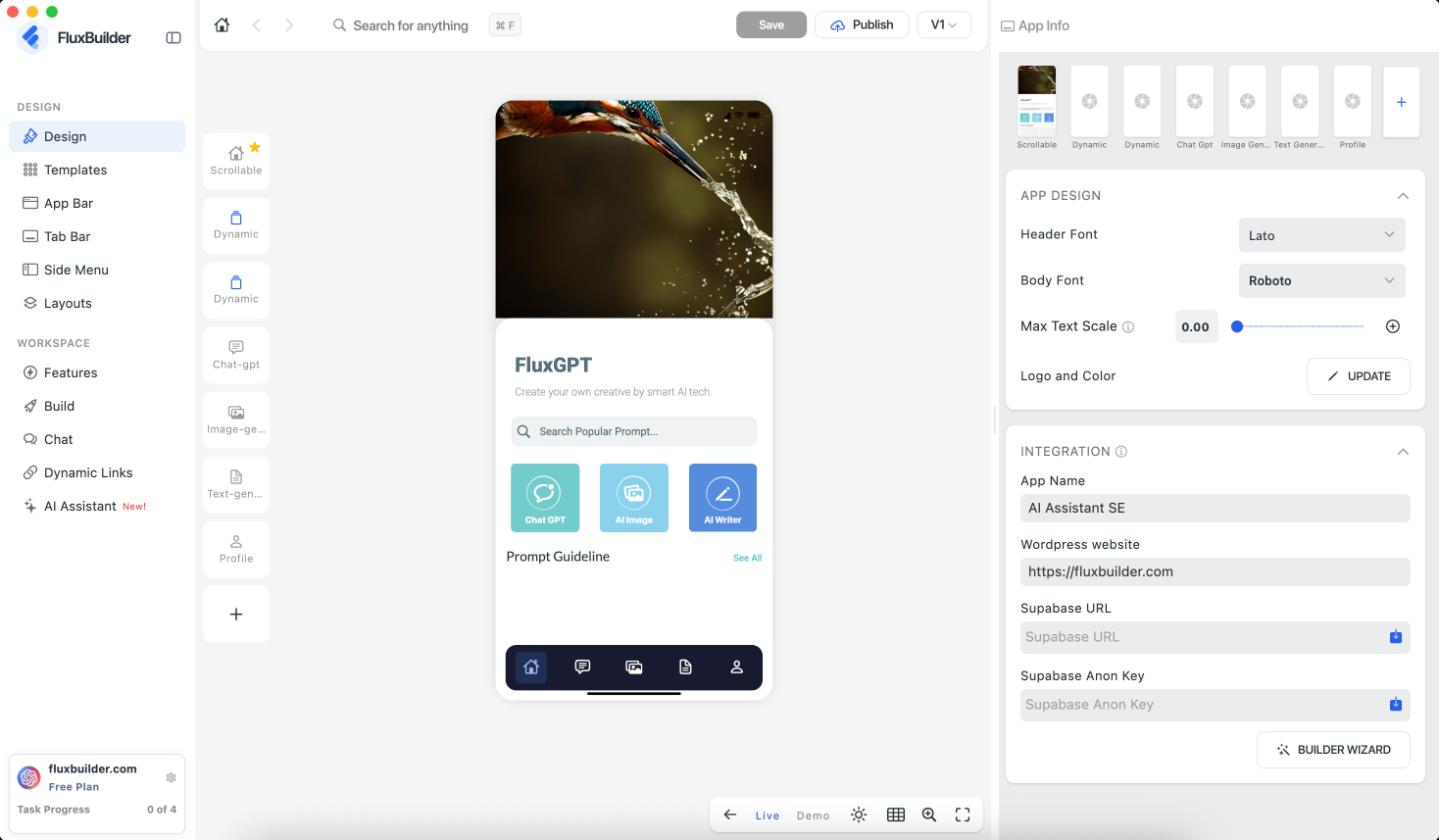
Follow this step-by-step tutorial to build and publish apps on the App Store and Google Play:
Step 1: Preparation
✨ If you already have a WordPress website:
To ensure that all images and data from your WordPress website are displayed correctly on your iOS and Android apps and that data stays synchronized, install the required plugins and complete the necessary configurations on your website.
- WordPress API Setup Guide — for WordPress site sync.
- OpenAI- Setup Supabase Server — support ChatGPT & OpenAI.
✨ If you don’t have a website yet, setup the Supabase Server:
- OpenAI- Setup Supabase Server — support ChatGPT & OpenAI.
Step 2: Create an app project
Create a new app project in FluxBuilder. Follow this guide to install and run FluxBuilder in your devices successfully.
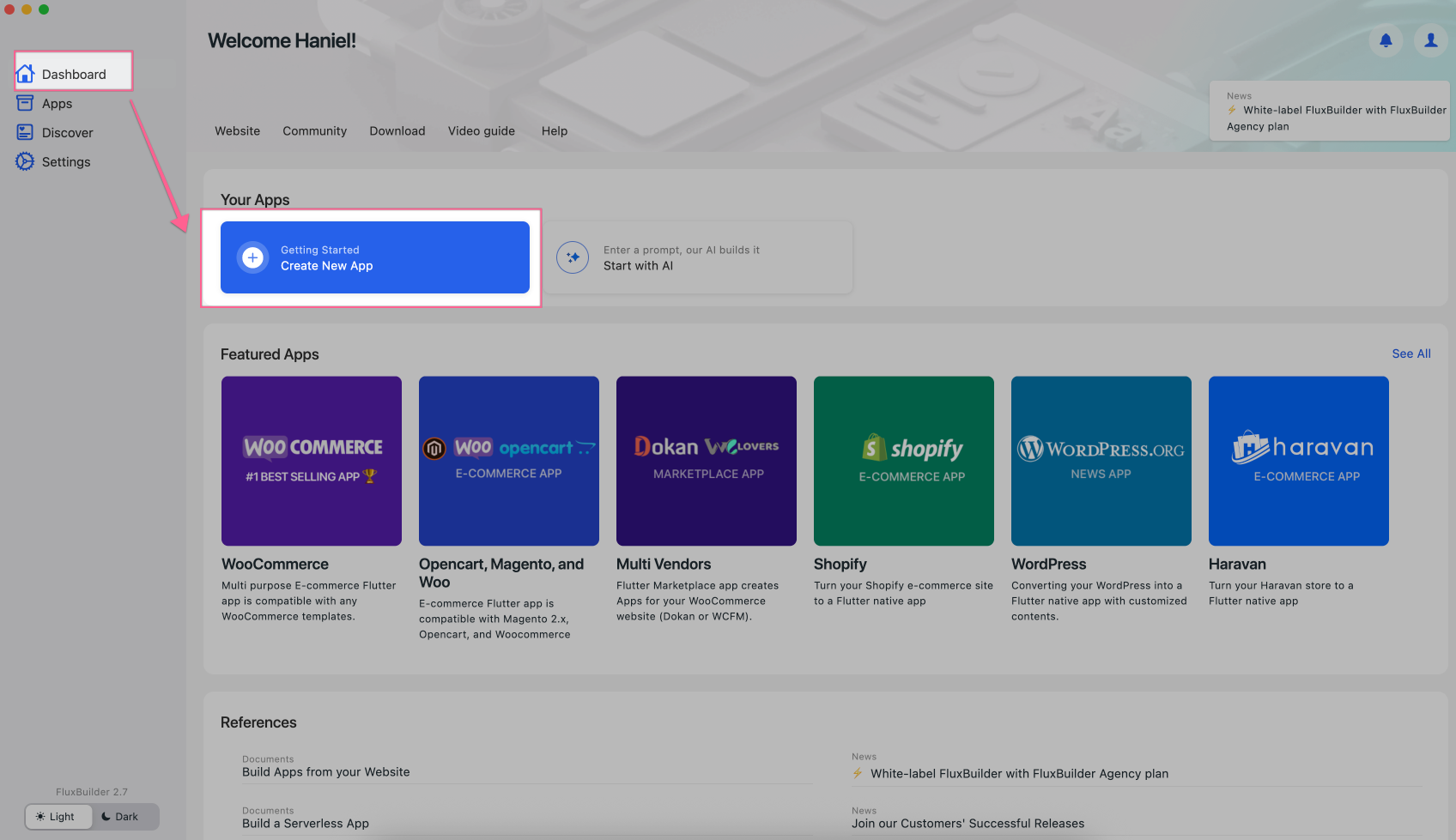
✨ If using the FluxBuilder Desktop version, open FluxBuilder, then select Dashboard > choose Create New App:
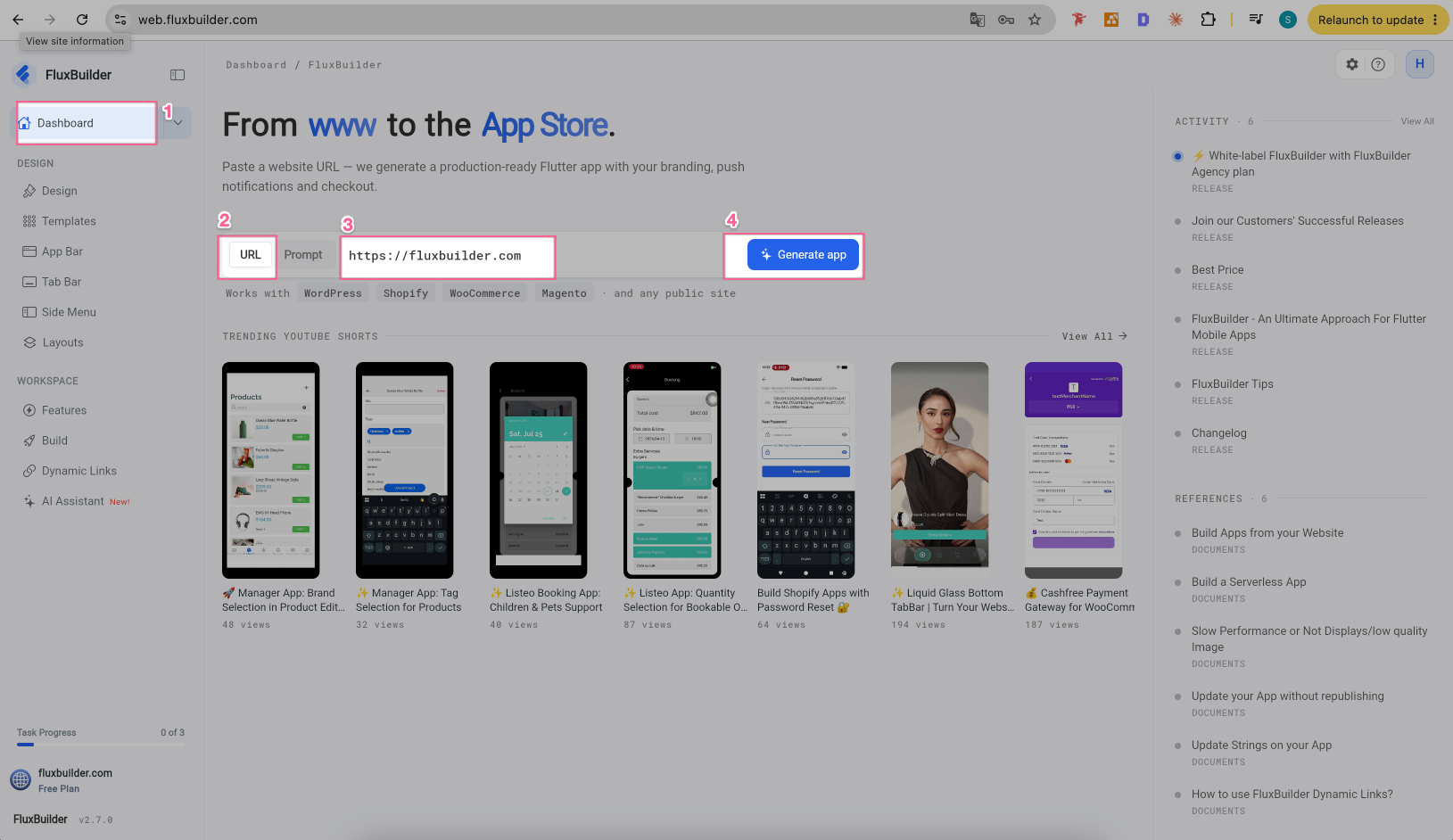
✨ If using the FluxBuilder Web version https://web.fluxbuilder.com : select Dashboard, click URL, then enter your Website URL and click Generate App:
✨ Then, If you already have a WordPress website:
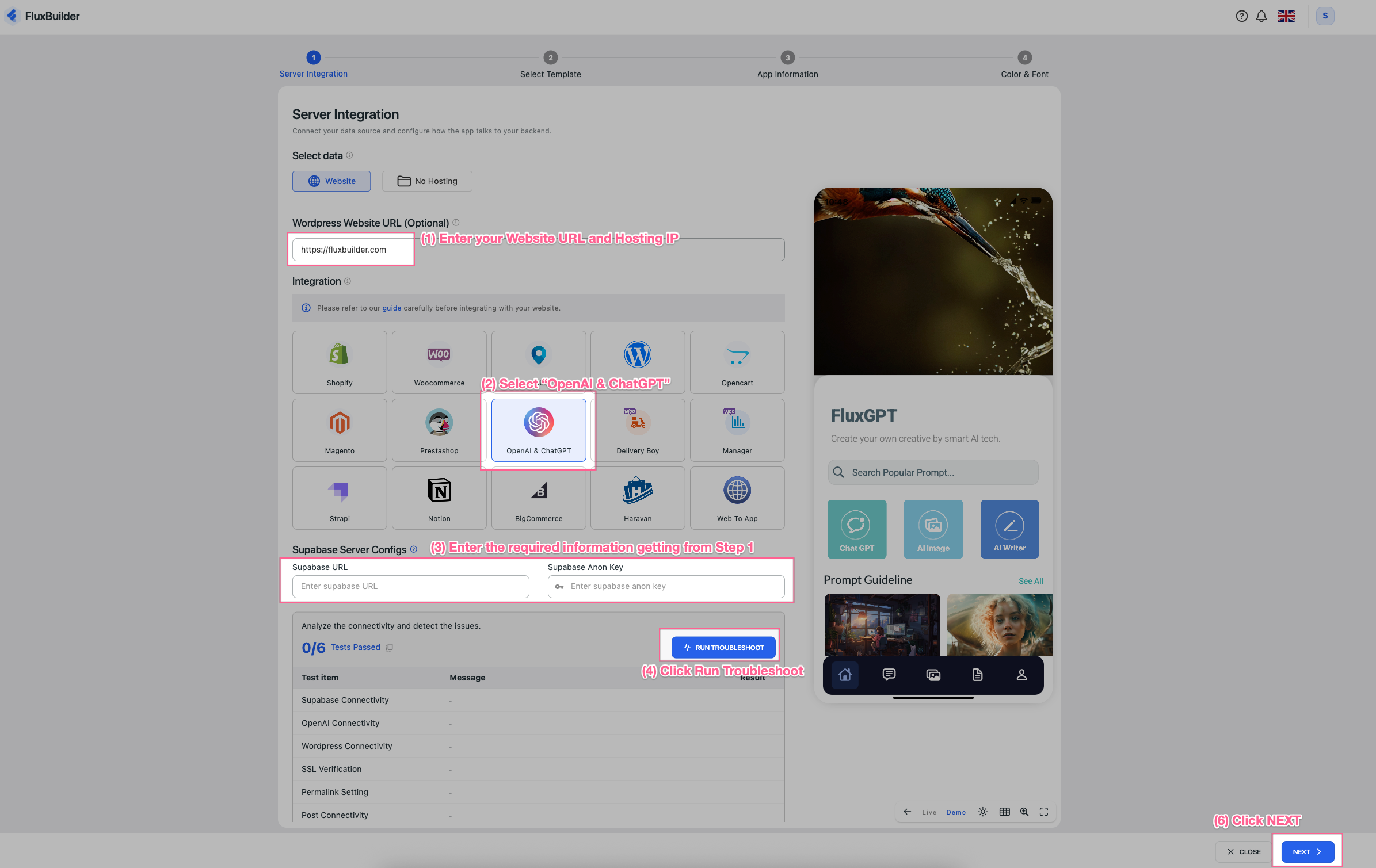
(1) Enter your Wordpress Website URL or IP address of the HOSTING service (e.g. https://1.100.67.68) → (2) Select OpenAI & ChatGPT → (3) Enter the required information getting from Step 1 → (4) Scroll down and click Run Troubleshoot → (5) If any item fails, click the ? icon to see how to fix it → (6) Select NEXT:
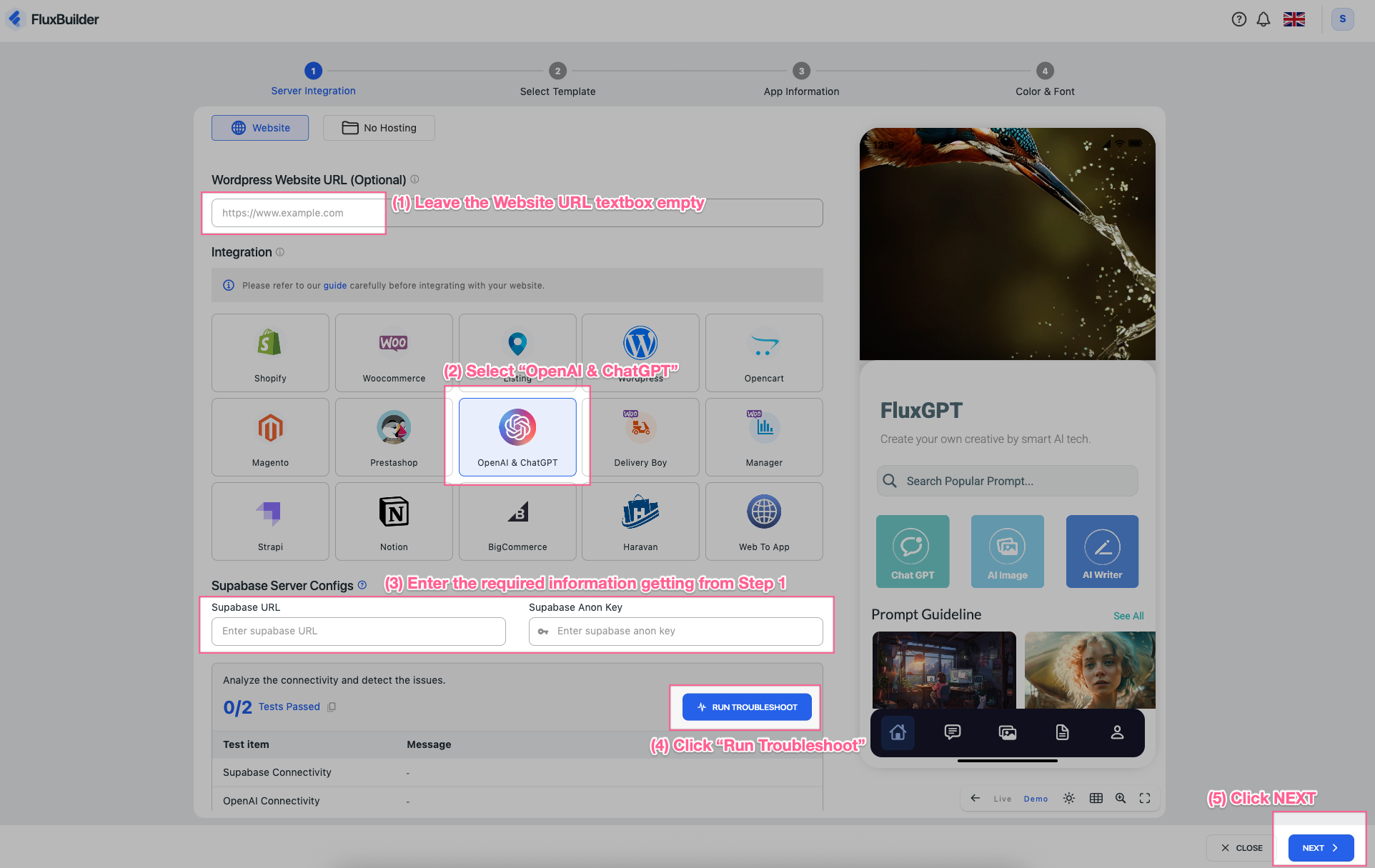
✨ If you don’t have a website yet:
(1) Leave the WordPress Website URL textbox empty → (2) Select OpenAI & ChatGPT → (3) Enter the required information getting from Step 1 above → (4) Scroll down and click Run Troubleshoot → (5) Select NEXT:
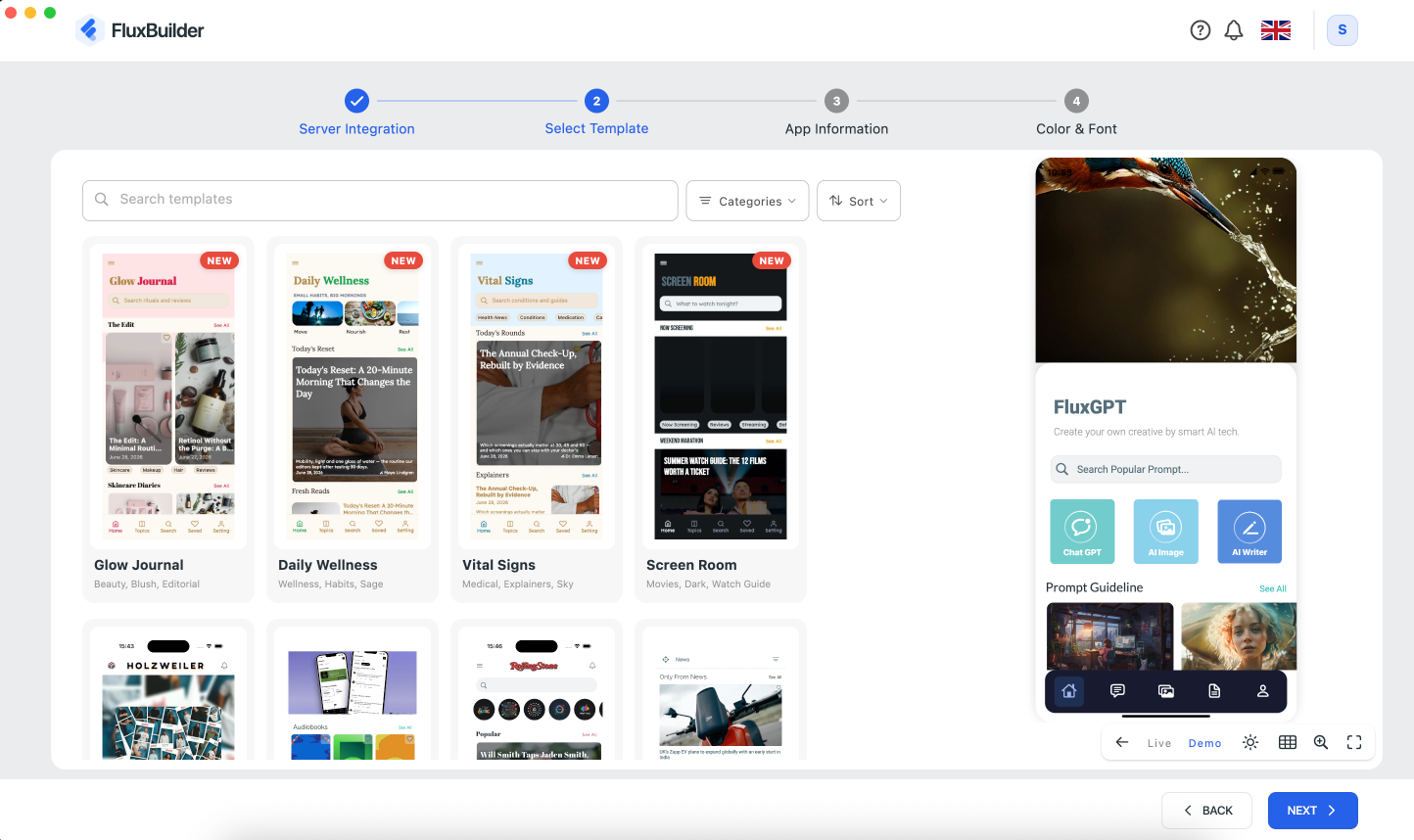
Select a Template and click NEXT:
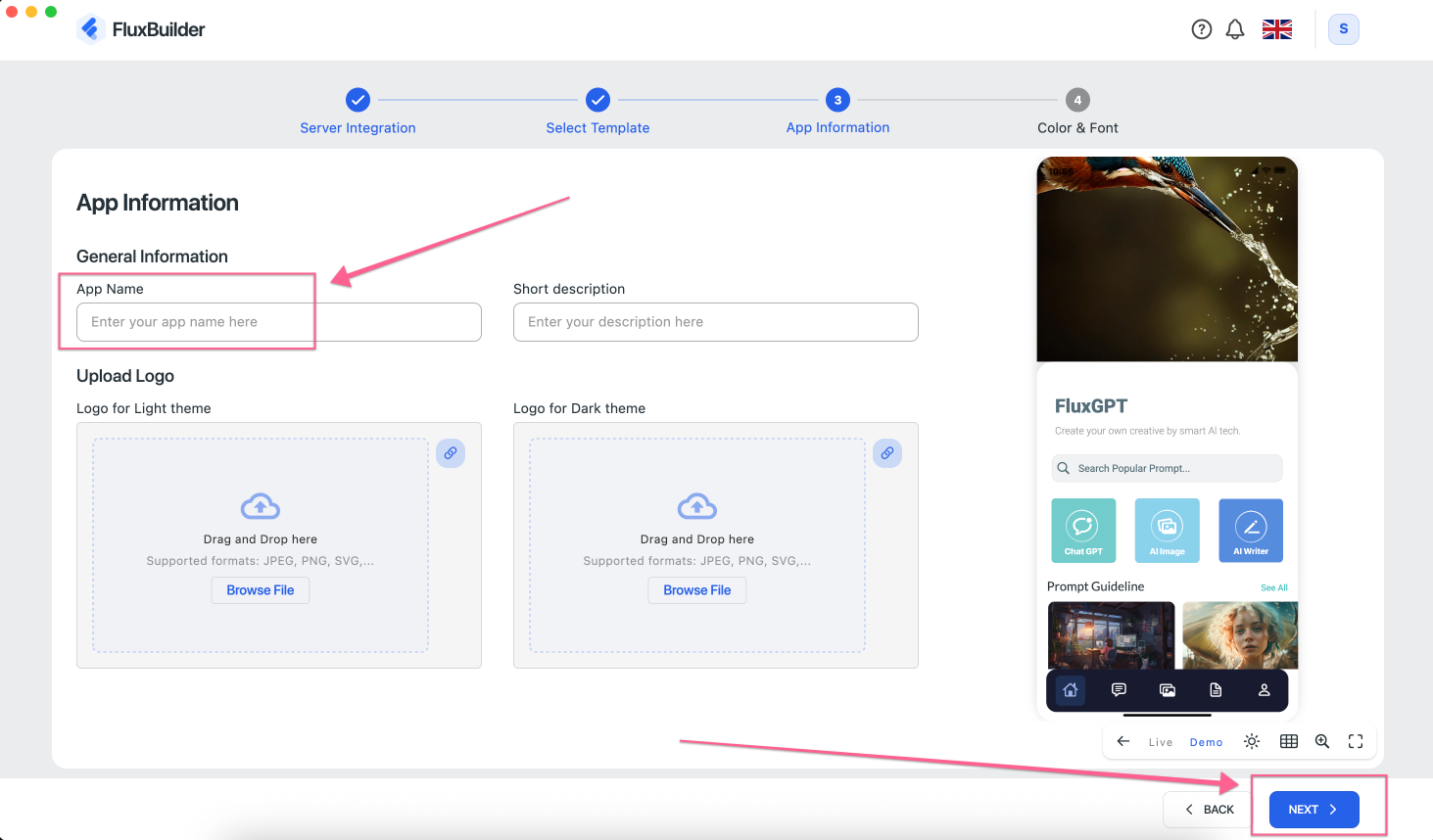
Next, enter your app information:
App Name(required): Enter the name of your App.Short Description(optional): Enter a brief description of your app.Upload Logo(optional): Upload your app logo for both Light and Dark themes. You can change it later.
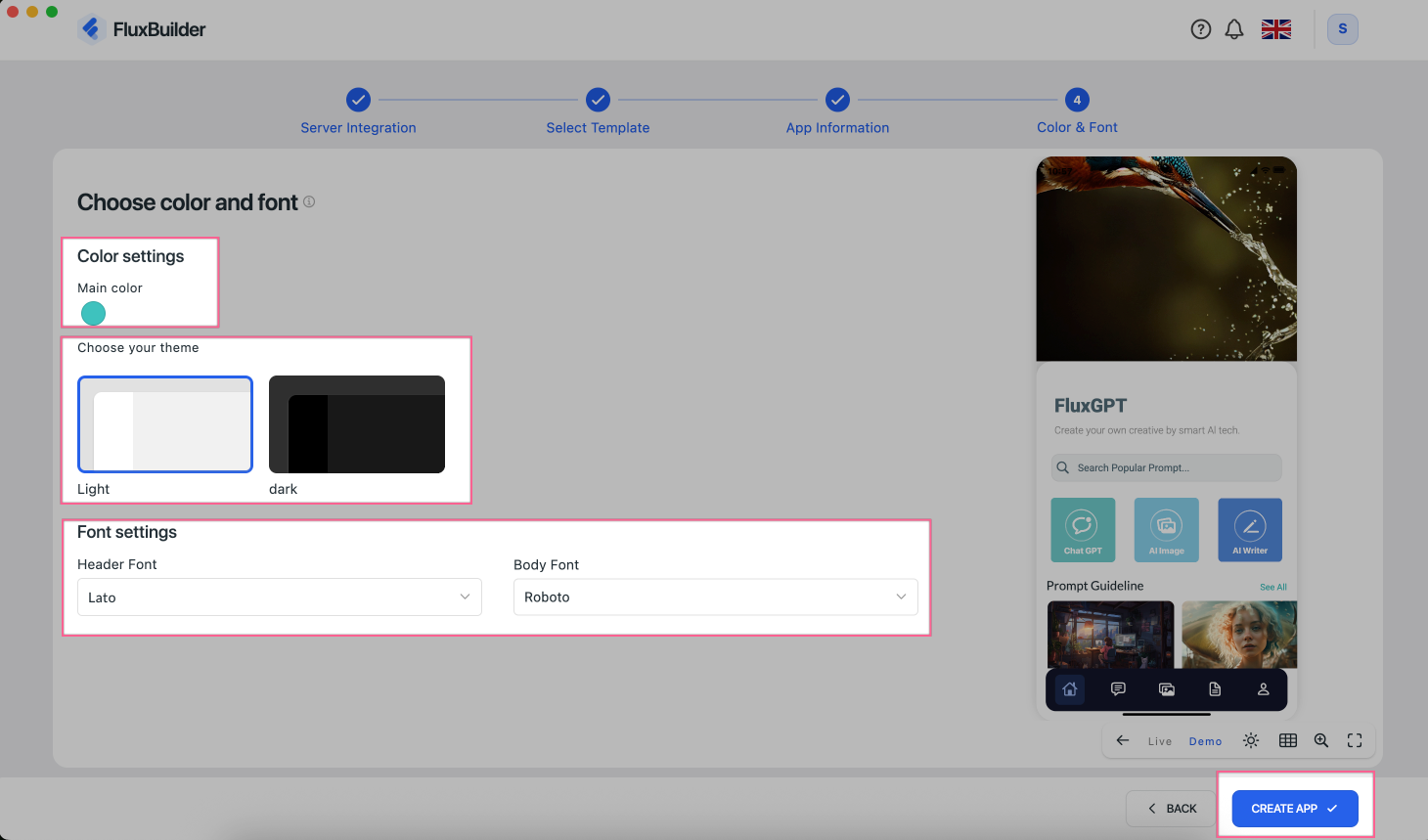
Choose a color, font, and default Light/Dark theme (optional — you can edit these settings later). Then click CREATE APP :
Your app project has been created successfully and this is the FluxBuilder editor:
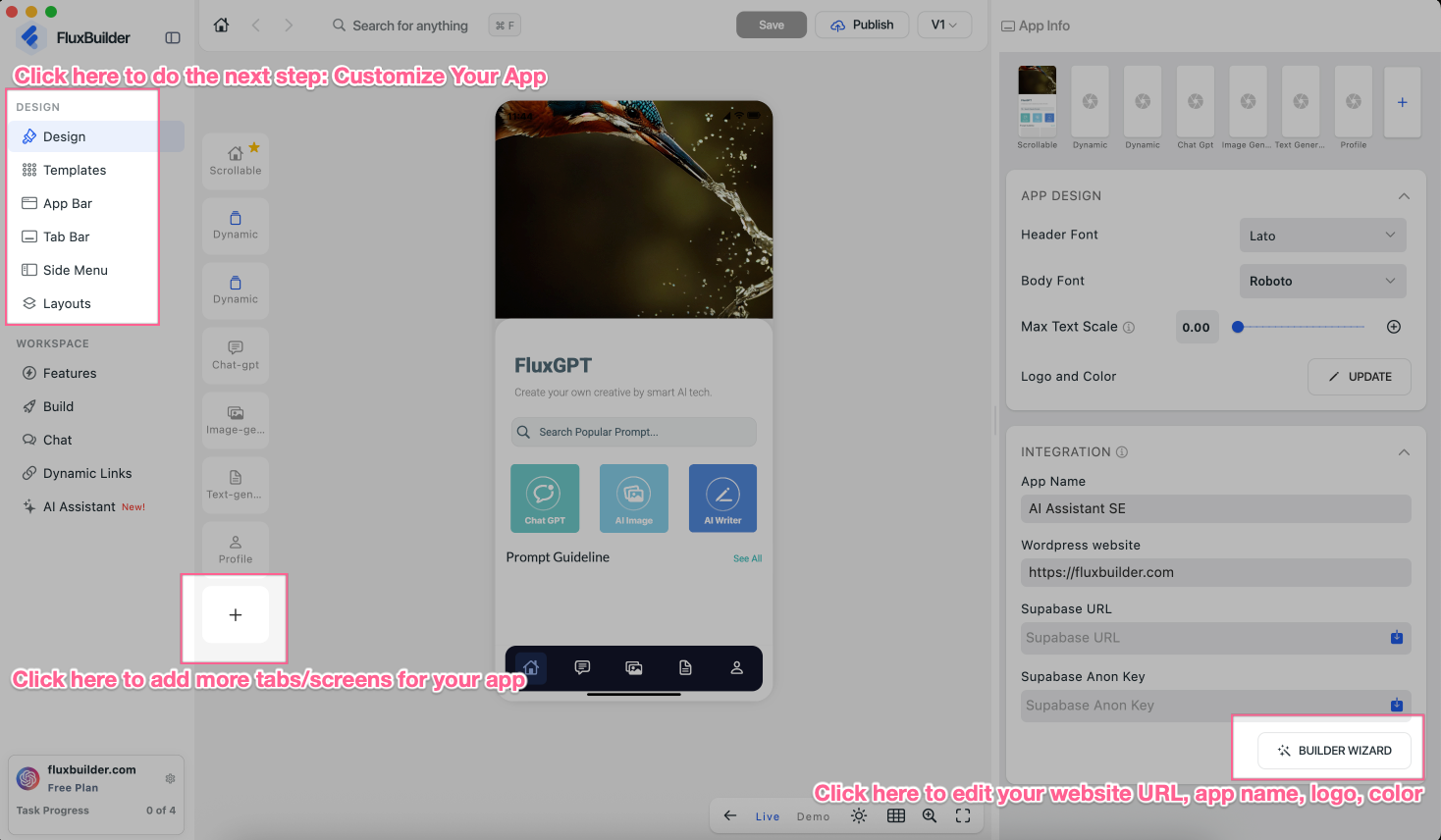
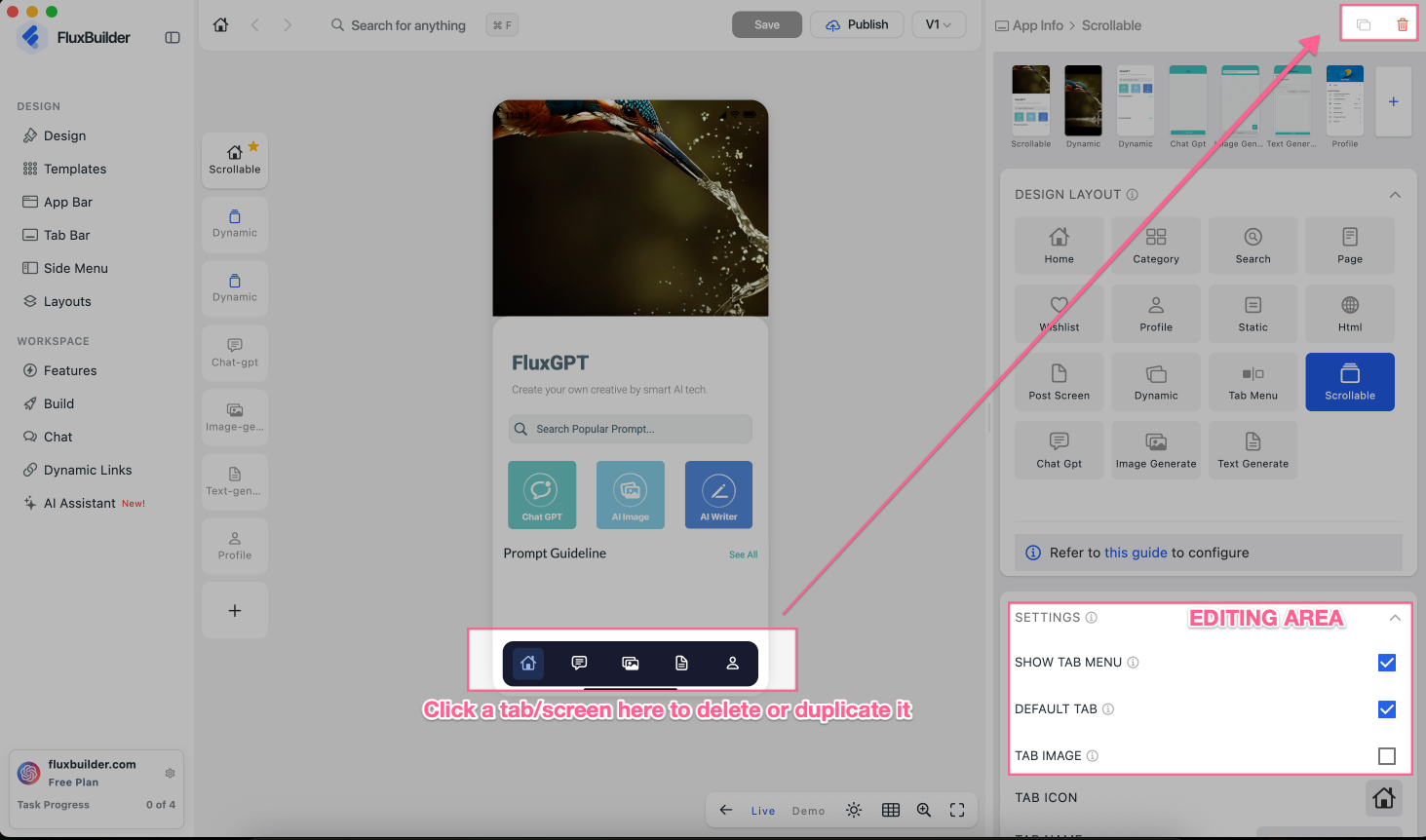
Step 3: Customize your app
Customize your app’s UI and features by drag-and-drop on FluxBuilder to create an experience that fits your needs.
👉 Learn how to customize your app
Step 4: Build Apps and Release
Once your app UI and features are ready, it’s time to build, test, and release your app.
- Generate Demo App for Free and test on phone.
- Build and Publish Apps on both Google Play and App Store.
🎉 You’re all set! Your app is ready to launch.
App Example
For example, you can check out this AI Assistant app as a reference:
https://play.google.com/store/apps/details?id=com.maktabahalbakri.alinarah&hl=en&gl=us
https://play.google.com/store/apps/details?id=com.alinarah.tadabburalquran&hl=en&gl=us