AI Document Search
AI Document Search lets the AI Chat Agent answer from your own documents, such as shipping, refund and support policies. You upload files once, and the agent looks up the right part when a shopper asks.
The workflow has three parts:
- Upload (you run it): a form where you upload PDF, CSV or Markdown files. Text is split into chunks, embedded with OpenAI and saved in the Supabase table
documents. CSV rows are also saved indocument_rows, so the agent can work with tables. - Knowledge Sub-Agent: the AI Chat Agent calls this workflow as a tool. A sub-agent inside it searches your documents and writes the answer.
- Search webhook: optional, if you want to search the documents from your own code.
It is an AI Chat Add-on and needs the Lifetime, Ultra or Professional plan, or an Extended license.
Requirements
| What | Used for |
|---|---|
| n8n (self-hosted recommended, or n8n Cloud) | Runs the upload, the sub-agent and the search |
| Supabase project | Stores the documents and their vectors |
| OpenAI API key | Creates embeddings and runs the Knowledge Sub-Agent |
1. Download and import the workflow
In FluxBuilder, go to Features > AI Chat Add-ons.
Next to AI Document Search, click DOWNLOAD WORKFLOW.
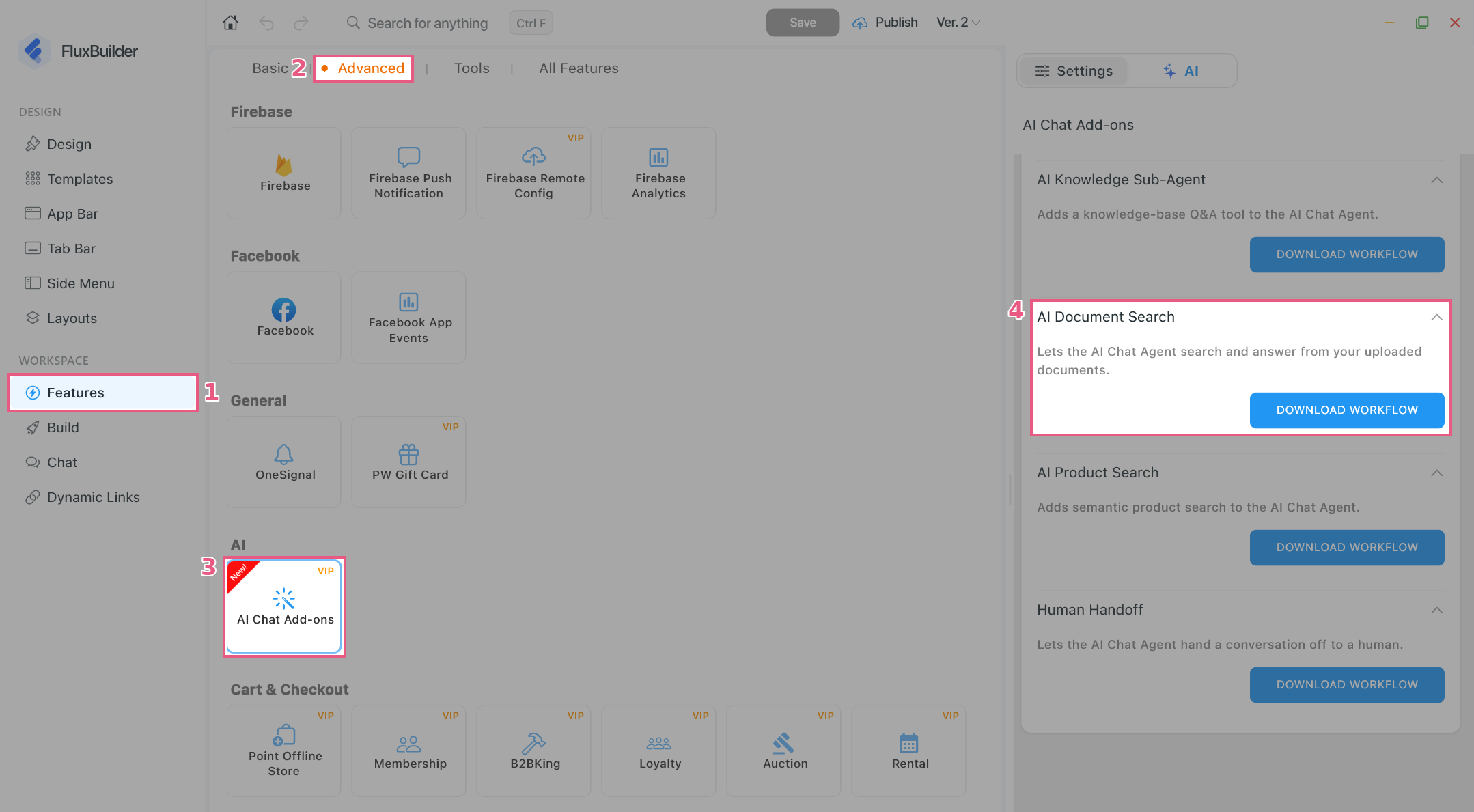
In n8n, open Workflows > Create > Import from File and pick the downloaded JSON.
2. Set the credentials
| Credential | Nodes |
|---|---|
| Postgres (Supabase Connect > Session pooler values) | The three Create ... table nodes, the insert and schema nodes, and the agent's Postgres tools |
| Supabase API (project URL and Service Role Secret) | The Supabase Vector Store nodes and the two Delete Old ... nodes |
| OpenAI | The Embeddings OpenAI nodes, OpenAI Chat Model and Chat Model Fallback |
Header Auth, name x-api-key | Search documents (only needed for the webhook) |
3. Create the Supabase tables
Click Execute workflow on the trigger When clicking 'Execute workflow'. It creates:
documents: text chunks and their vectors, with thematch_documentsfunctiondocument_metadata: one row per uploaded filedocument_rows: the rows of uploaded CSV files
Running it again is safe. The SQL uses vector(1536), which matches OpenAI text-embedding-3-small.
The SQL also turns on Row Level Security, so the public anon key cannot read or change these tables. n8n is not affected: it uses the Postgres credential and the Service Role Secret.
4. Upload your documents
- Save the workflow and click Publish.
- Open the trigger Upload your file here and open its Production URL in your browser.
- Upload one or more
.pdf,.csvor.mdfiles, then submit. - Check the run in Executions.
To update a document, upload the new version with the same file name. It replaces the old copy. A file with a different name is added as a new document.
5. Connect it to the AI Chat Agent
- Open your AI Chat Agent workflow and the tool node Knowledge Sub-Agent [RAG].
- In Workflow, select the Document Search workflow you imported, then publish the AI Chat Agent again.
- Ask the chat a question that only your documents answer, for example "How long do refunds take?"
Update from an older workflow
Download and import the workflow again, then set the credentials.
Run step 3 again. It keeps your data and turns on Row Level Security.
Files uploaded with the older workflow are not replaced when you upload them again. Delete each old copy once in Supabase SQL Editor, then upload the file again:
delete from documents where metadata->>'file_name' = 'refund-policy.pdf';
-- CSV files also have rows and a metadata entry
delete from document_rows where dataset_id in
  (select id from document_metadata where title = 'refund-policy.pdf');
delete from document_metadata where title = 'refund-policy.pdf';
In AI Chat Agent, point Knowledge Sub-Agent [RAG] to the new workflow, then turn off the old one.
Search webhook (optional)
The node Search documents answers GET requests:
curl "<https://your-n8n.example.com/webhook/v1/search_documents?s=refund%20policy>" \
  -H "x-api-key: your-secret-value"
The answer is a JSON object with a response array of the closest text chunks and their scores.
Troubleshooting
| Problem | Fix |
|---|---|
type "extensions.vector" does not exist | You are running the old SQL. Run step 3 from the latest workflow |
| The form page does not open | Publish the workflow, and use the Production URL, not the Test URL |
| The agent answers without using your documents | Check that Knowledge Sub-Agent [RAG] points to your imported workflow |
| Old answers after you changed a file | Upload the new version with the same file name. For files uploaded with an older workflow, see Update from an older workflow |
permission denied or empty results after the update | The Supabase API credential uses the anon key. Use the Service Role Secret |