AI Product Sub-Agent
AI Product Sub-Agent lets the AI Chat Agent answer product questions with live data from your store: name, price, description, image and link. A shopper can also send a photo to find similar products.
The AI Chat Agent calls this workflow as a tool. A sub-agent inside it picks the right store API and writes the answer.
It works with WooCommerce, Dokan, WCFM and Shopify. It is an AI Chat Add-on and needs the Lifetime, Ultra or Professional plan, or an Extended license.
Requirements
| What | Used for |
|---|---|
| AI Chat Agent | Calls this workflow |
| OpenAI API key | Runs the sub-agent |
WooCommerce REST API key (Read), or Shopify Admin API access token (read_products) | Reads your products |
| AI Product Search (optional, Shopify only) | Finds products by meaning |
| Product Image Search (optional) | Finds products by photo |
1. Download and import the workflow
In FluxBuilder, go to Features > AI Chat Add-ons.
Next to AI Product Sub-Agent, click DOWNLOAD WORKFLOW. You get the template for your app's platform.
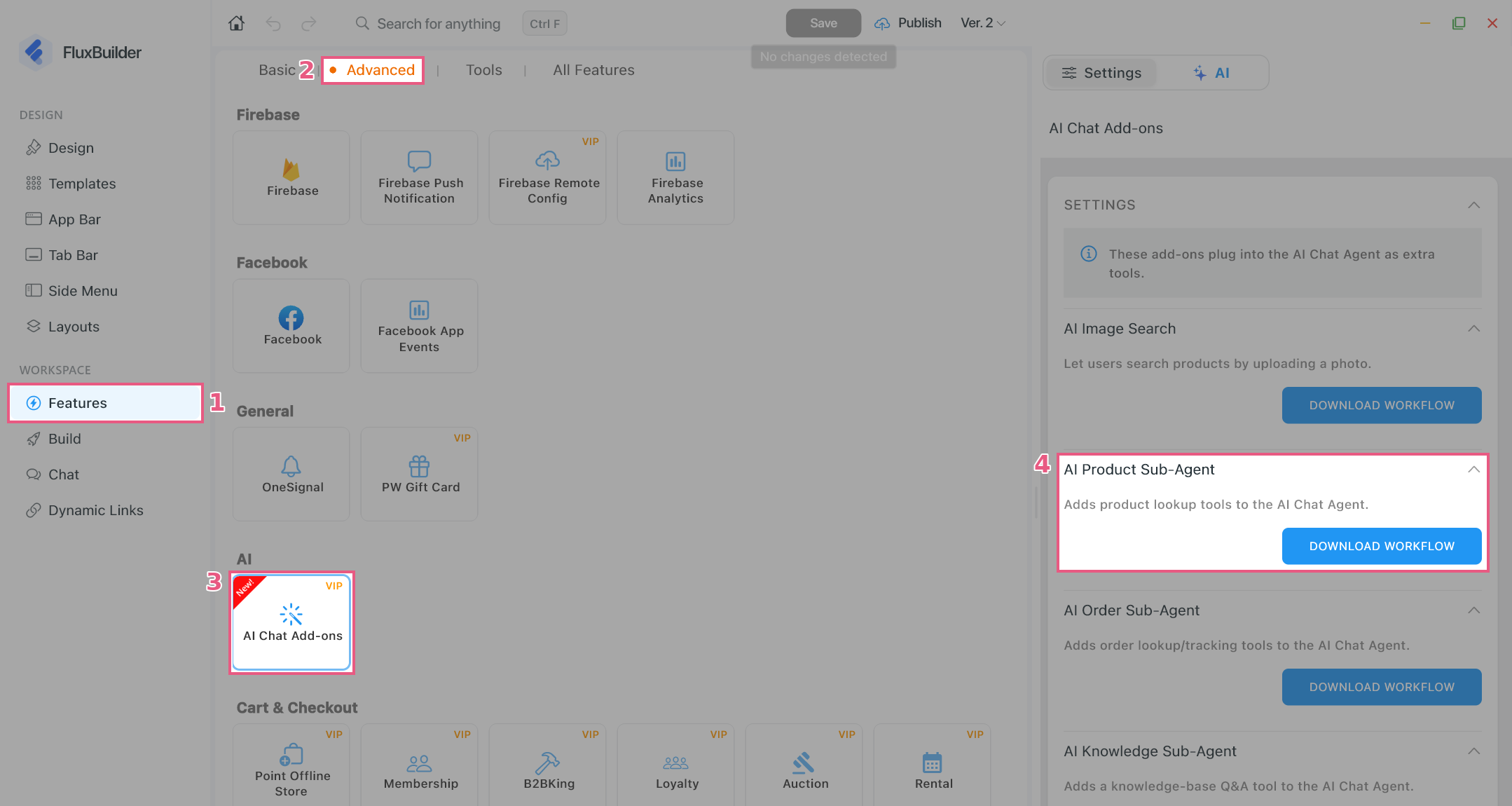
In n8n, open Workflows > Create > Import from File and pick the downloaded JSON.
2. Set the credentials
| Node | Credential |
|---|---|
| OpenAI Chat Model, Chat Model Fallback | OpenAI |
| Get many products - WooCommerce, Get a product - WooCommerce | WooCommerce API |
| Get a product by product ID - Shopify, Get many products - Custom API - Shopify | Shopify Access Token API |
Pick a model your OpenAI account can use in both model nodes.
Nodes that are not connected, such as MCP Client or Get Product Content from products Table, need no credential. You can delete them.
3. Shopify only: set your store URL
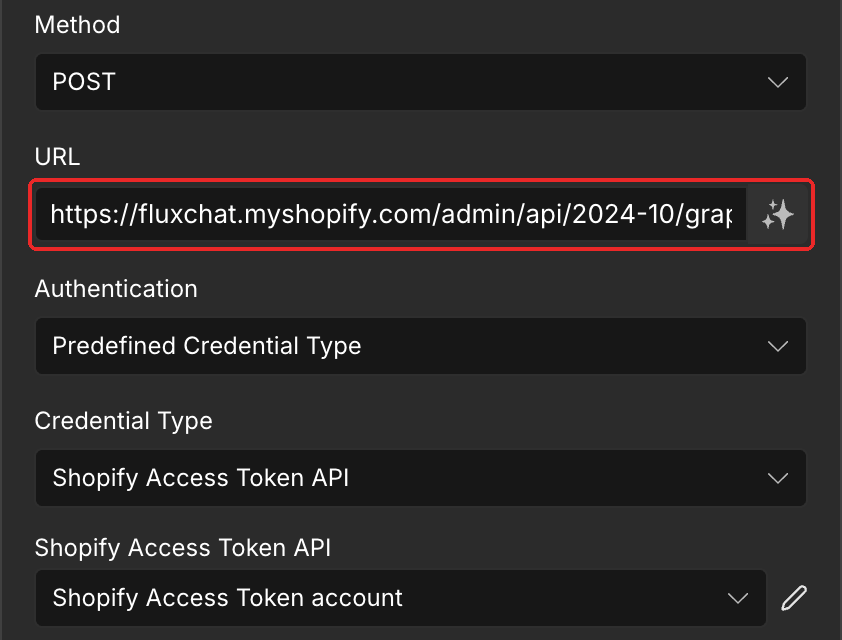
The node Get many products - Custom API - Shopify calls a sample store. Open it and change URL to your own store:
<https://your-store.myshopify.com/admin/api/2024-10/graphql.json>
4. Connect the search add-ons
The sub-agent can call two search workflows as tools. Import them first, then point each tool node to your copy:
| Tool node | Add-on workflow | Platform |
|---|---|---|
| Image search products | Product Image Search | All |
| RAG - search for Products | AI Product Search | Shopify |
- Open the tool node.
- In Workflow, select the add-on workflow you imported.
If you do not use an add-on, delete its tool node.
The WooCommerce template does not use RAG - search for Products or MCP Client yet. It searches with the WooCommerce API, so leave them as they are.
5. Connect it to the AI Chat Agent
- Save the workflow and click Publish.
- Open your AI Chat Agent workflow and the tool node Product Sub-Agent.
- In Workflow, select the Product Sub-Agent workflow you imported, then publish the AI Chat Agent again.
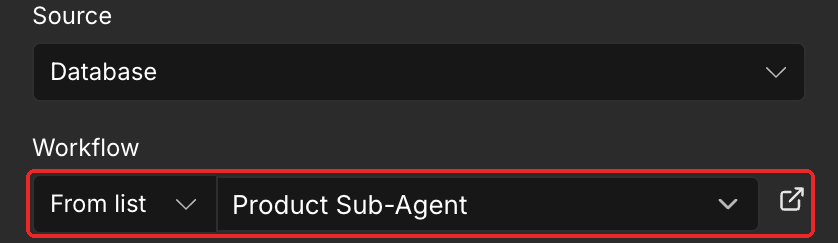
The AI Chat Agent passes the shopper's question and your store platform. The sub-agent uses the platform to pick the WooCommerce or Shopify tools.
Troubleshooting
| Problem | Fix |
|---|---|
| The agent says it cannot find any product | Check the WooCommerce or Shopify credential, then test the node with Execute step |
| Shopify products come from another store | Change the URL in Get many products - Custom API - Shopify |
| Searching by photo does nothing | Point Image search products to your Product Image Search workflow |
| The agent never uses Product Search | Shopify: point RAG - search for Products to your Product Search workflow. WooCommerce does not use it yet |
| The AI Chat Agent never calls this workflow | In AI Chat Agent, check that Product Sub-Agent points to this workflow |