AI Product Search
AI Product Search lets the AI Chat Agent find products by meaning, not only by keyword. A shopper can ask "a warm jacket for hiking" and the agent gets the closest products from your store.
The workflow has two parts:
- Sync (you run it): reads your published products from WooCommerce or Shopify, creates a text embedding of each product with OpenAI and saves it in the Supabase table
products. - Search: on Shopify, the AI Product Sub-Agent calls this workflow as a tool. The WooCommerce sub-agent does not use it yet. A webhook is also available if you want to call the search from your own code.
It is an AI Chat Add-on and needs the Lifetime, Ultra or Professional plan, or an Extended license.
Requirements
| What | Used for |
|---|---|
| n8n (self-hosted recommended, or n8n Cloud) | Runs the sync and the search |
| Supabase project | Stores the product vectors |
| OpenAI API key | Creates text embeddings |
WooCommerce REST API key (Read), or Shopify Admin API access token (read_products) | Reads your products |
1. Download and import the workflow
In FluxBuilder, go to Features > AI Chat Add-ons.
Next to AI Product Search, click DOWNLOAD WORKFLOW.
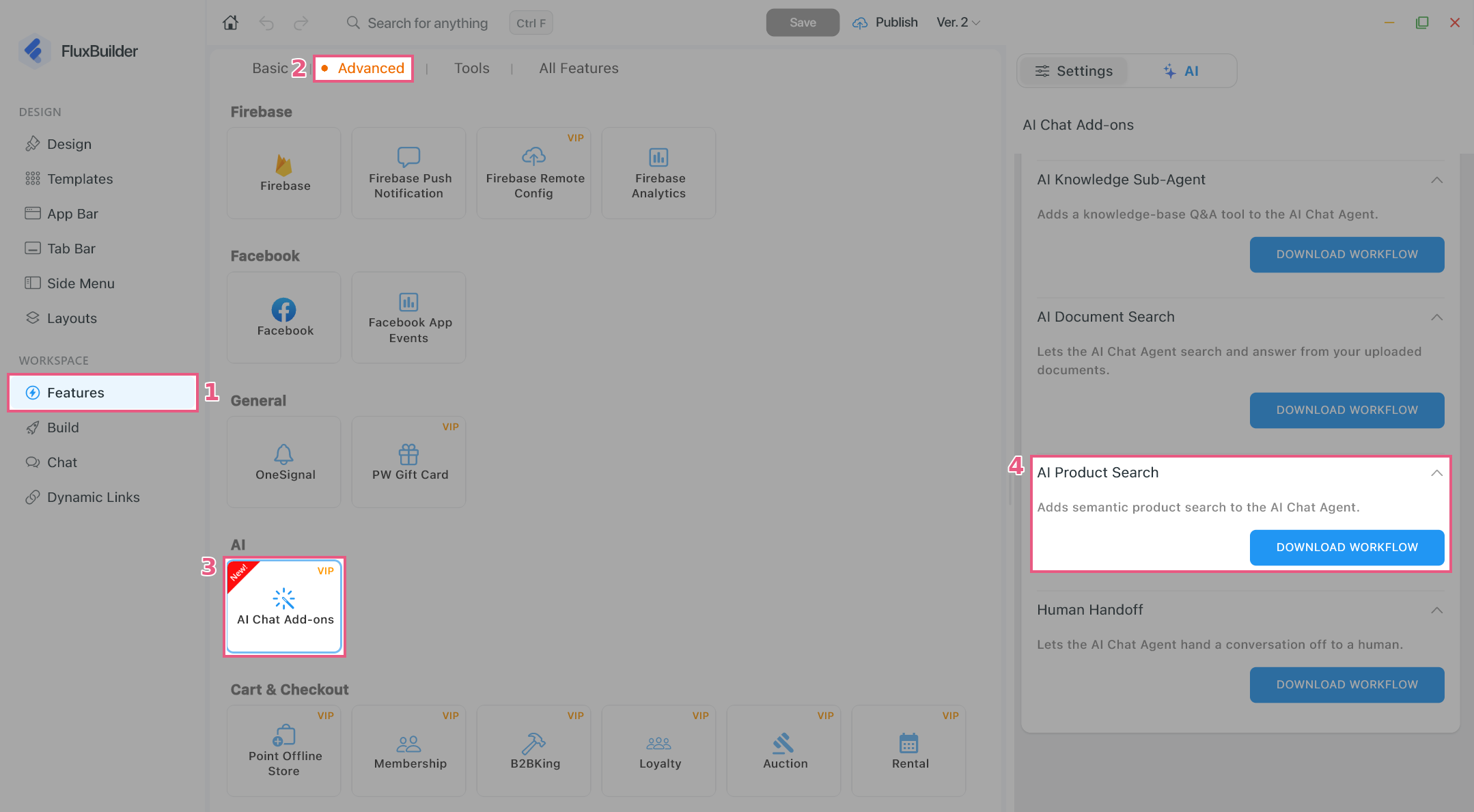
In n8n, open Workflows > Create > Import from File and pick the downloaded JSON.
2. Set the credentials
| Node | Credential |
|---|---|
| Create Products Table and Match Function, Get old products | Postgres (Supabase Connect > Session pooler values) |
| Supabase Vector Store, Supabase Vector Store - Products, Delete old products | Supabase API (project URL and Service Role Secret) |
| Embeddings OpenAI, Embeddings OpenAI2 | OpenAI |
| Woo HTTP Request or Shopify HTTP Request | WooCommerce API or Shopify Access Token API |
| Search products | Header Auth, name x-api-key (only needed for the webhook) |
You only need the credential of your own platform. If n8n will not publish the workflow because the other platform's node has no credential, disable that node.
3. Create the Supabase table
- Open the node Create Products Table and Match Function.
- Click Execute step.
It creates the products table, an index on product_id and the match_products function. Running it again is safe. The SQL uses vector(1536), which matches OpenAI text-embedding-3-small. If you change the embedding model, change 1536 to its size.
The SQL also turns on Row Level Security, so the public anon key cannot read or change the table. n8n is not affected: it uses the Postgres credential and the Service Role Secret.
4. Sync your products
Open the node Set Parameters and fill in:
Field Value platformwoo,dokan,wcfmorshopifywebsiteUrlYour store URL without a trailing slash productPerCallProducts per page, default 10(WooCommerce allows up to100)delaySecondsForEachAPIRequestSeconds to wait between pages, default 3maxExecutionsNumber of pages to sync. The template uses 3for testing. Clear it to sync all productsClick Execute workflow.
Check the result in Supabase SQL Editor:
select count(distinct metadata->>'product_id') as products_indexed
from products;
Running the sync again is safe. Unchanged products are skipped, and changed products (name, price, description, status or stock) are indexed again. To keep the index fresh, add a Schedule Trigger and connect it to Set Parameters.
5. Connect it to the AI Chat Agent
Shopify only. On WooCommerce, the sub-agent searches with the WooCommerce API, so only publish the workflow.
- Save the workflow and click Publish.
- Open your Product Sub-Agent workflow and the tool node RAG - search for Products.
- In Workflow, select the Product Search workflow you imported, then publish the Product Sub-Agent again.
See AI Product Sub-Agent to set up the sub-agent.
Search webhook (optional)
The node Search products answers GET requests:
curl "<https://your-n8n.example.com/webhook/v1/search_products?s=warm%20jacket&limit=4>" \
  -H "x-api-key: your-secret-value"
| Query | Meaning |
|---|---|
s | The search text |
limit | Maximum products to return, default 4 |
The answer is a JSON object with a response array of the closest products and their scores.
Update from an older workflow
- Download and import the workflow again, then set the credentials.
- Run Create Products Table and Match Function again. It keeps your data and turns on Row Level Security.
- Run the sync once. WooCommerce products are indexed again one time, so their stock status is correct.
- Shopify: in Product Sub-Agent, point RAG - search for Products to the new workflow, then turn off the old one.
Troubleshooting
| Problem | Fix |
|---|---|
type "extensions.vector" does not exist | You are running the old SQL. Run the setup node from the latest workflow |
permission denied or empty results after the update | The Supabase API credential uses the anon key. Use the Service Role Secret |
| Sync stops after a few pages | Clear maxExecutions in Set Parameters |
| WooCommerce sync reads only one page | Keep productPerCall at 100 or lower |
| The agent does not find new products | Run the sync again, or add a Schedule Trigger |
| Products show as out of stock | Run the sync once with the latest workflow |