AI Knowledge Sub-Agent
AI Knowledge Sub-Agent lets the AI Chat Agent answer from pages in a Notion database, such as shipping, refund and support policies. Your team edits the pages in Notion, and the agent reads the latest version each time. There is nothing to sync.
The AI Chat Agent calls this workflow as a tool. A sub-agent inside it finds the right Notion page, reads it and writes the answer.
It is an AI Chat Add-on and needs the Lifetime, Ultra or Professional plan, or an Extended license.
Knowledge Sub-Agent or AI Document Search? Use this add-on for a small set of pages your team keeps up to date in Notion. Use AI Document Search for many or long PDF, CSV or Markdown files, which it searches by meaning.
Requirements
| What | Used for |
|---|---|
| AI Chat Agent | Calls this workflow |
| OpenAI API key | Runs the sub-agent |
| Notion workspace and an internal integration | Holds your pages |
1. Prepare the Notion database
- In Notion, create a database for your pages, one page per topic (for example "Shipping policy").
- Add a Select property named
Statuswith the optionPublished. - Set Status to
Publishedon each page the agent may use. - Create an internal integration at notion.so/profile/integrations and copy its secret.
- Open the database, click ... > Connections, and add your integration.
Pages without Published are ignored, so you can keep drafts in the same database.
2. Download and import the workflow
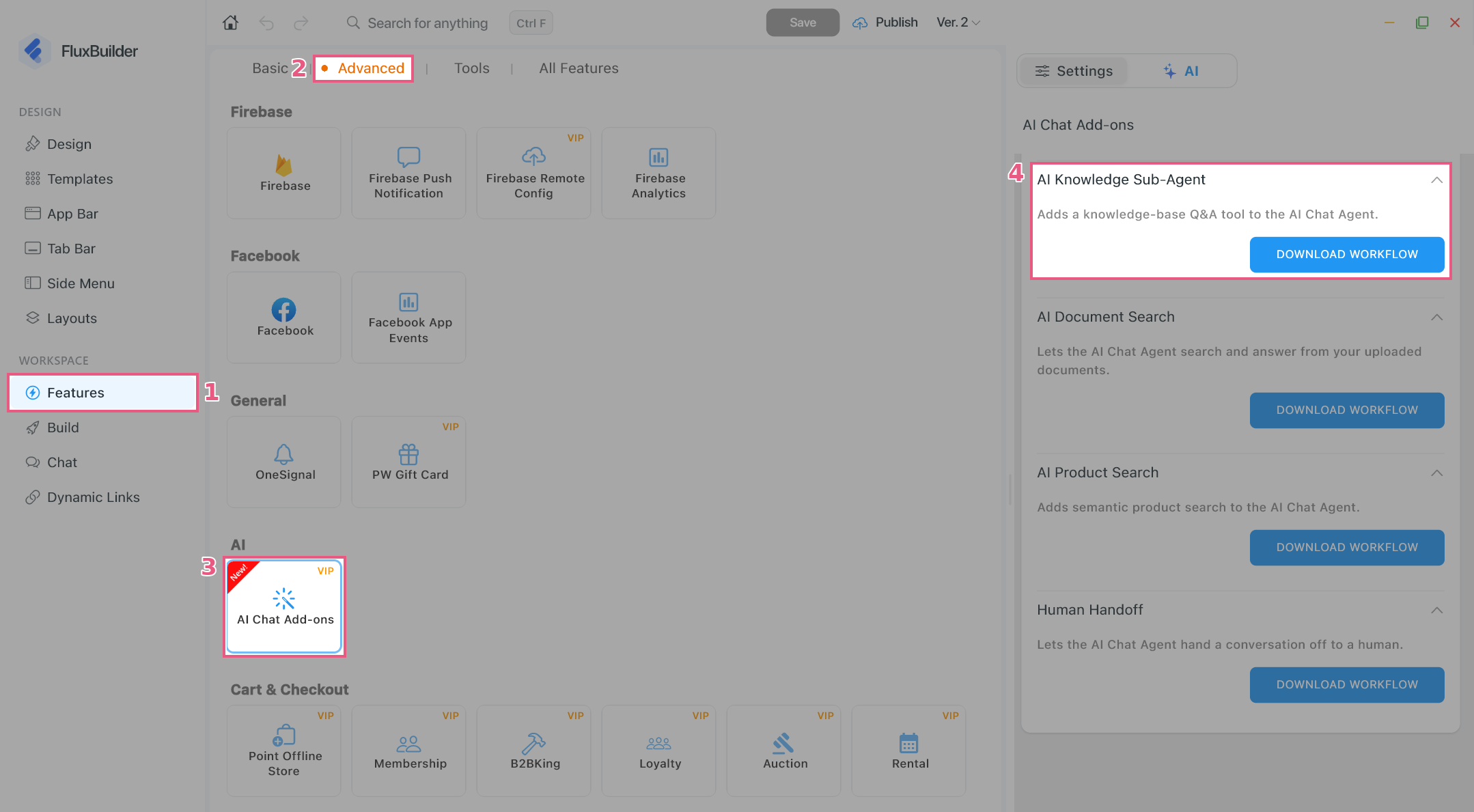
In FluxBuilder, go to Features > AI Chat Add-ons.
Next to AI Knowledge Sub-Agent, click DOWNLOAD WORKFLOW.
In n8n, open Workflows > Create > Import from File and pick the downloaded JSON.
3. Set the credentials
| Node | Credential |
|---|---|
| OpenAI Chat Model, Chat Model Fallback | OpenAI |
| Get many database pages in Notion, Get many child blocks in Notion | Notion API (the integration secret) |
Pick a model your OpenAI account can use in both model nodes.
4. Select your database
- Open the node Get many database pages in Notion.
- In Database, select your database from the list. The template points to a sample database you cannot reach.
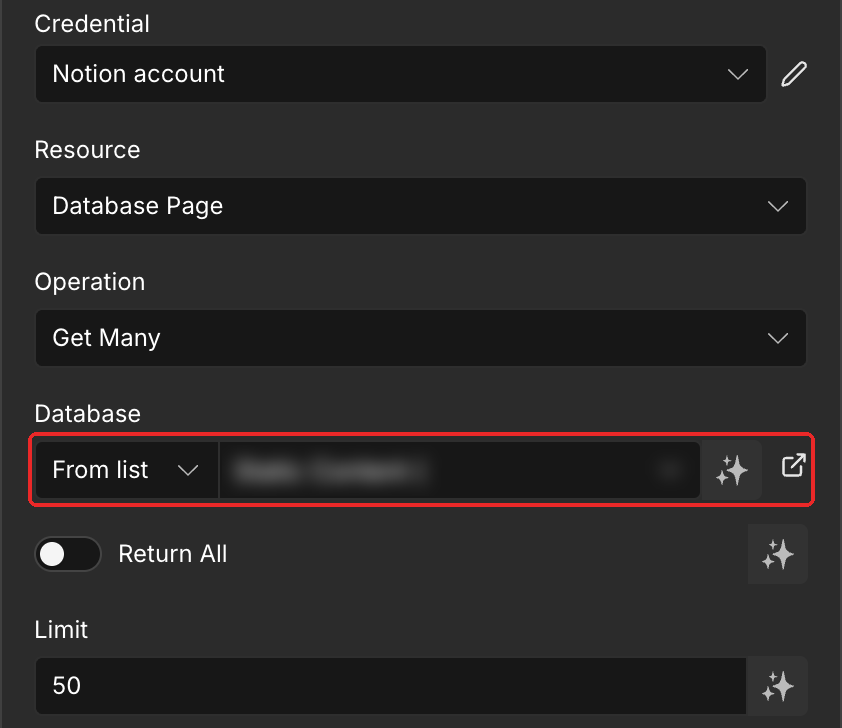
If your database is not in the list, it is not connected to your integration yet. Repeat step 1.5.
5. Connect it to the AI Chat Agent
- Save the workflow and click Publish.
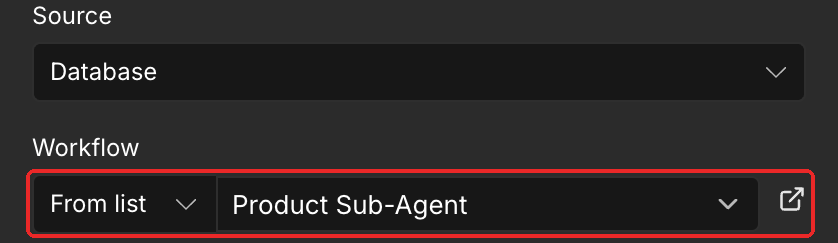
- Open your AI Chat Agent workflow and the tool node Knowledge Sub-Agent.
- In Workflow, select the Knowledge Sub-Agent workflow you imported.
- This tool node is not connected by default. Connect it to the agent's Tool input, then publish the AI Chat Agent again.
Test it
Open the Knowledge Sub-Agent workflow and click Open chat. Ask a question your pages answer, for example "How long does shipping take?".
Troubleshooting
| Problem | Fix |
|---|---|
Could not find database | Add your integration to the database (step 1.5), then select it again |
| The agent ignores a page | Set its Status to Published |
| A new page is not found | The sub-agent reads a limited number of pages, newest edits first. Archive old pages or merge small ones |
| The AI Chat Agent never calls this workflow | Connect Knowledge Sub-Agent to the agent's Tool input and select this workflow |