Version 2.6
Last updated: July 28th, 2026
FluxBuilder.com | MacOS | Windows | Web version | Guide | Support | Video | Affiliate
🚀 FluxBuilder 2.6 is our Biggest Update yet, featuring all App Templates available for FREE, beautiful new TabBar designs, powerful new Features, enhanced customization, an improved shopping experience, and greater flexibility for app creators.
(1) Easy macOS Installation 🚀
- Getting started on macOS is now easier than ever. Install FluxBuilder in just a few simple steps.
- Plus, FluxBuilder is easy to install on Windows, and the Web version lets you use it on any operating system.
(2) All Templates FREE ⭐
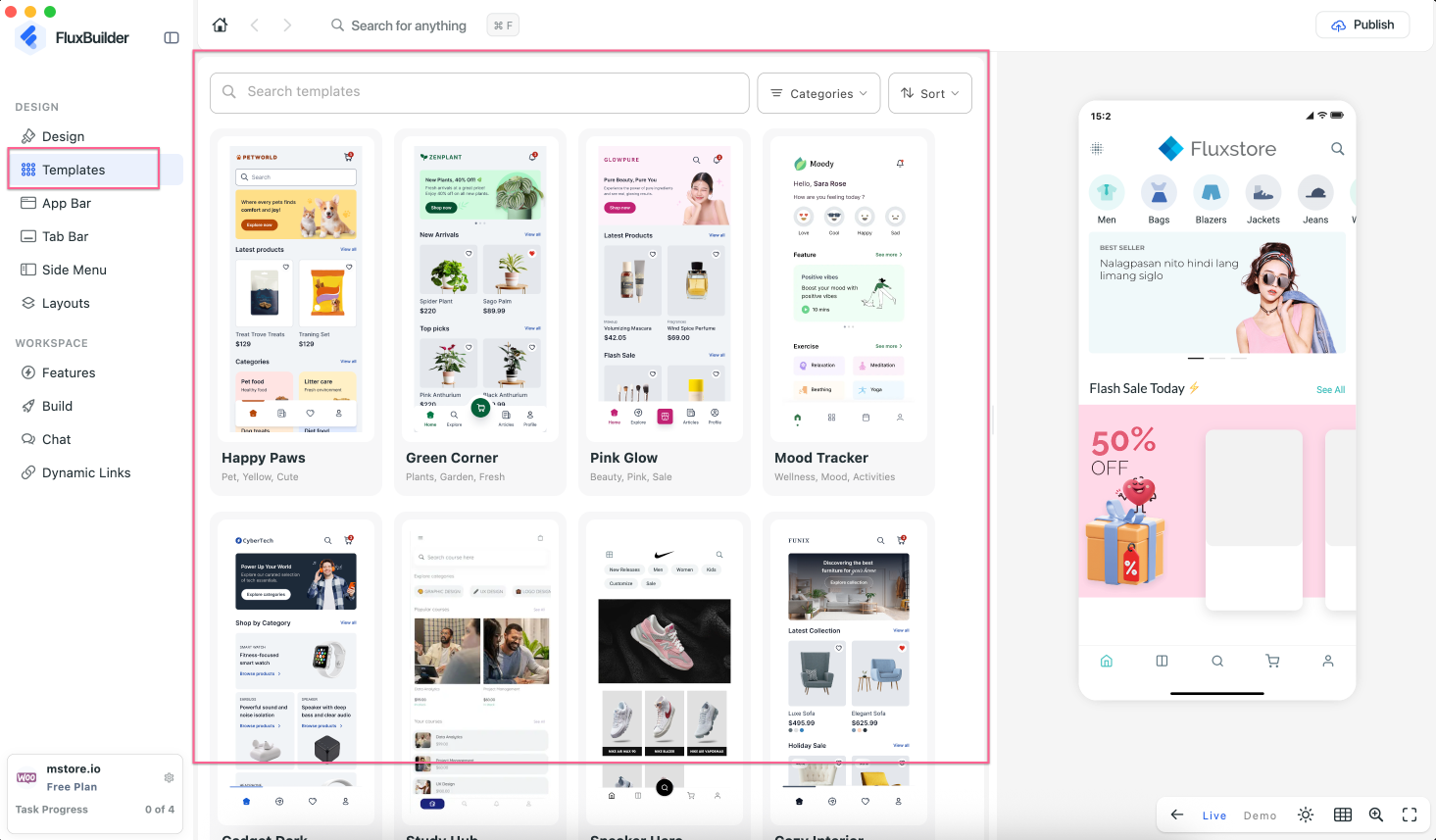
Access a wide collection of ready-to-use app templates. Available for FREE with FluxBuilder 2.6
(3) Minimize TabBar
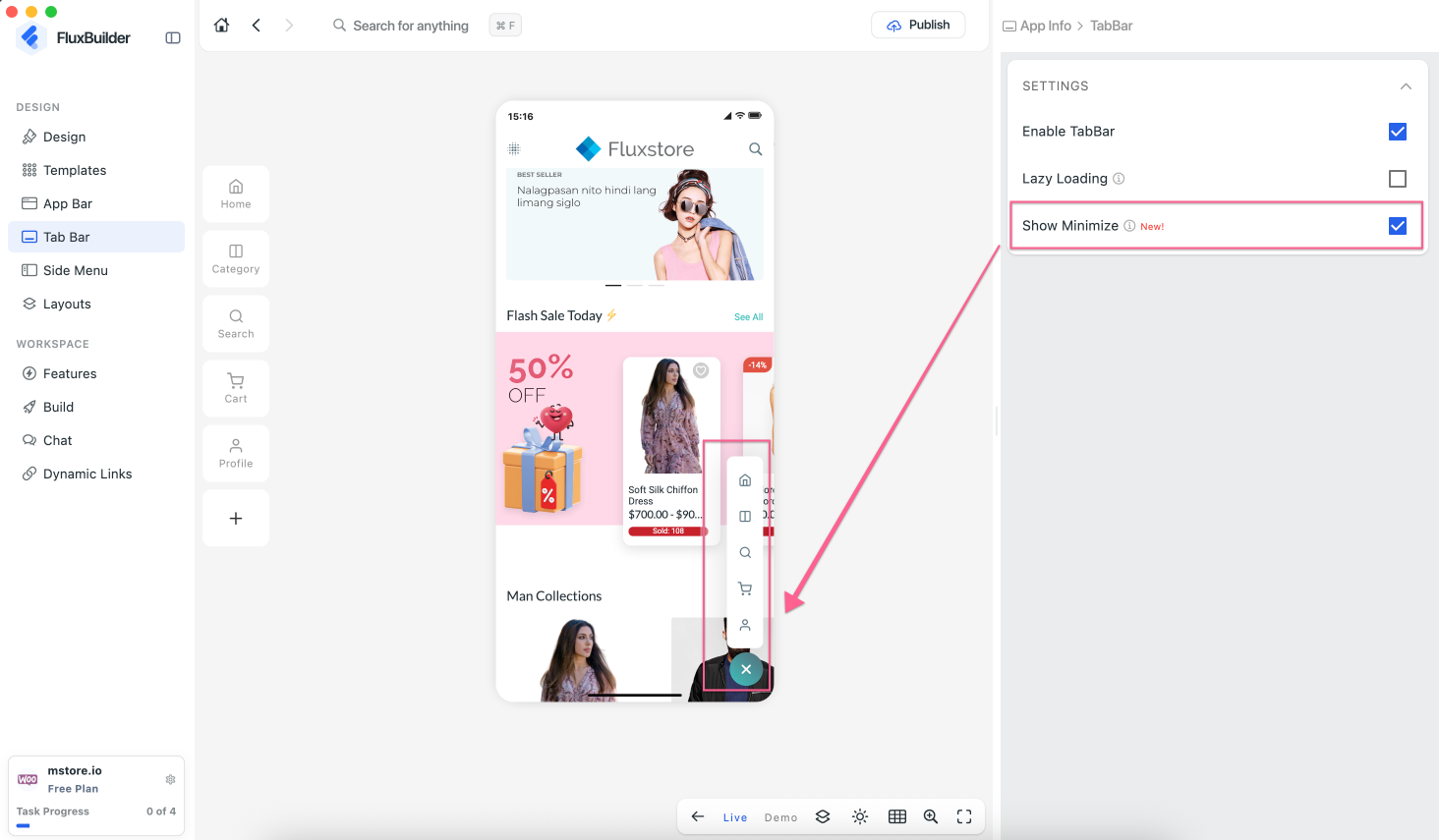
Allow users to minimize the bottom tab bar, providing more screen space for app content while maintaining quick access to navigation.
(4) Floating TabBar
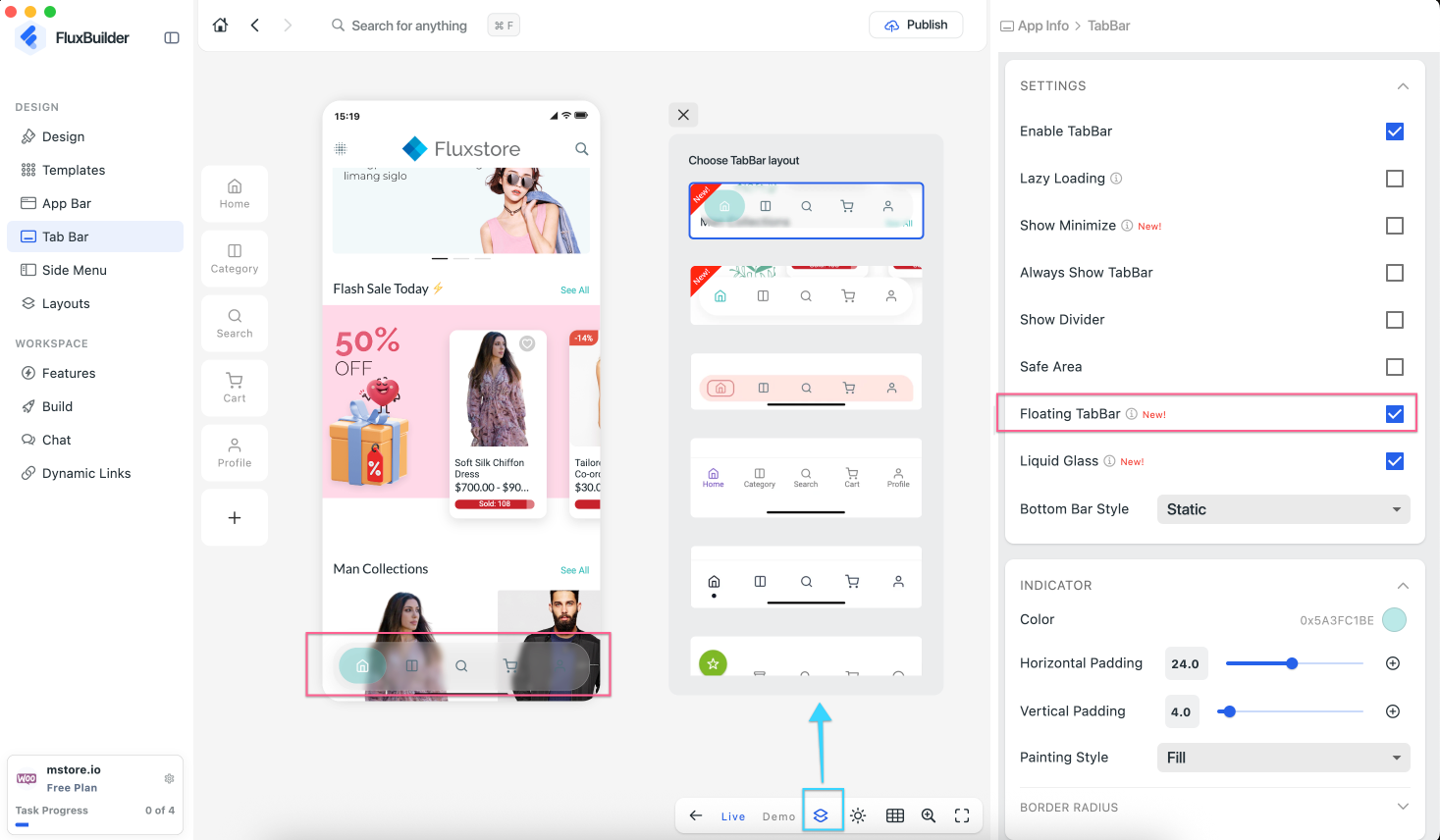
Introduce a floating tab bar style to create a cleaner and more modern app appearance.
(5) Liquid Glass TabBar
Add a Liquid Glass visual effect for the tab bar, giving your app a premium and contemporary look.
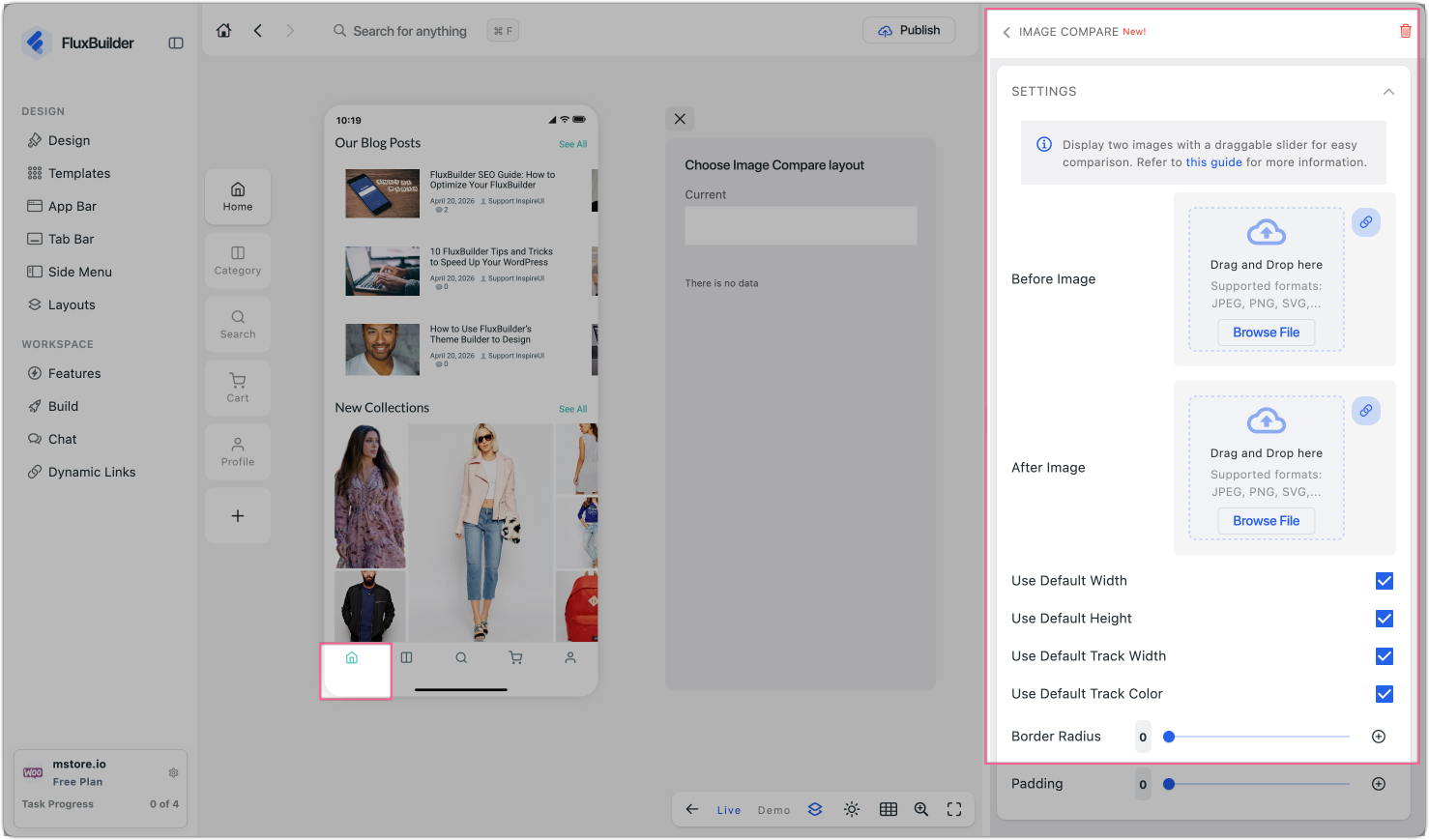
(6) Image Compare Widget 🎏
Add an Image Compare widget that allows customers to compare two images by dragging a slider, making it ideal for before-and-after showcases or product comparisons.
Tutorial: create app in FluxBuilder→ tap Home in the simulator → ADD NEW LAYOUT → select the Image Compare widget:
<ReactPlayer controls url="https://youtu.be/282bOphkj6U" />
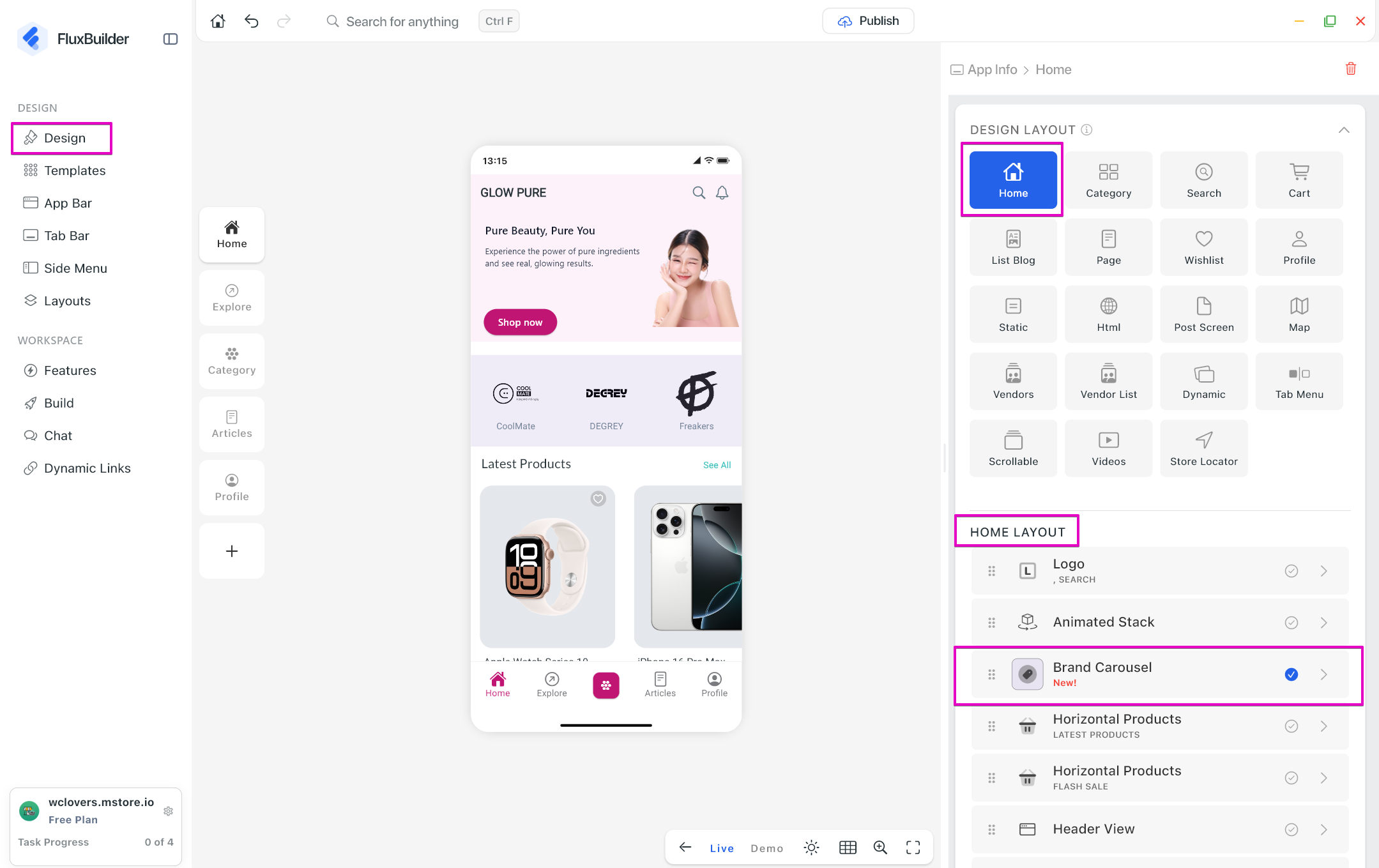
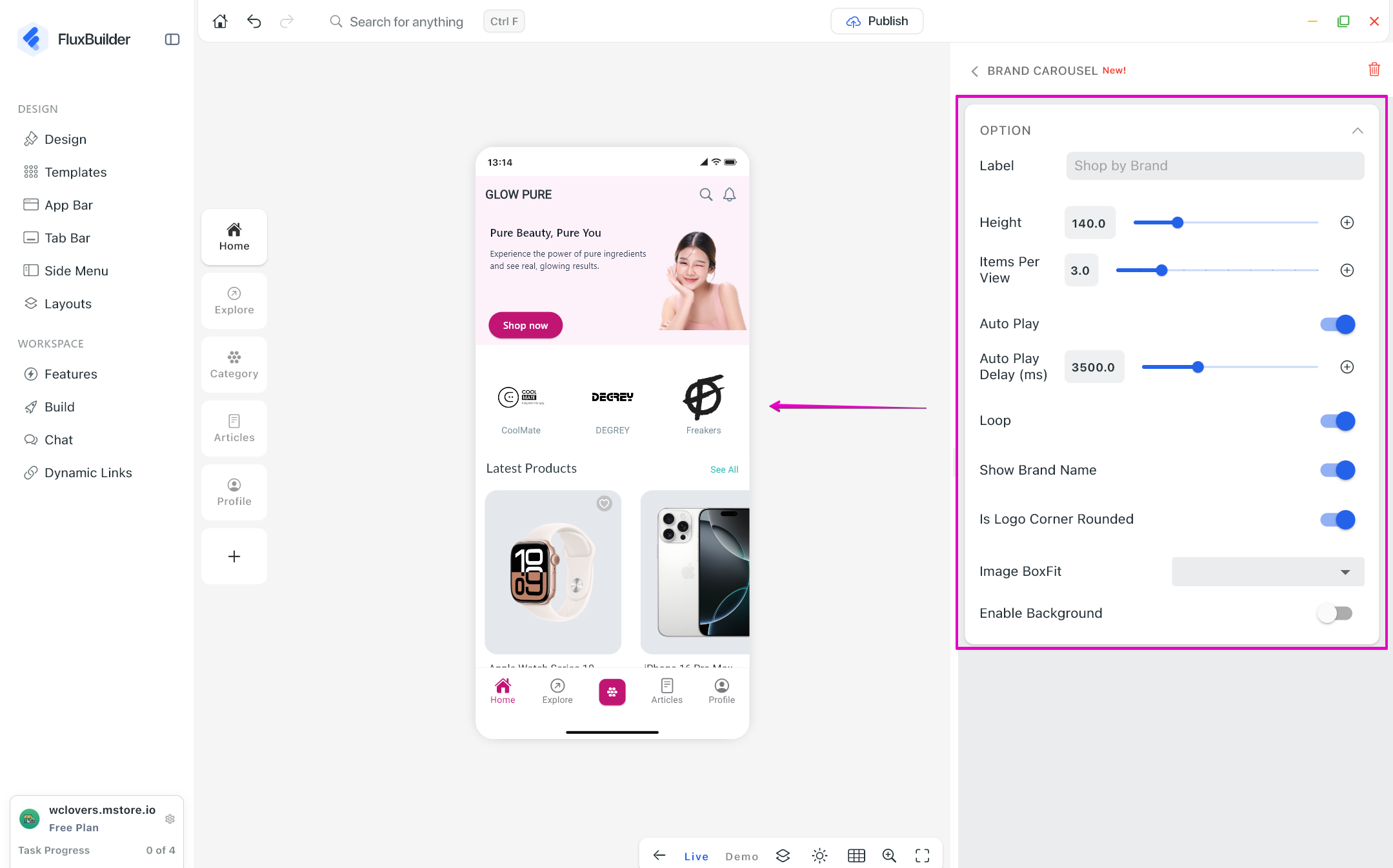
(7) Brand Carousel ✨
Display brands in a carousel layout, making it easier for customers to browse and discover products by brand.
(8) Videos 🎞️
Introduce a dedicated Videos layout to showcase video content within the Home layout in your app.
Easily add a video to play on Home by adding Youtube link, or direct video file url (mp4, m3u8,ect.).
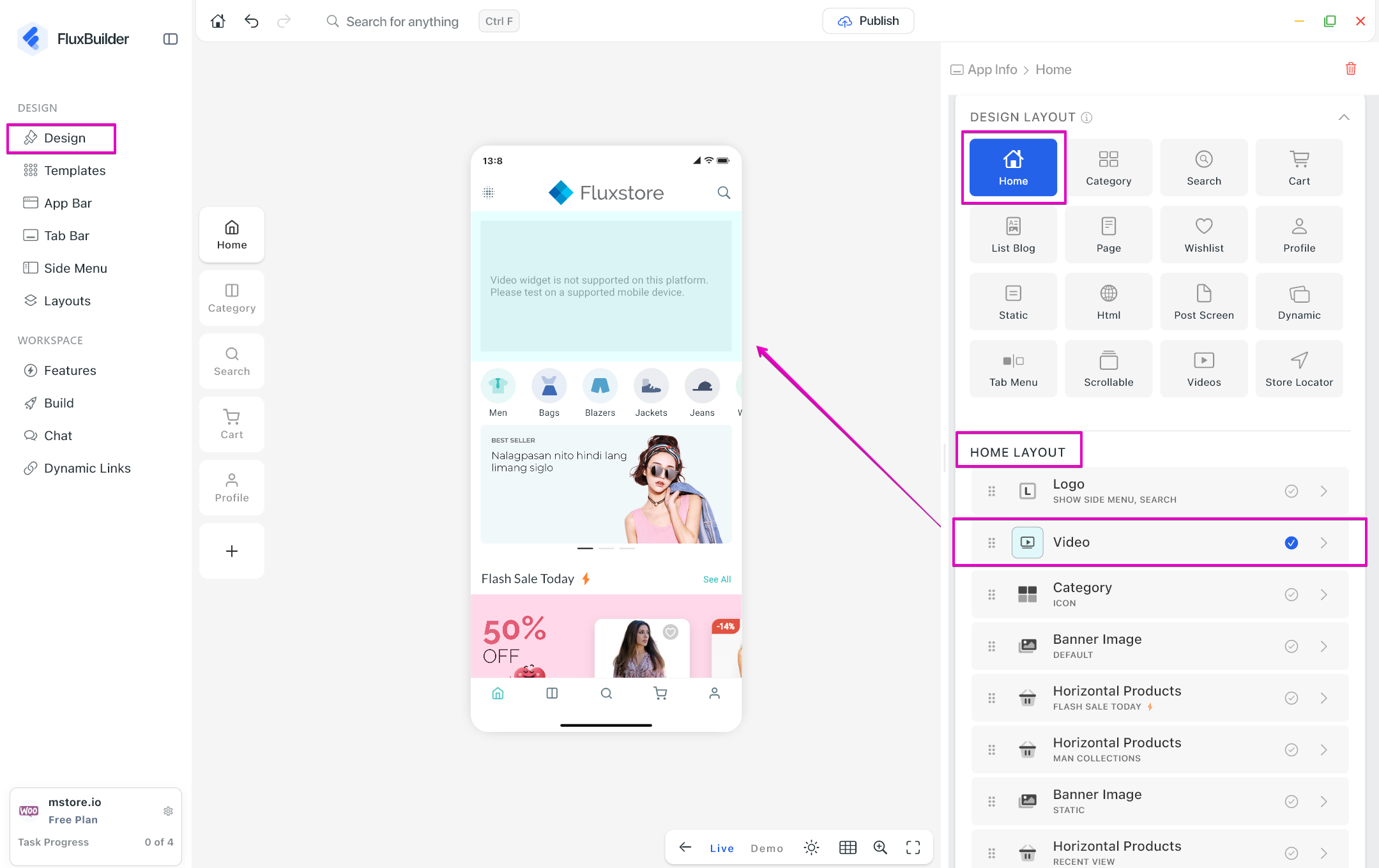
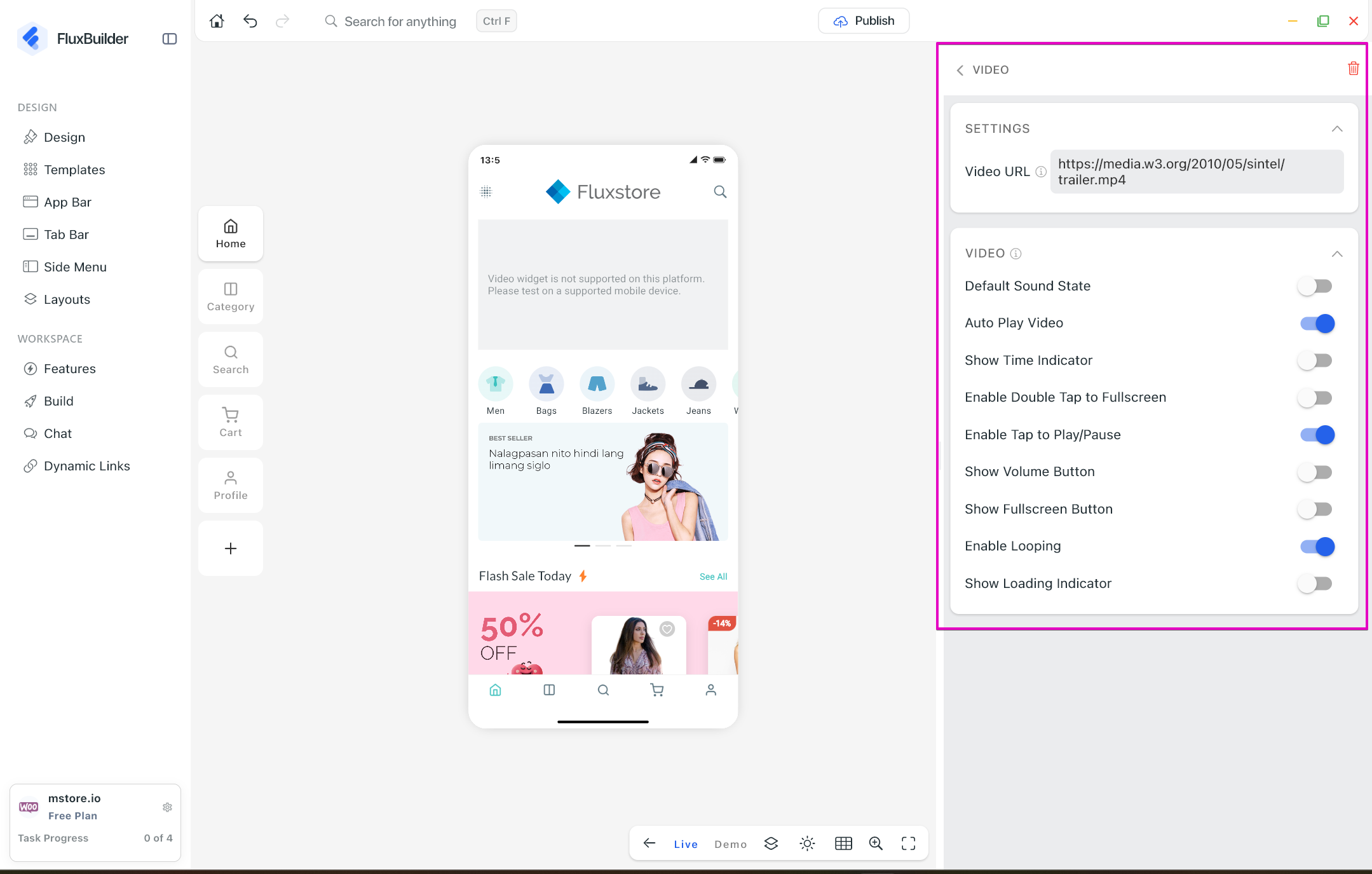
Note: the configurations in VIDEO are not applied for Youtube link.
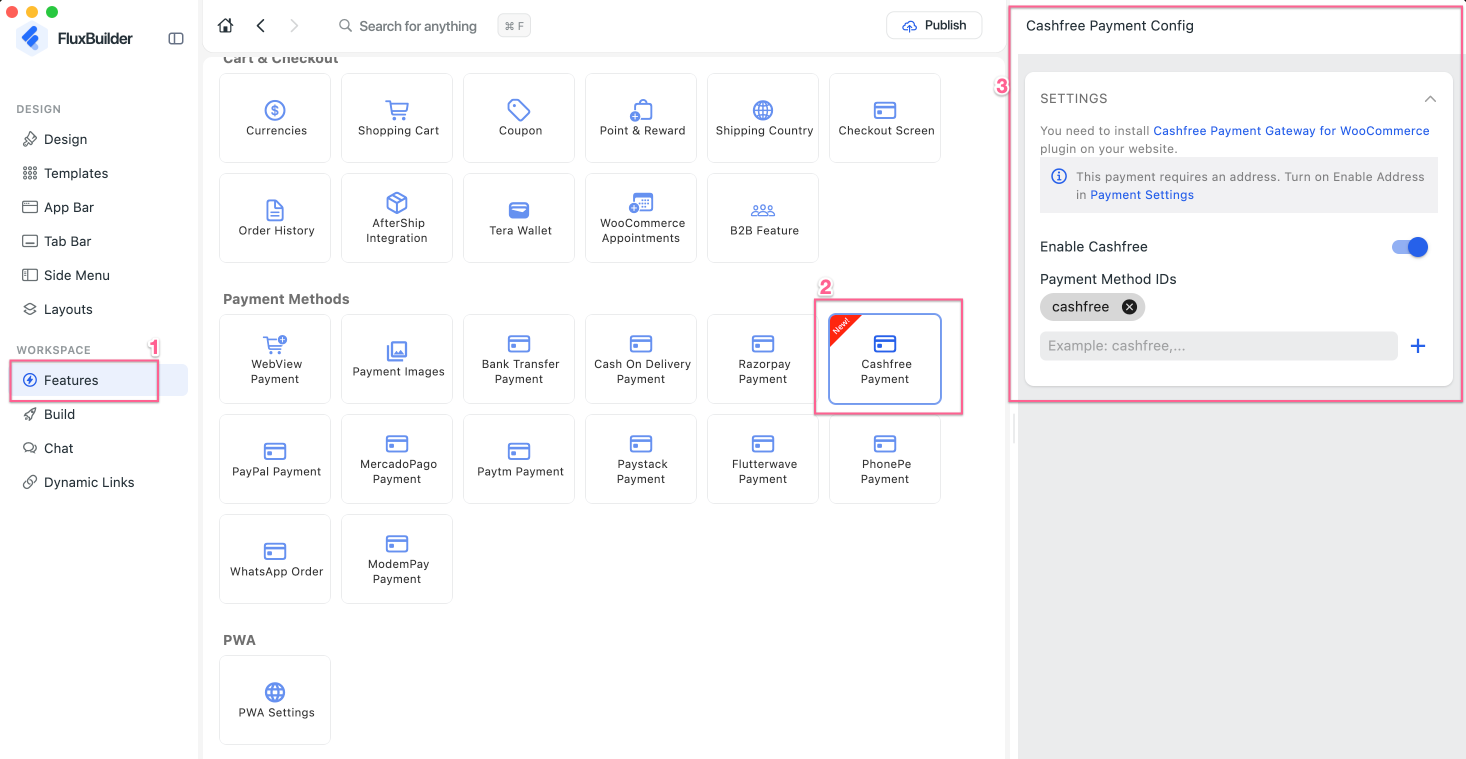
(9) Cashfree Payment
Add support for the Cashfree payment gateway, providing customers with an additional payment option during checkout.
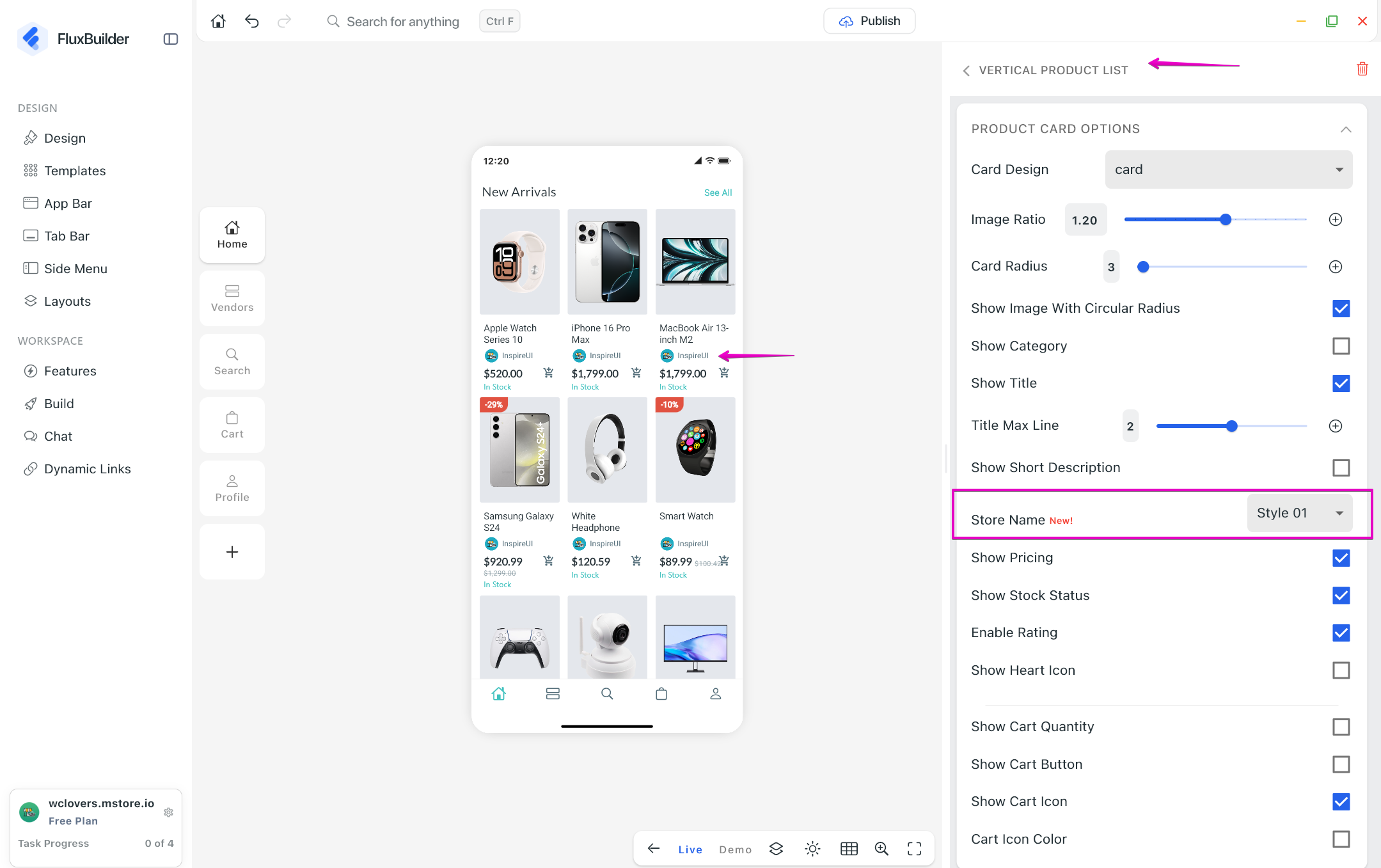
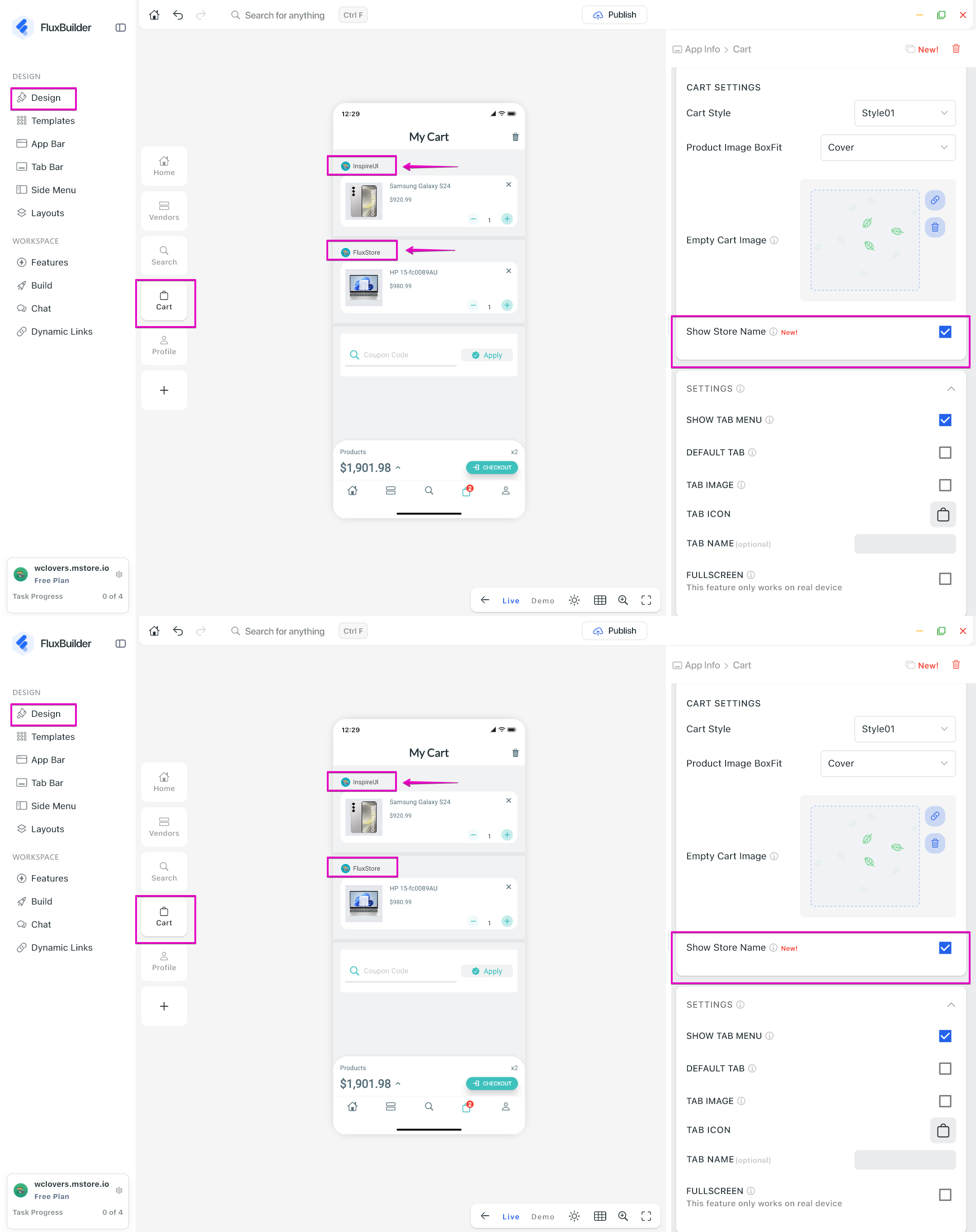
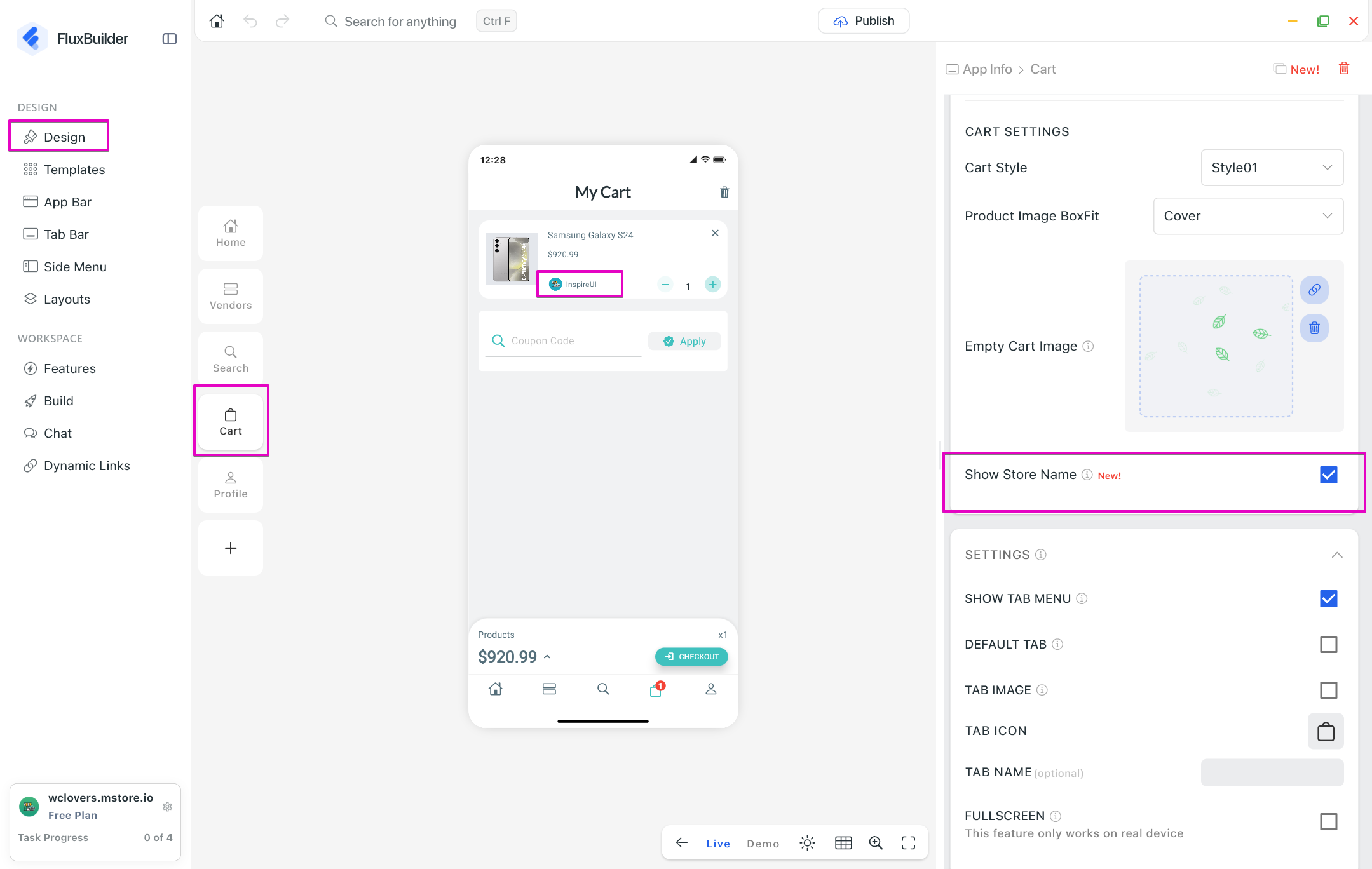
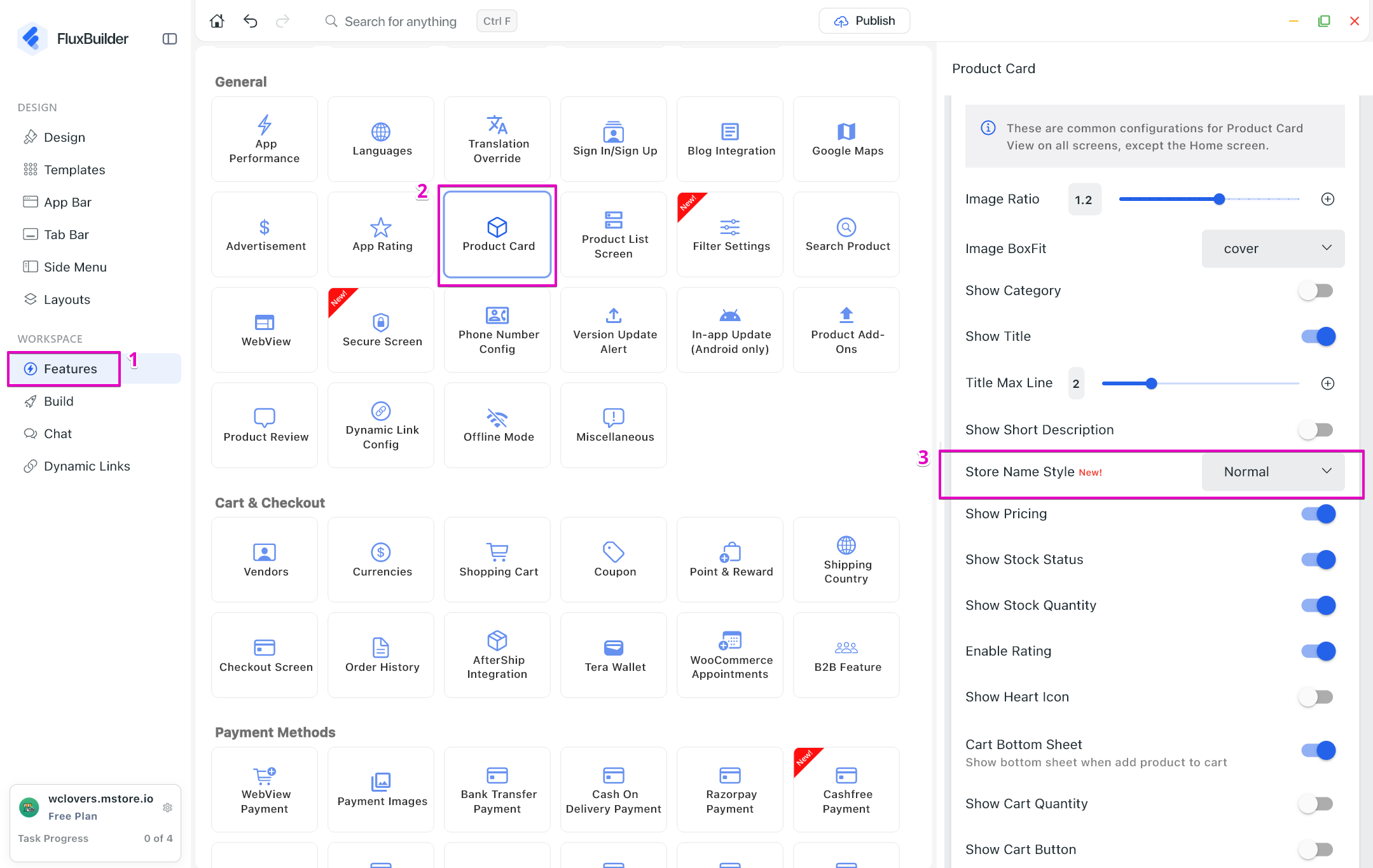
(10) Show Store Name
Display the store name on product card of Multi-Vendor app, helping customers easily identify product sellers.
The feature is located in:
- Design > Home > Horizontal Layout
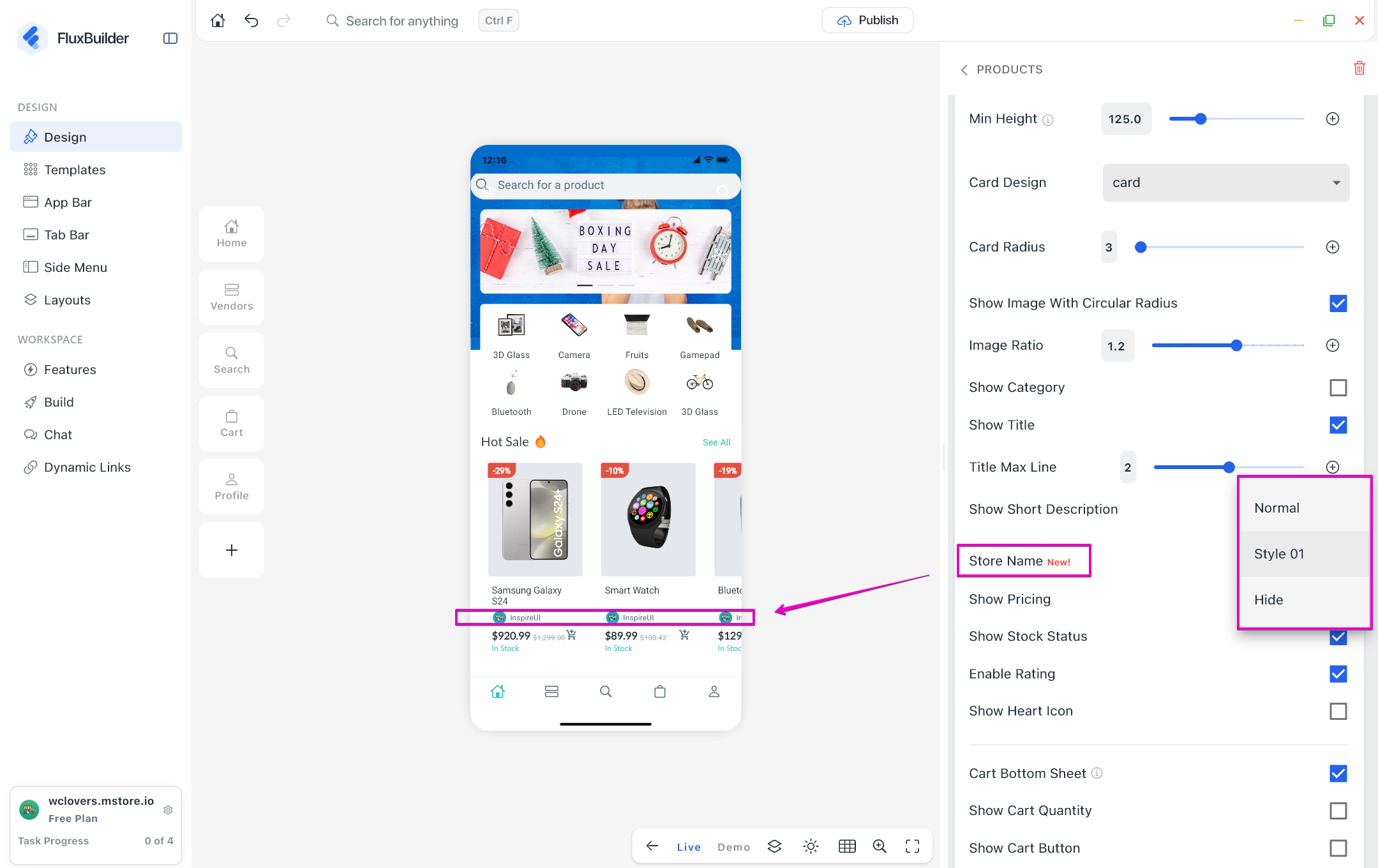
- Design > Home > Vertical Layout
- Design > Cart page
- Features > General > Product Cart
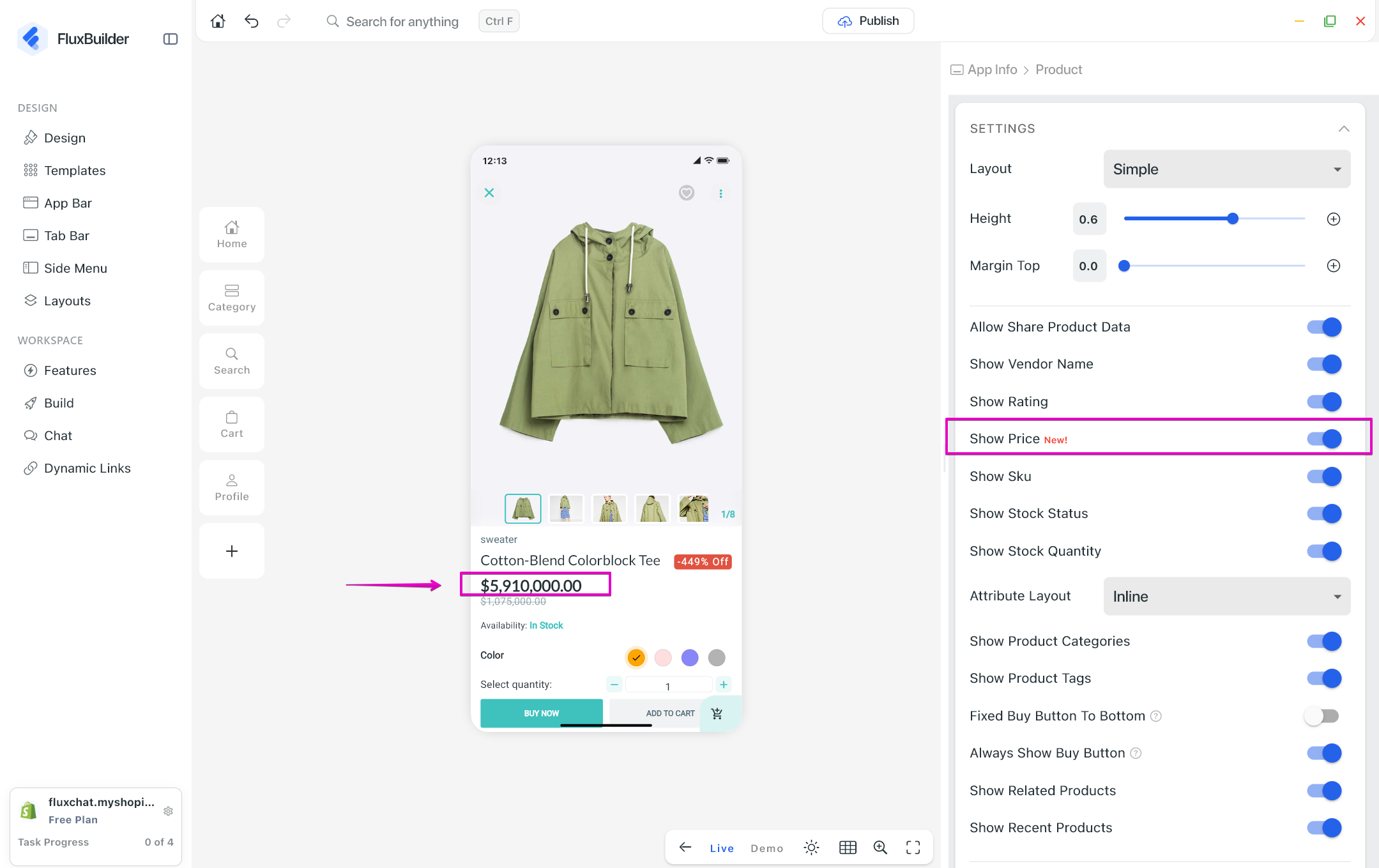
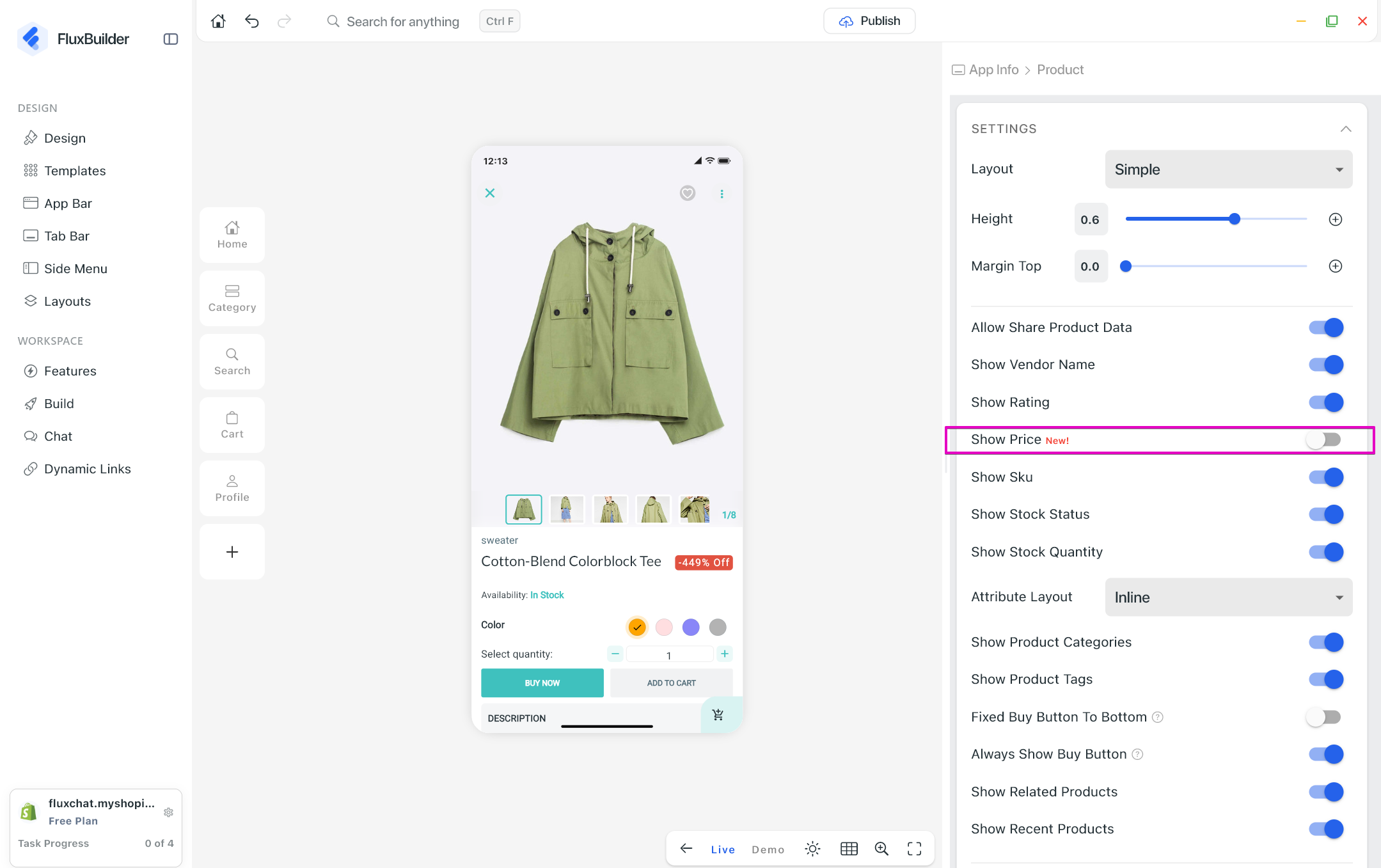
(11) Show Price 💵
Display product prices directly on the Product Detail page for better pricing visibility.
The feature is located in Product Detail:
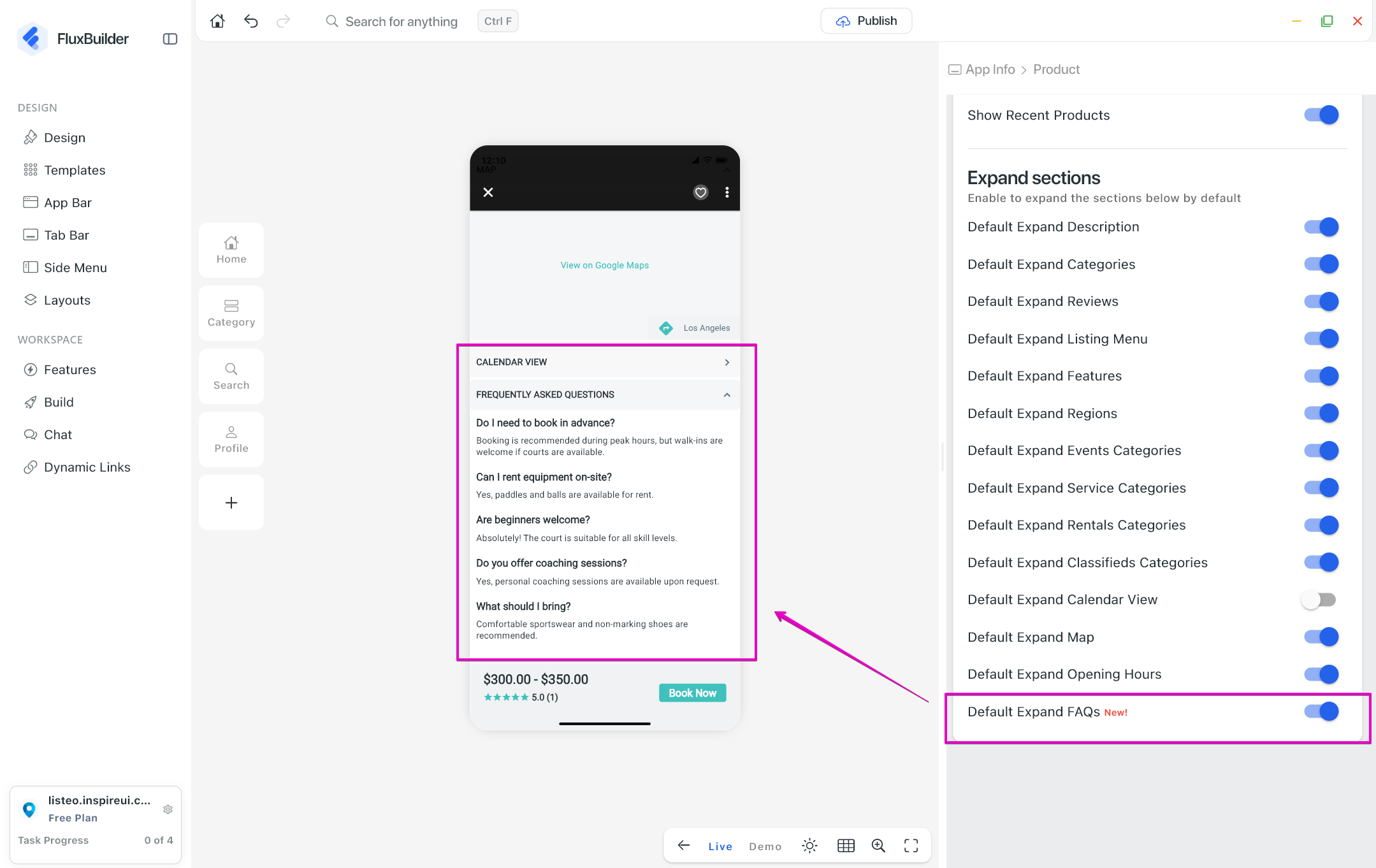
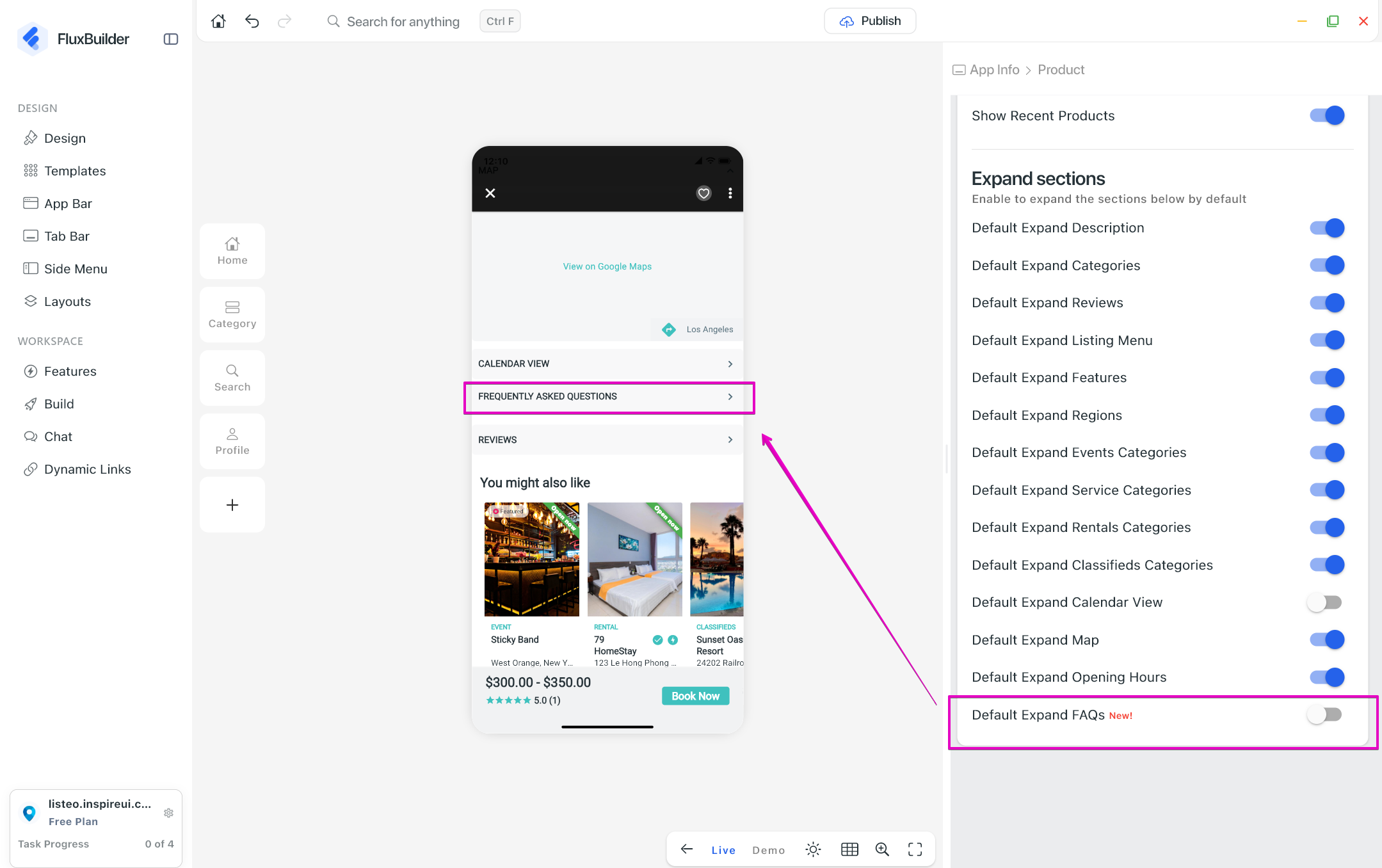
(12) Default Expand FAQs
Automatically expand FAQ items when the FAQ section is opened, allowing customers to view answers immediately.
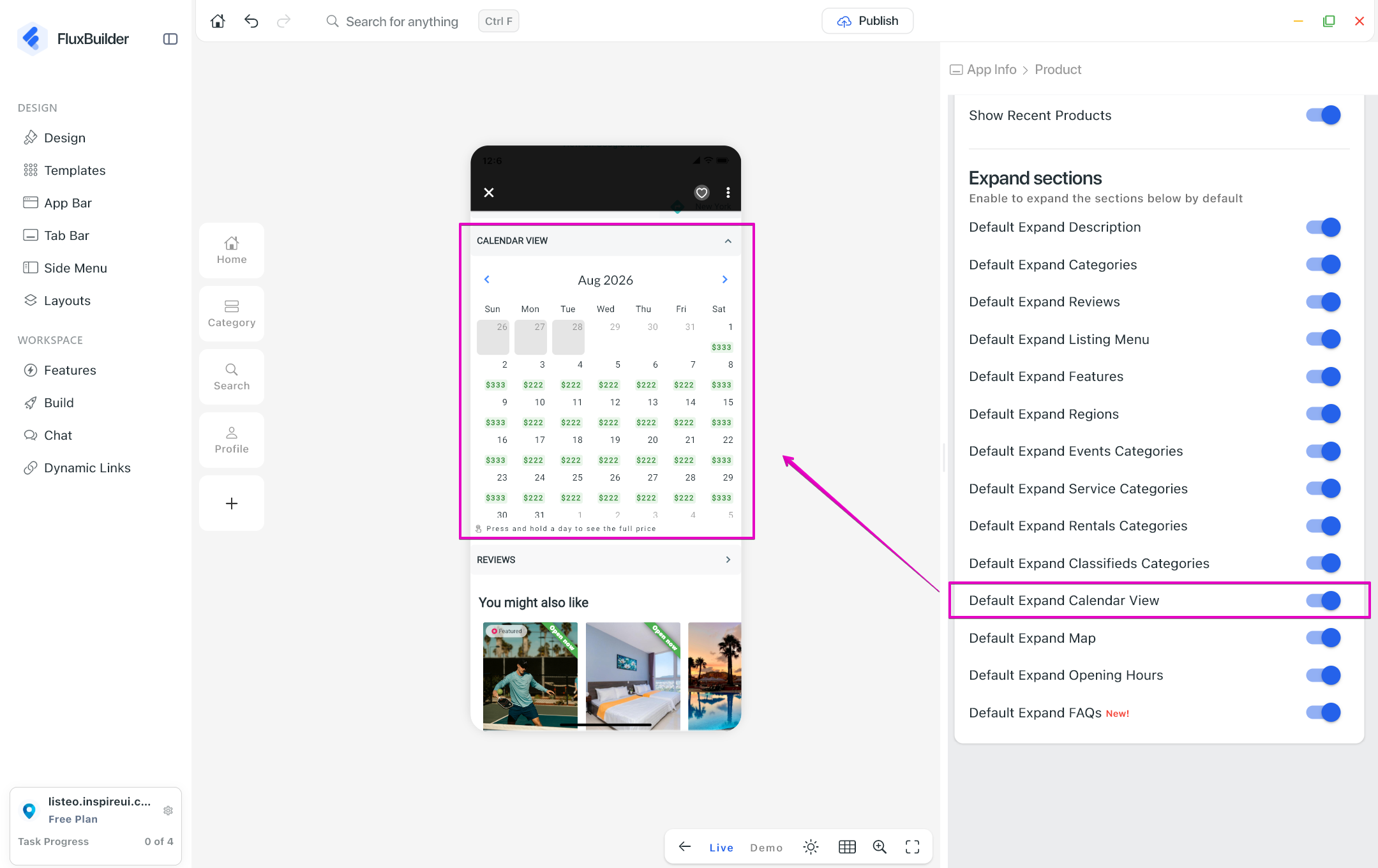
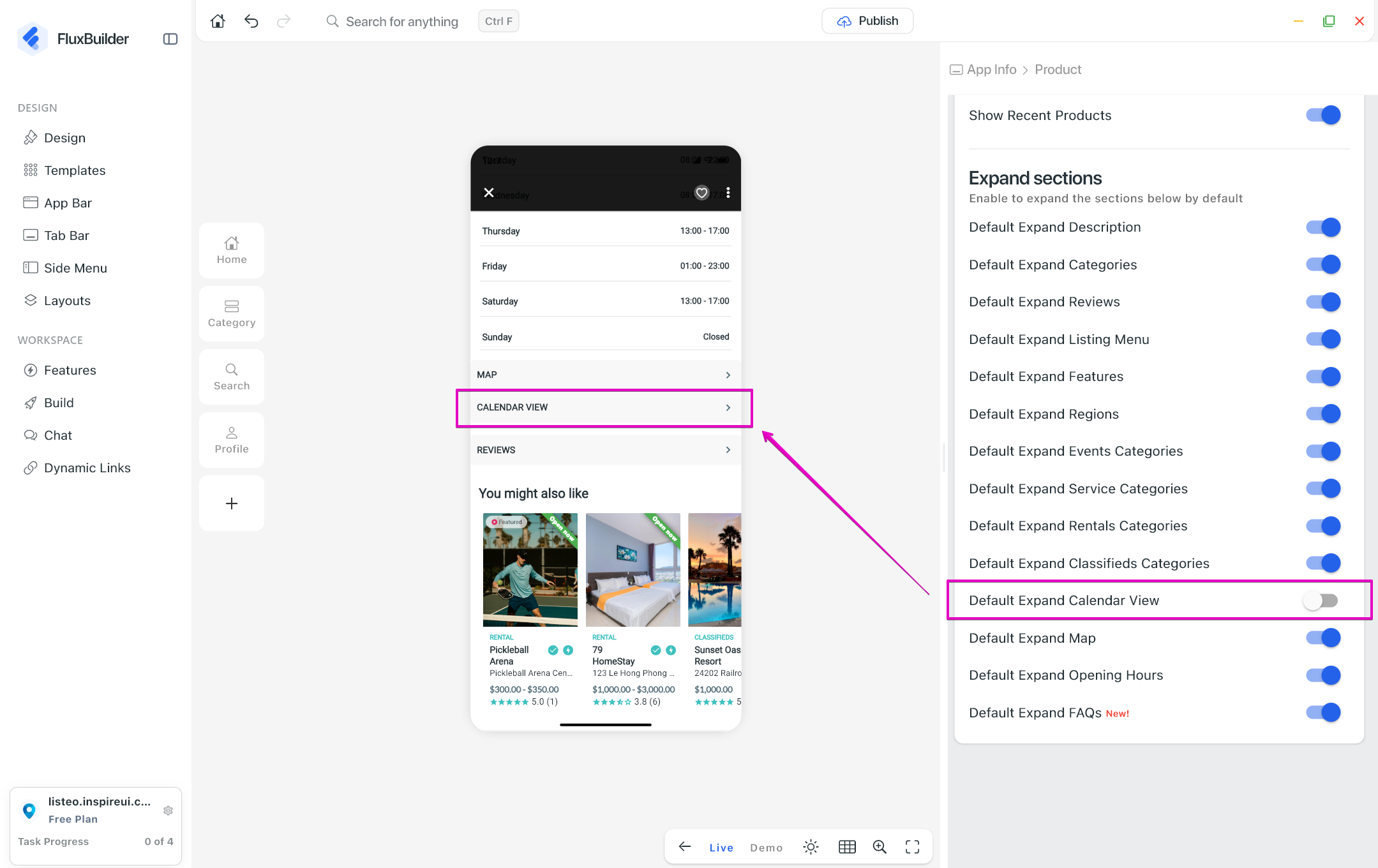
(13) Default Expand Calendar View
Open the Calendar view in its expanded state by default on Listing Detail page for improved event and booking visibility.
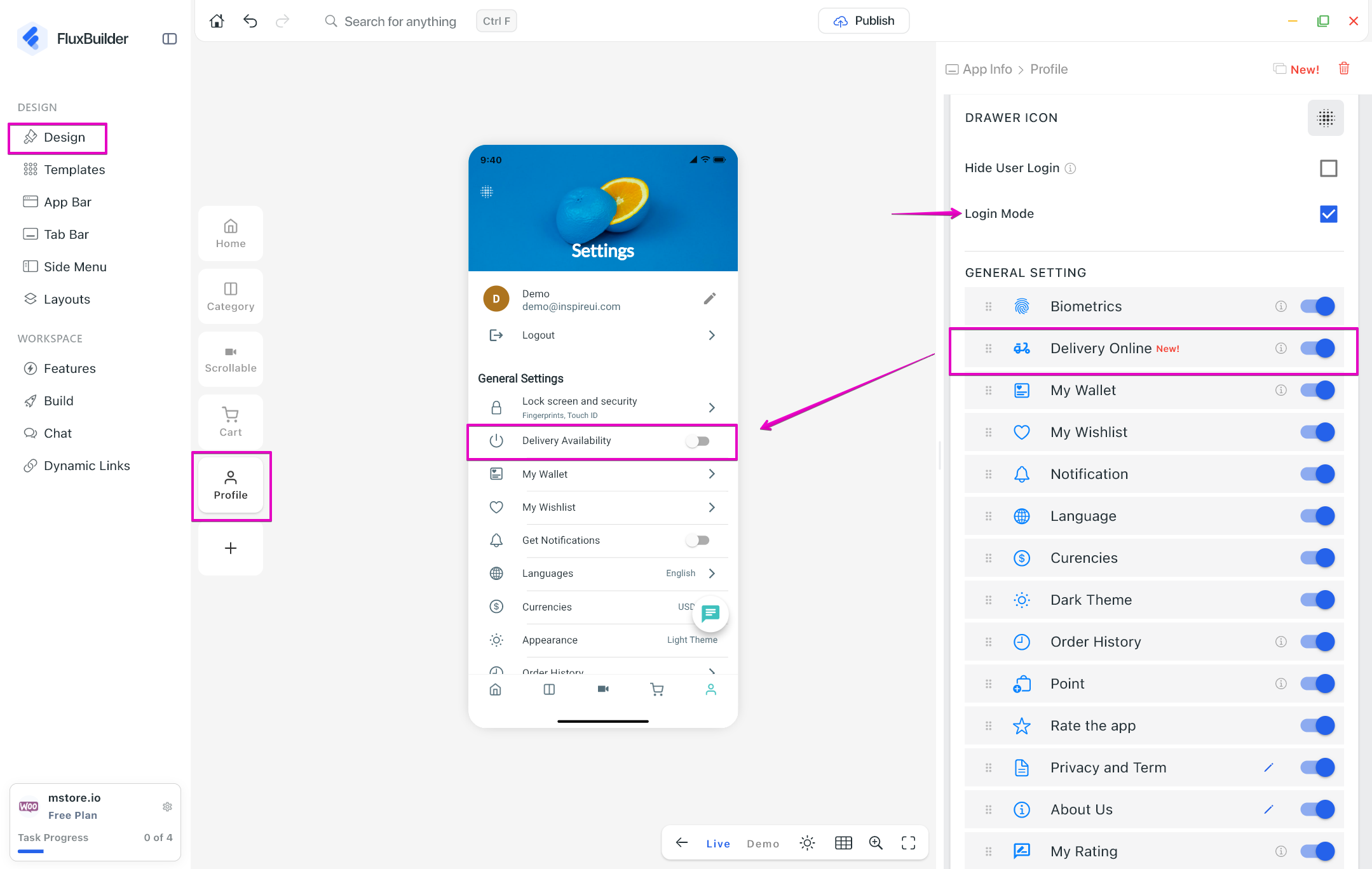
(14) Delivery Online
Add a new Delivery Online option in the General Settings of the Profile page for WooCommerce and Dokan delivery accounts. When enabled, delivery staff are available to receive new delivery requests. When disabled, they go offline and stop receiving new orders.
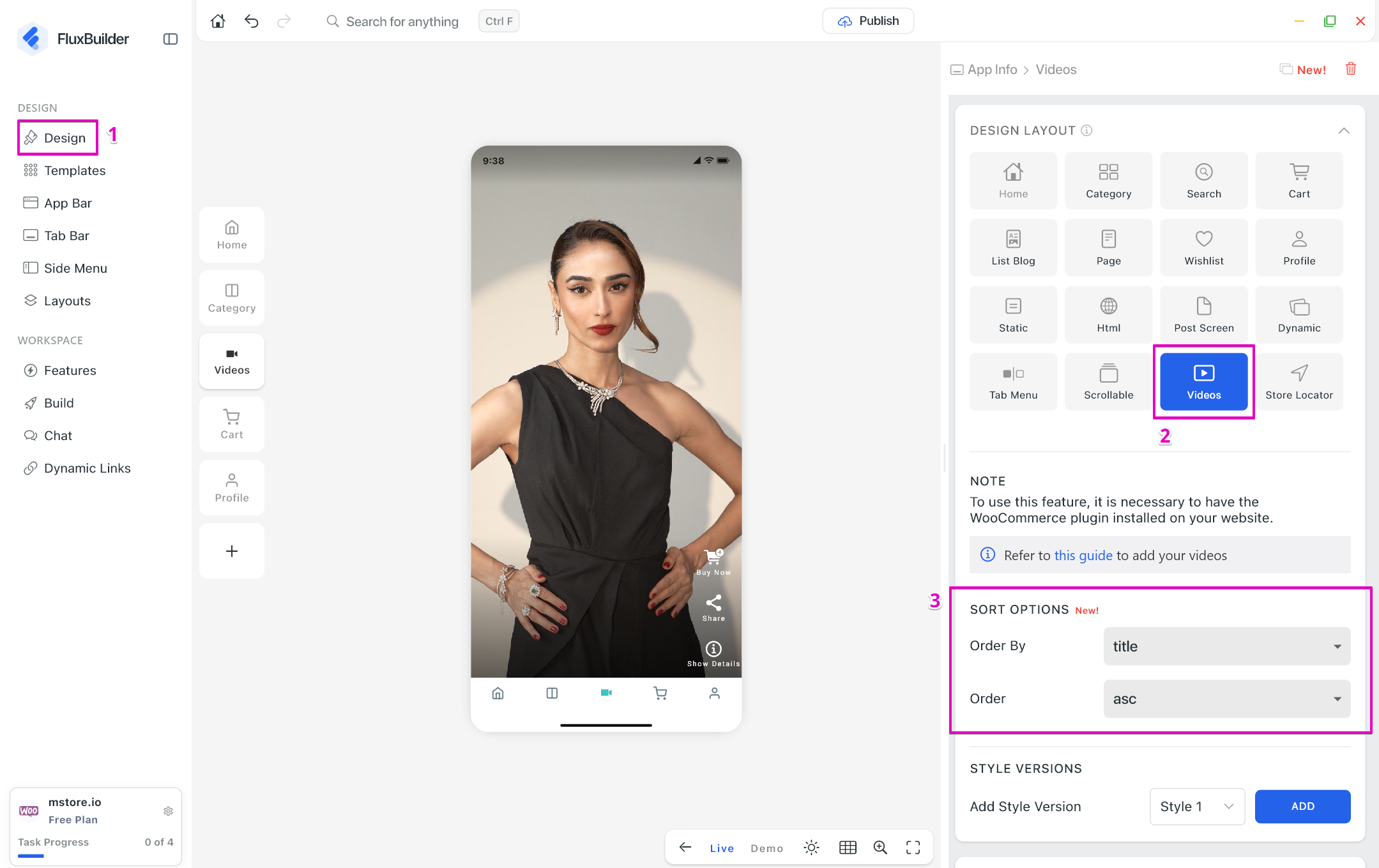
(15) Sort Option for Videos Layout
Allow app creators to configure the default sorting order of videos displayed in the Videos layout.
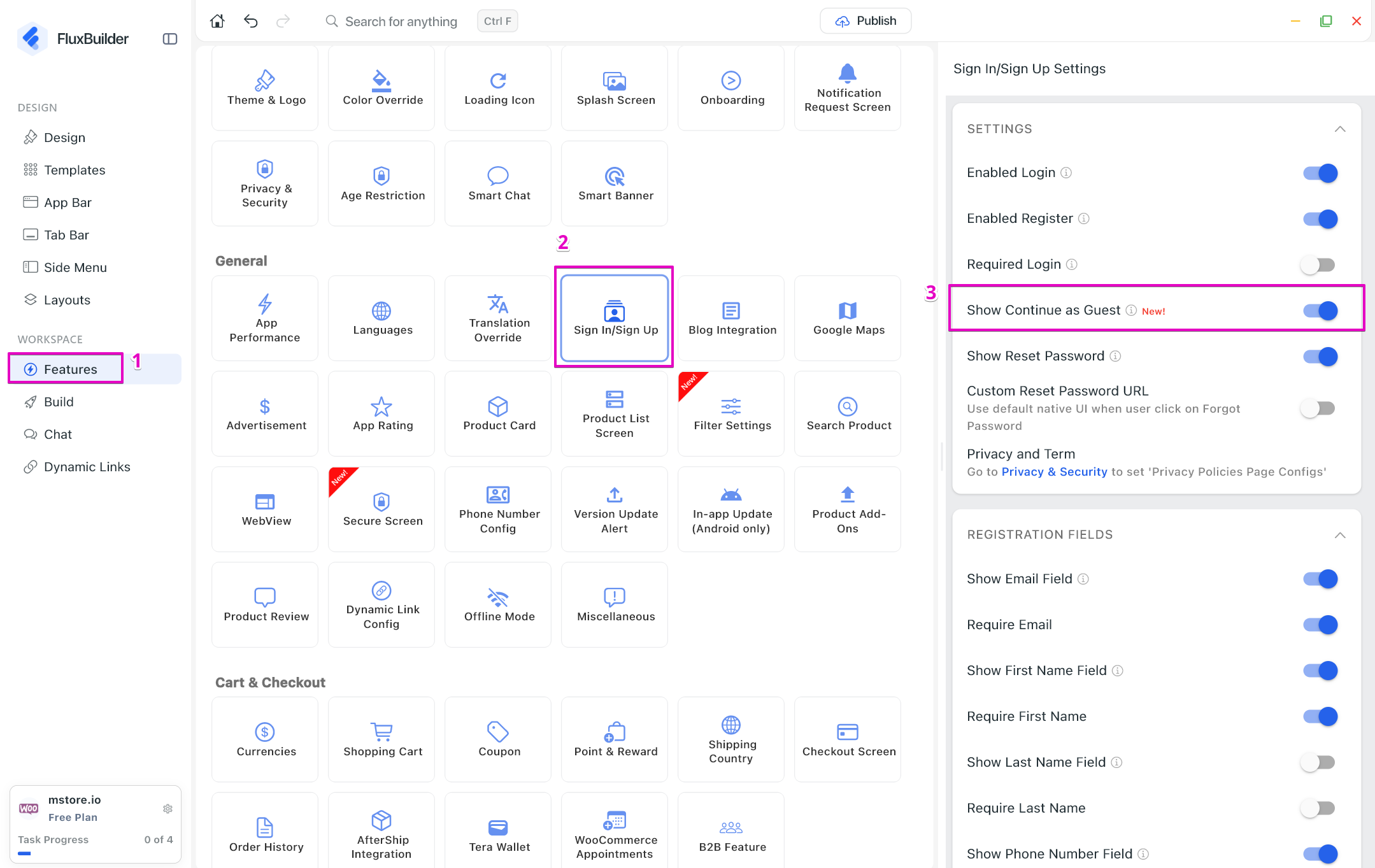
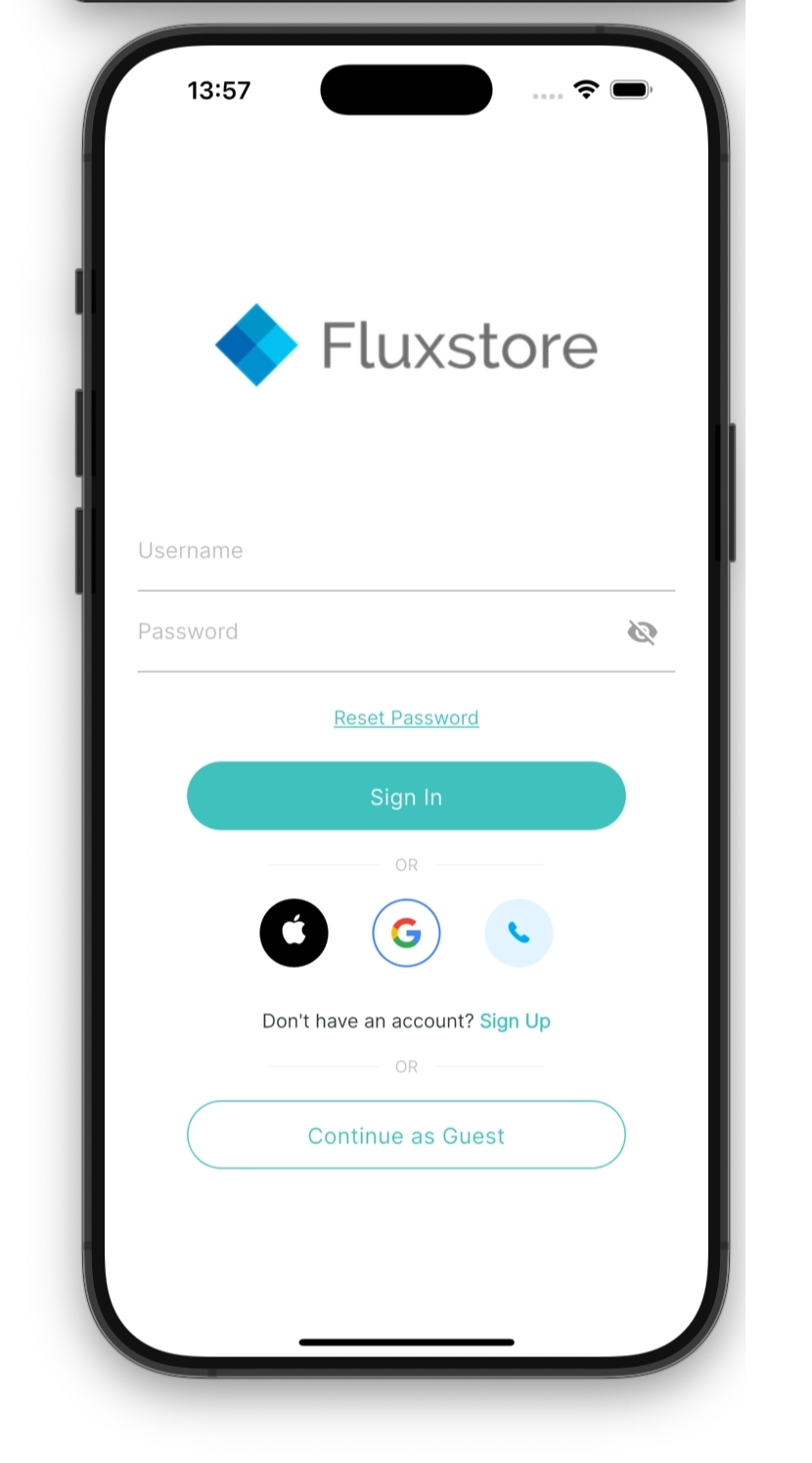
(16) Show Continue as Guest
Provide an option to show or hide the Continue as Guest button, giving customers the flexibility to use the app without signing in.
Enable this feature: create your app on FluxBuilder > Features > General > Sign In/ Sign Up > turn on Show Continue as Guest.
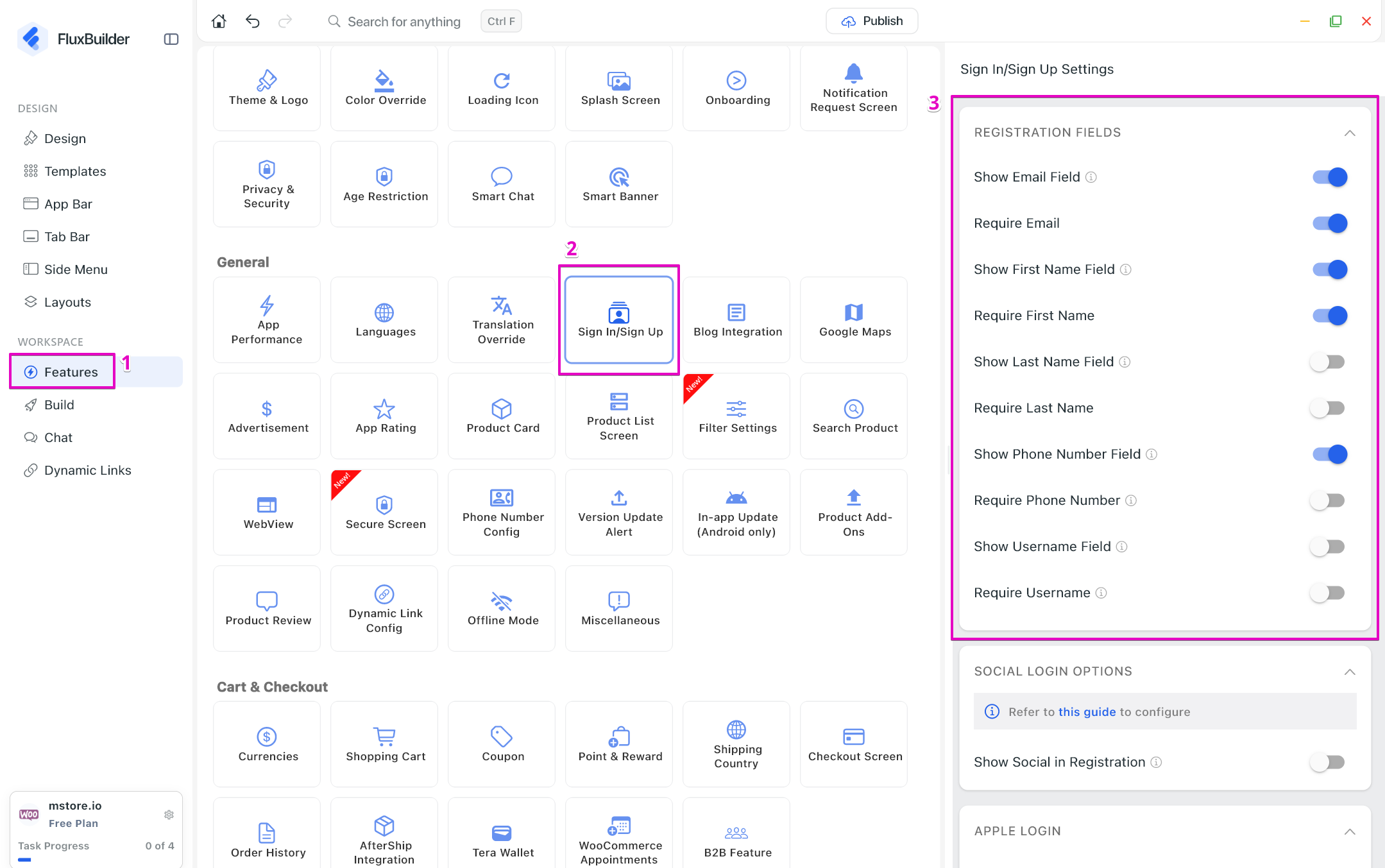
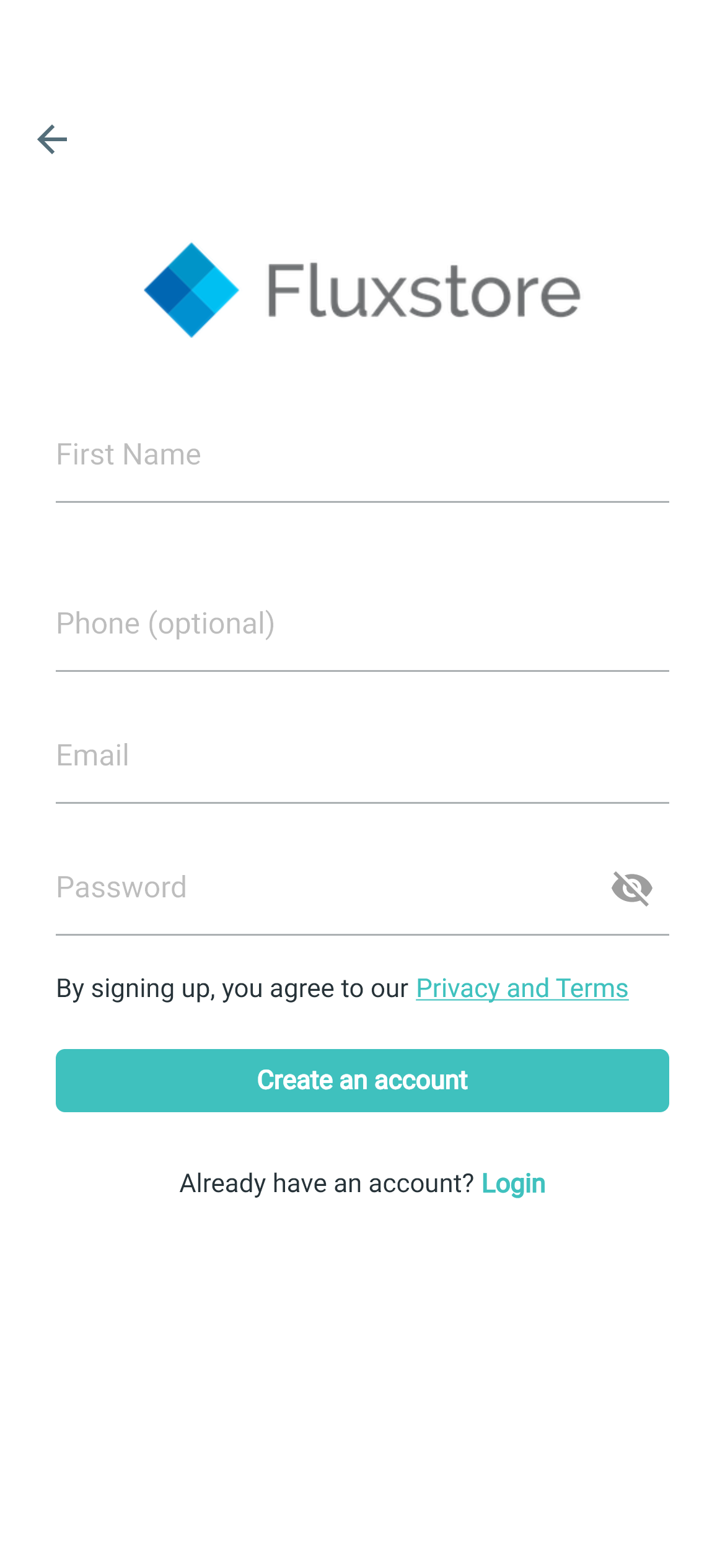
(17) Registration Fields 📲
Allow app creators to customize which fields are displayed during user registration.
Enable this feature: create your app on FluxBuilder > Features > General > Sign In/ Sign Up > turn on or turn off to display or hide some items in REGISTRATION FIELDS.
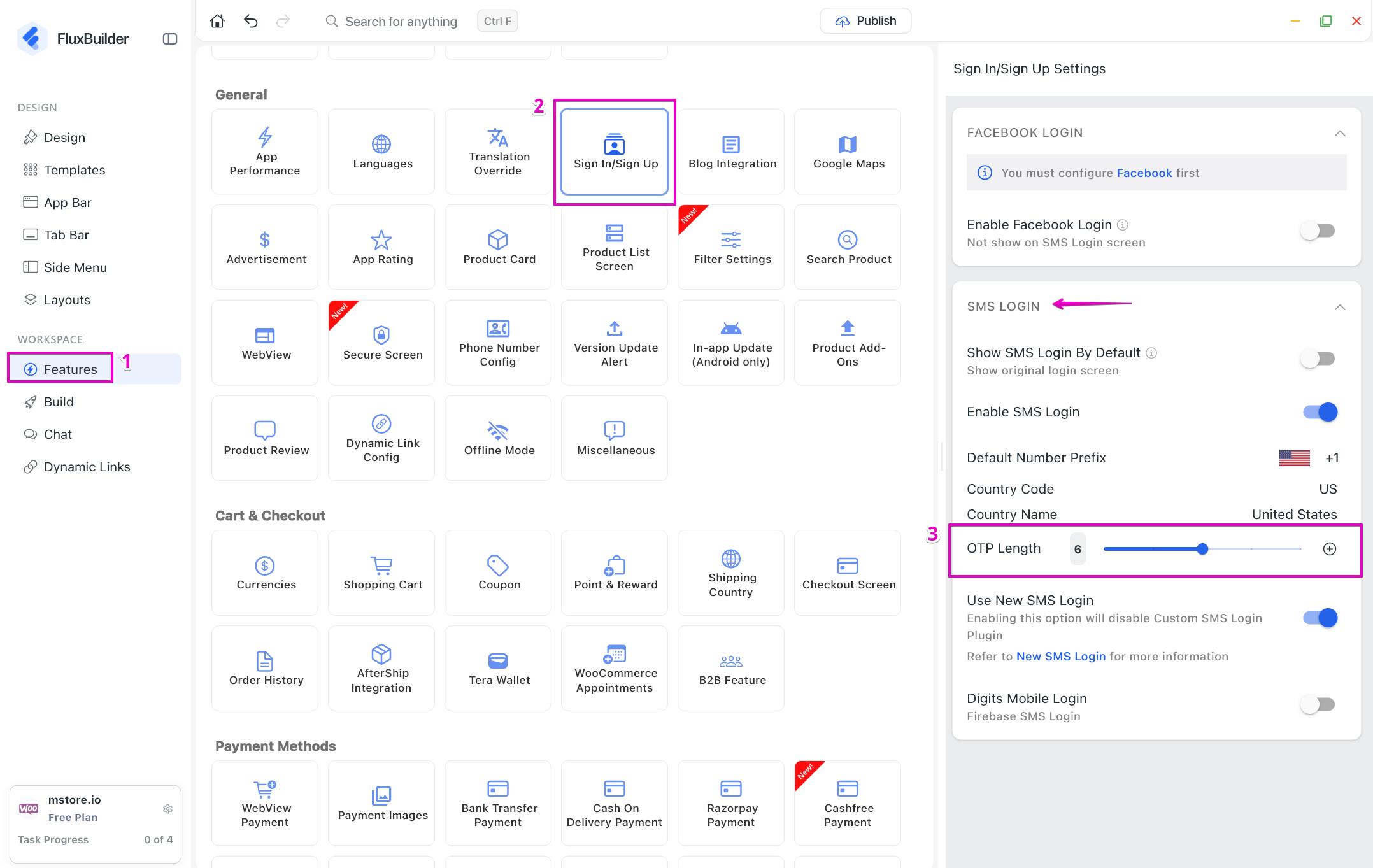
(18) OTP Length
Configure the required number of digits for One-Time Password (OTP) verification.
Enable this feature: create your app on FluxBuilder > Features > General > Sign In/ Sign Up > SMS LOGIN > set the OTP Length.
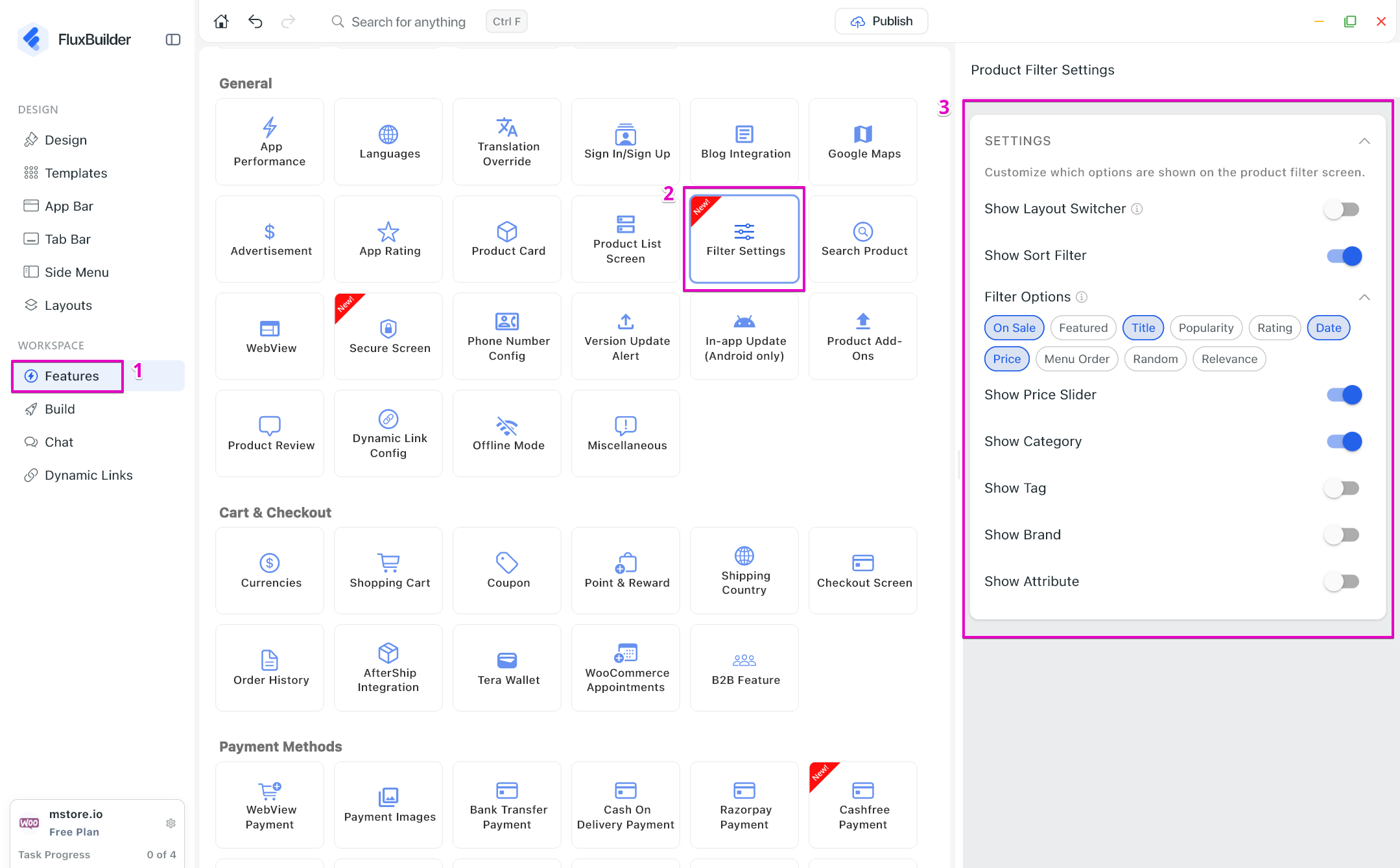
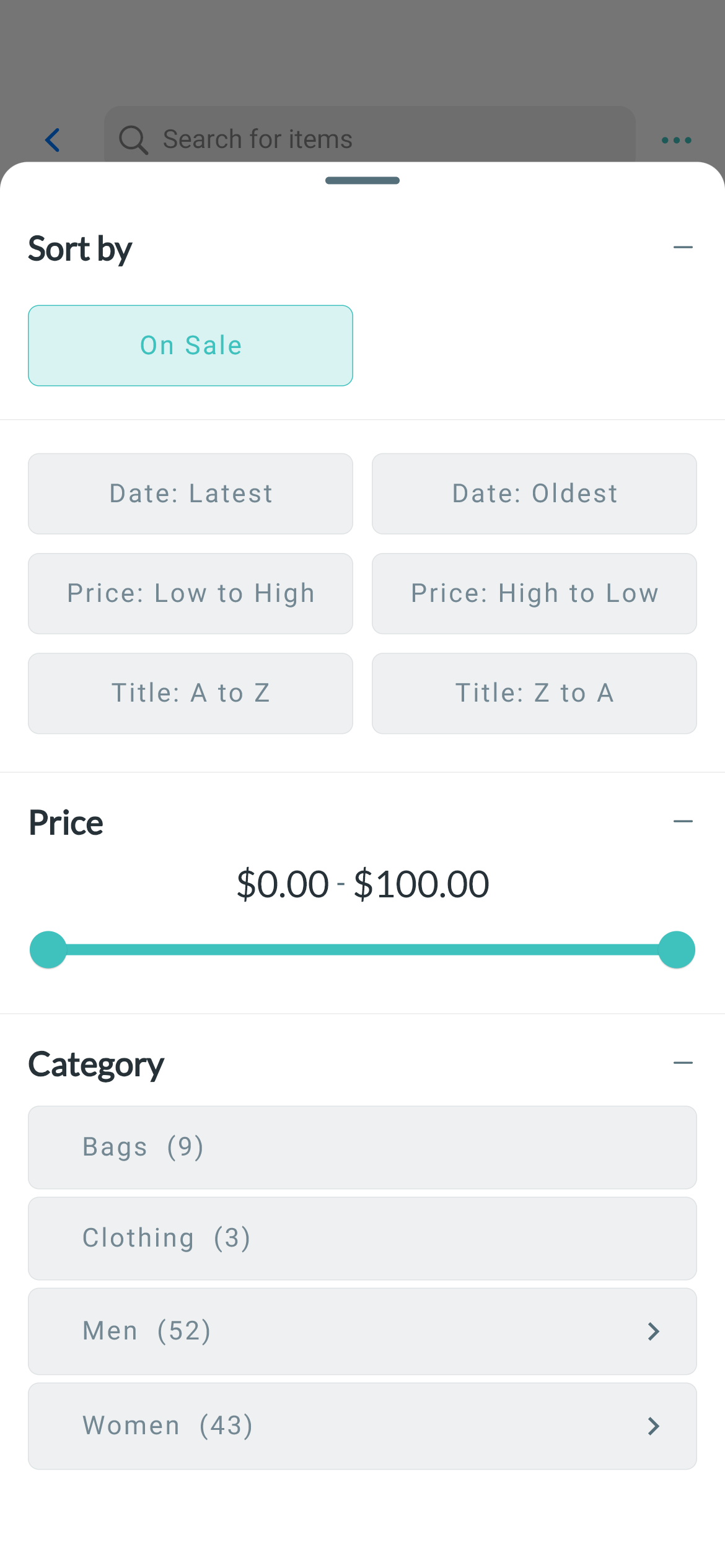
(19) Filter Settings
Provide additional configuration options for product filter behavior and appearance.
Enable this feature: create your app on FluxBuilder > Features > General > Filter Settings > turn on the items to display or turn off to hide them on Filter screen.
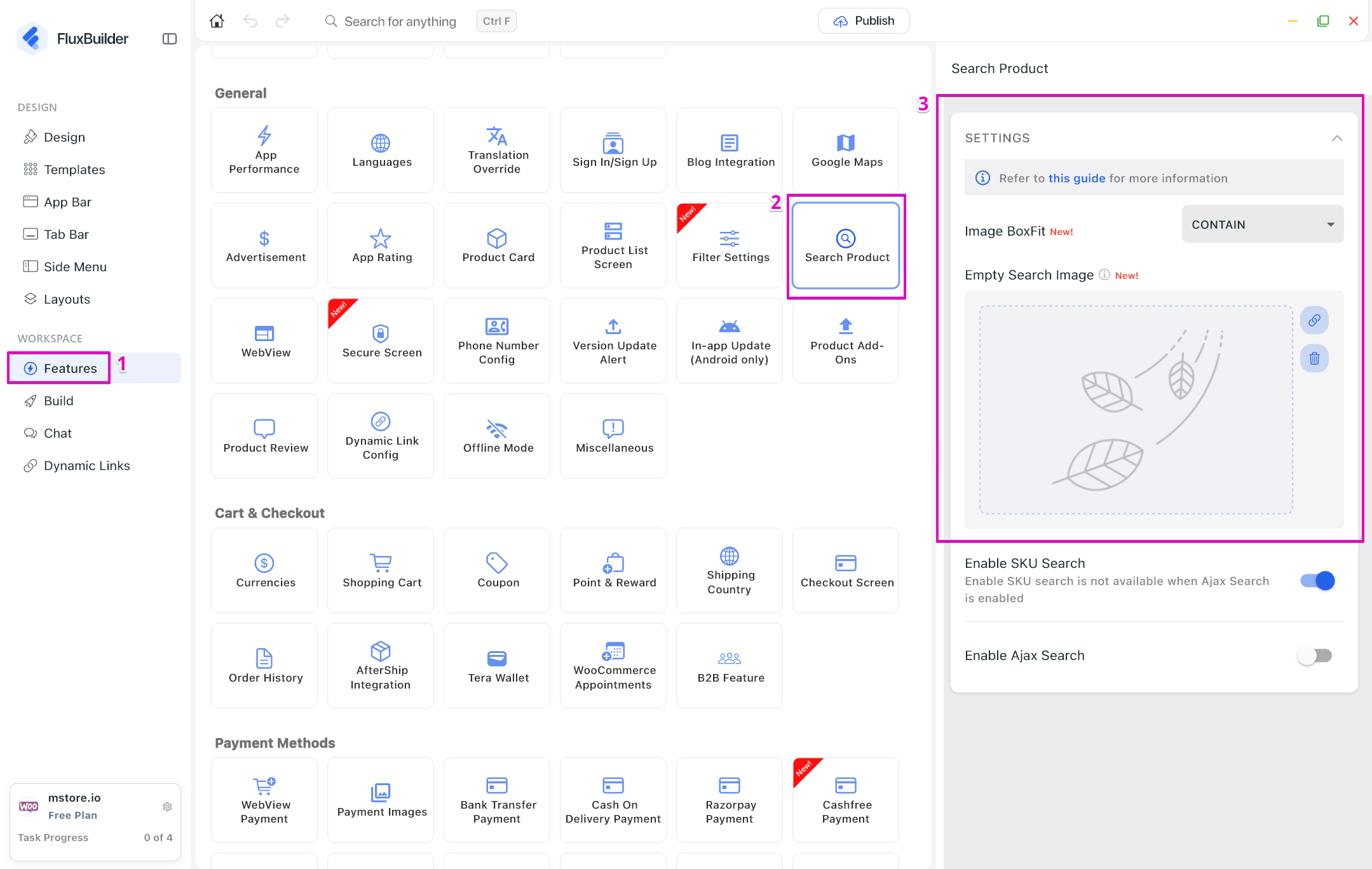
(20) Image Settings for Search Product
Customize how product images are displayed in the Search Product screen.
Enable this feature: create your app on FluxBuilder > Features > General > Search Product
- Upload Empty Search Image to show the image in empty Cart page.
- Select Image BoxFit..
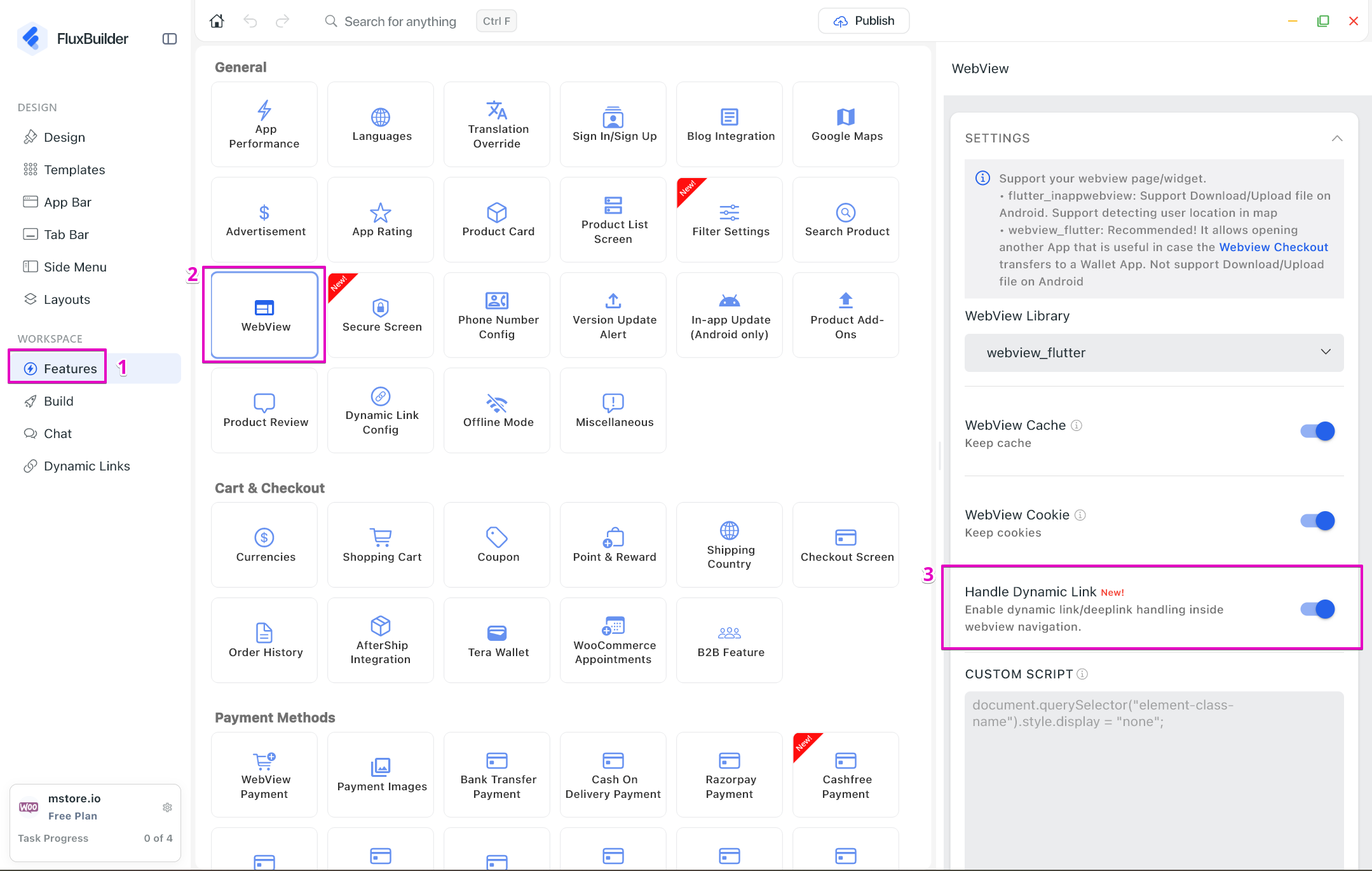
(21) Handle Dynamic Link
Improve dynamic link handling to ensure users are redirected to the appropriate content more reliably.
Enable this feature: create your app on FluxBuilder > Features > General > Webviews> turn on option Handle Dynamic Link.
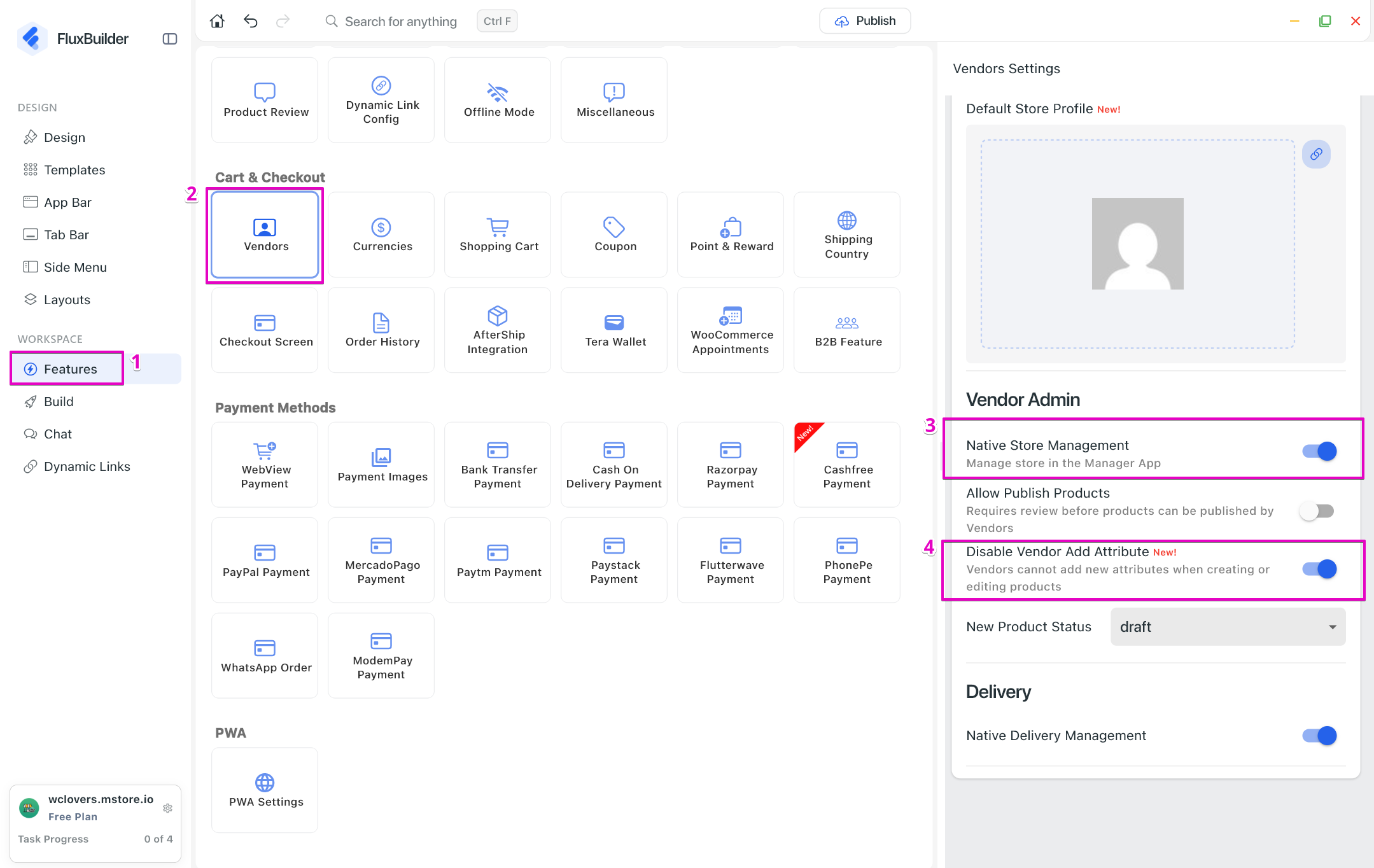
(22) Disable Vendor Add Attributes
Allow marketplace owners to prevent vendors from creating new product attributes.
Enable this feature: create your app on FluxBuilder > Features > Cart & Checkout > Vendors > turn on option Native Store Management > turn on option Disable Vndor Add Attributes.
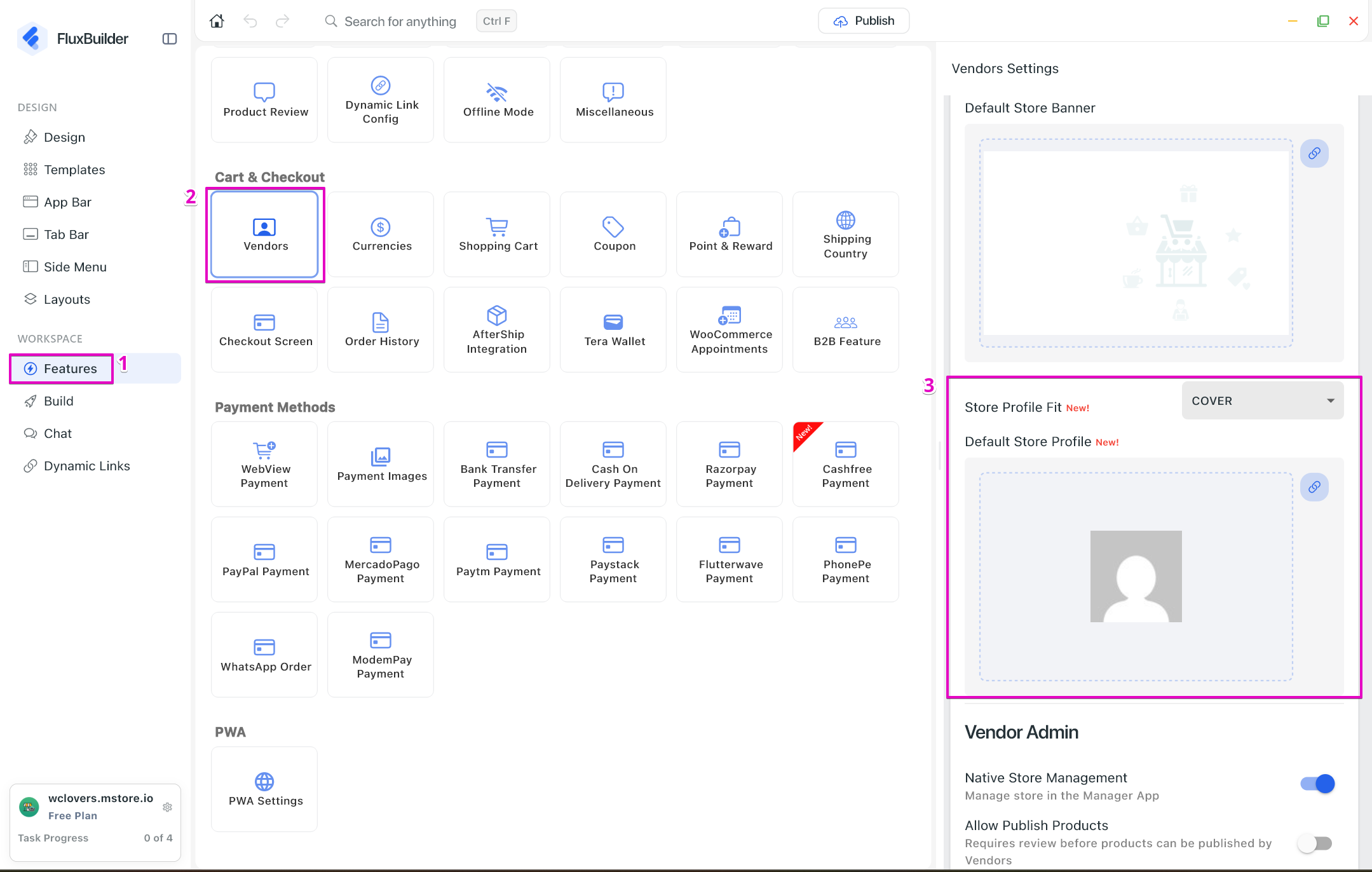
(23) Vendor Store Profile
Introduce new options for Vendor Store Profile, including Store Profile Fit and Default Store Profile, giving marketplace owners more control over vendor storefront presentation.
Enable this feature: create your app on FluxBuilder > Features > Cart & Checkout > Vendors
- Select Store Profile Fit
- Upload image in Default Store Profile
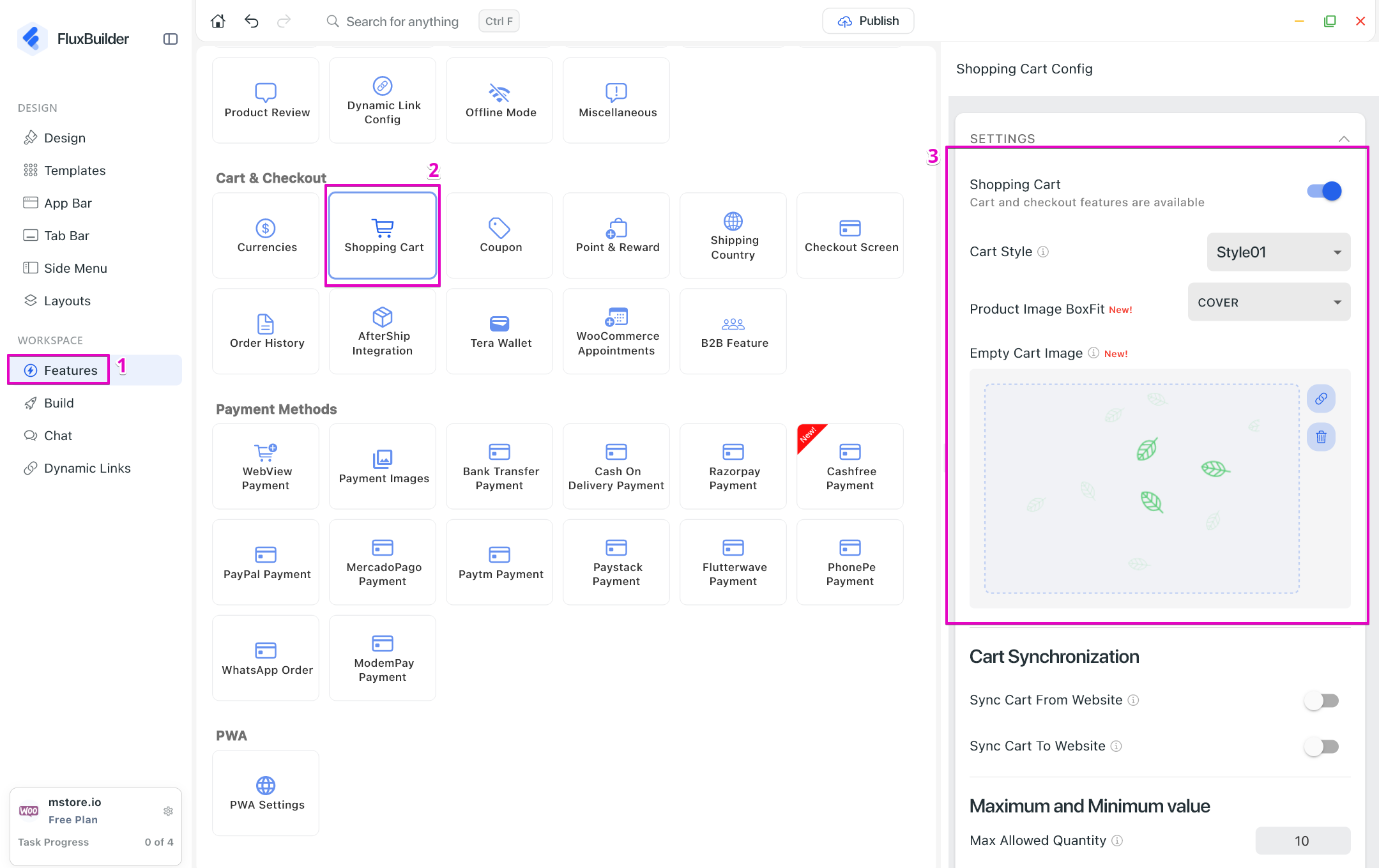
(24) Image Settings for Shopping Cart 🛒
Customize the display of product images in the Shopping Cart.
Enable this feature: create your app on FluxBuilder > Features > Cart & Checkout > Shopping Cart > turn on option Shopping Cart.
- Upload Empty Cart Image to show the image in empty Cart page.
- Select Product Image BoxFit to adjust the product images displaying on Cart page after added to cart.
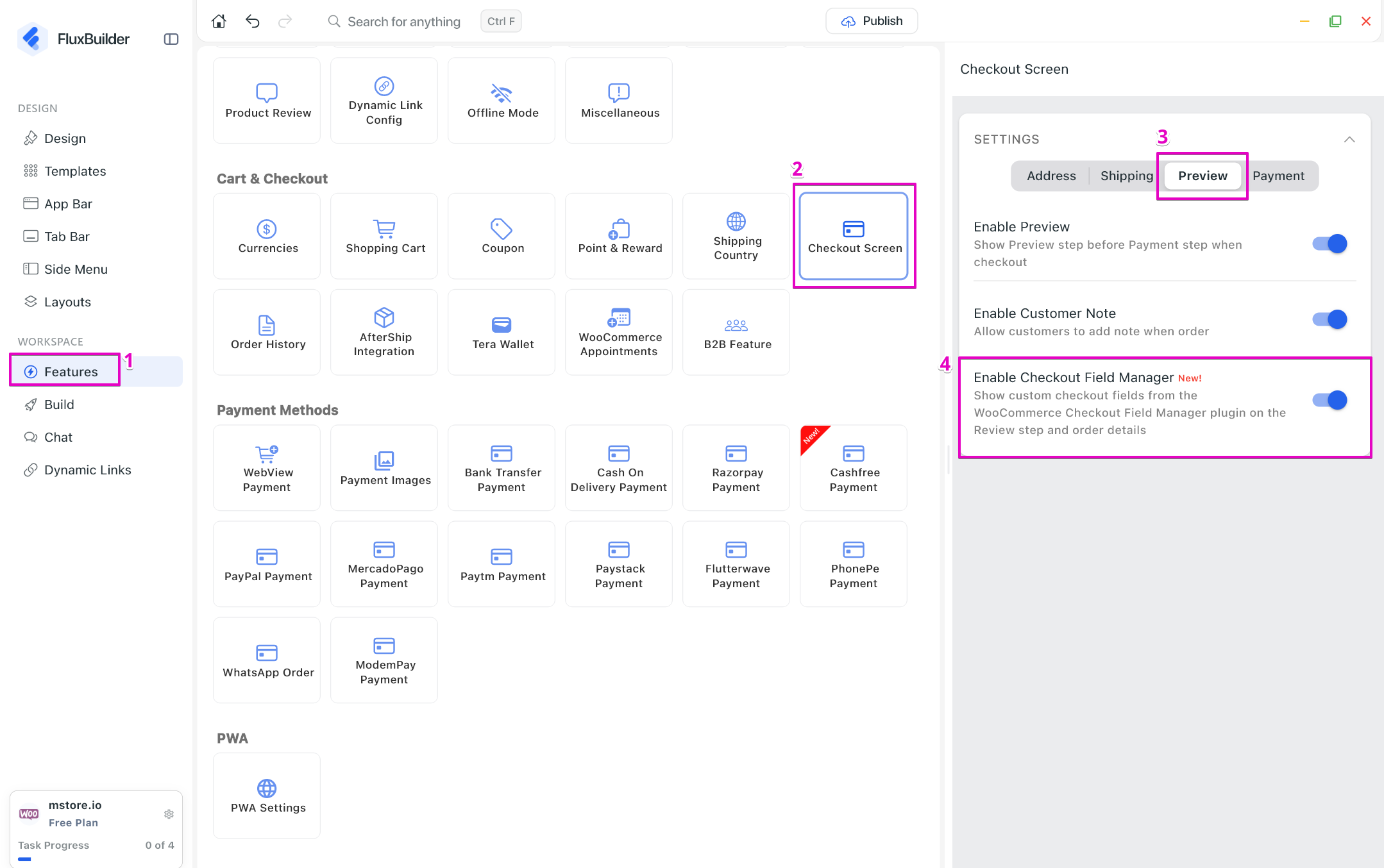
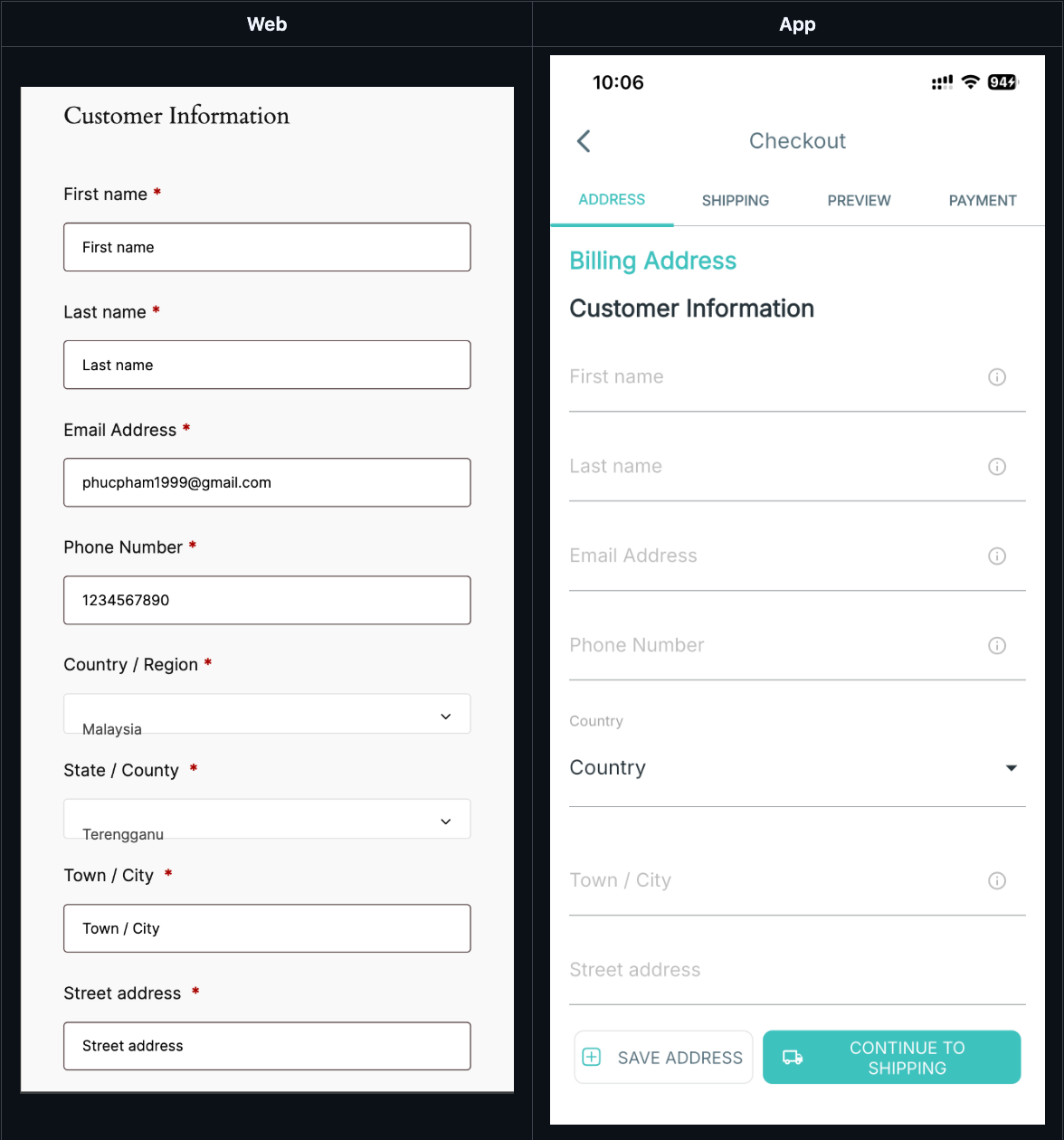
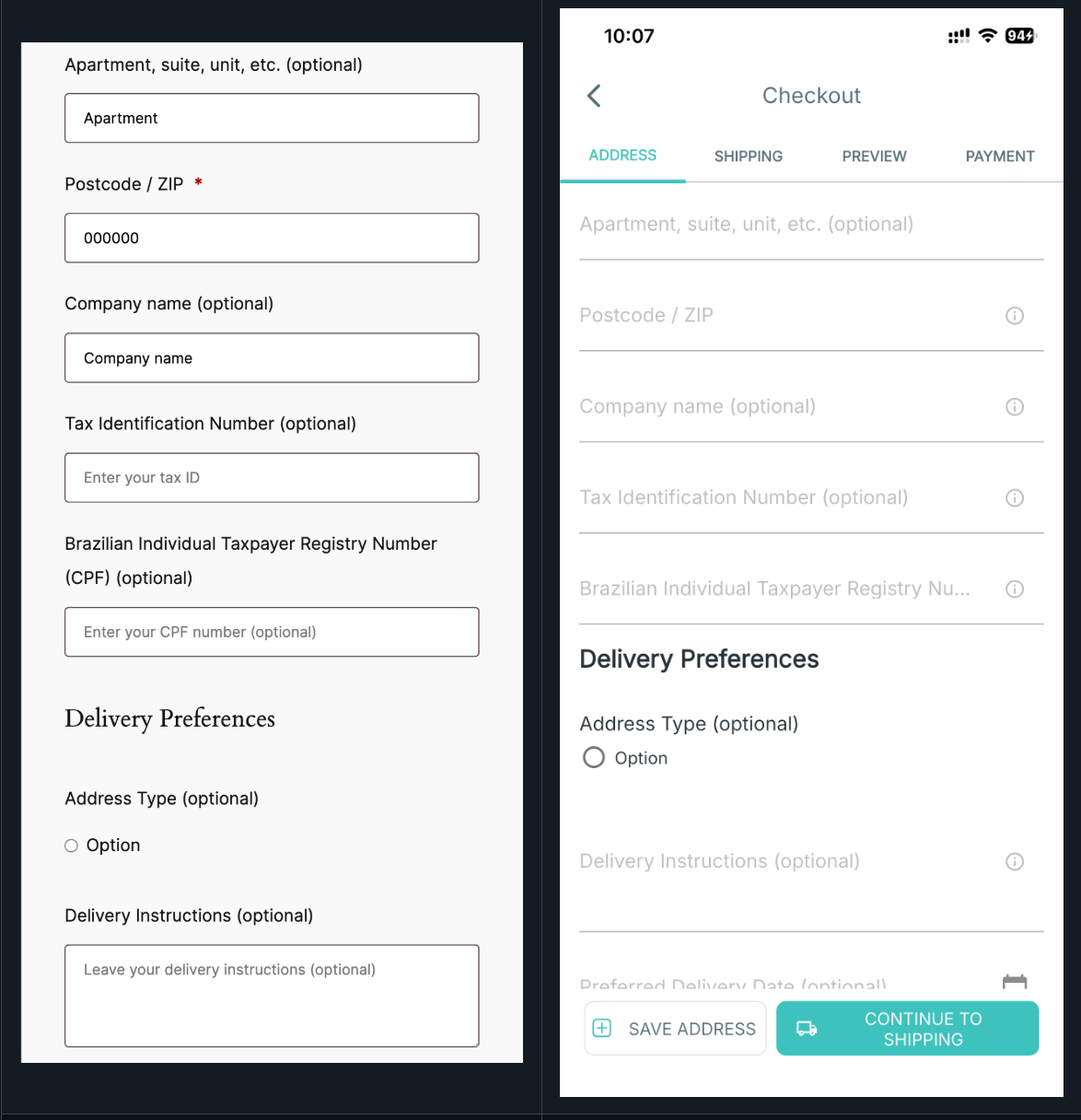
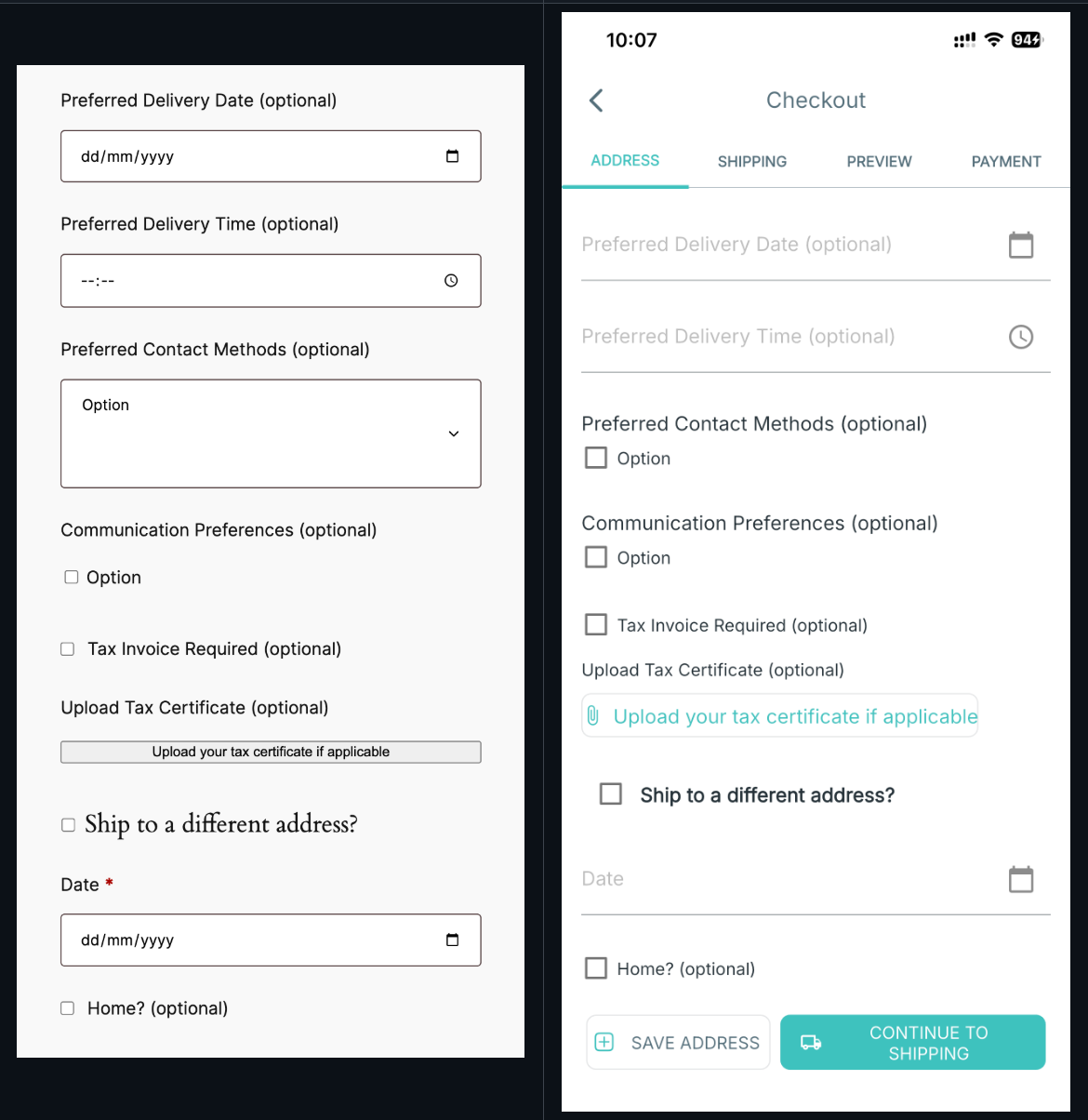
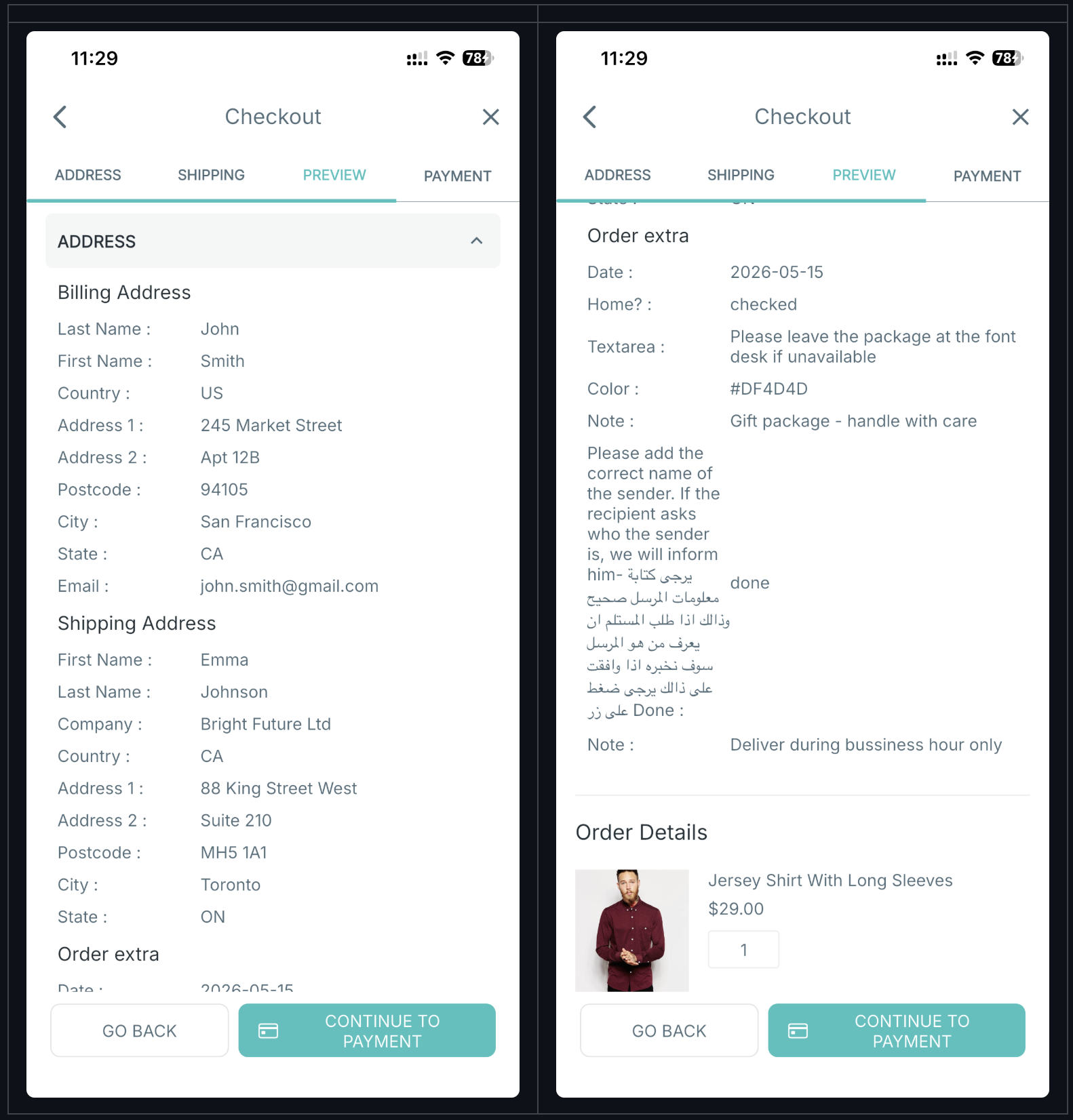
(25) Checkout Fields Manager
Manage and customize checkout fields to better match your business requirements and improve the checkout experience.
Enable this feature: create your app on FluxBuilder > Features > Cart & Checkout > Checkout Screen > Preview > turn on option Enable Checkout Field Manager.
Address screen:
Checkout preview:
Order history: