Create Serverless App
Follow this guide to quickly set up a new serverless app using FluxBuilder.
Precondition
Before you begin, make sure to:
- Install the latest version of FluxBuilder on your device.
- Sign Up/ Sign In to your account on FluxBuilder.
Step-by-Step Instructions
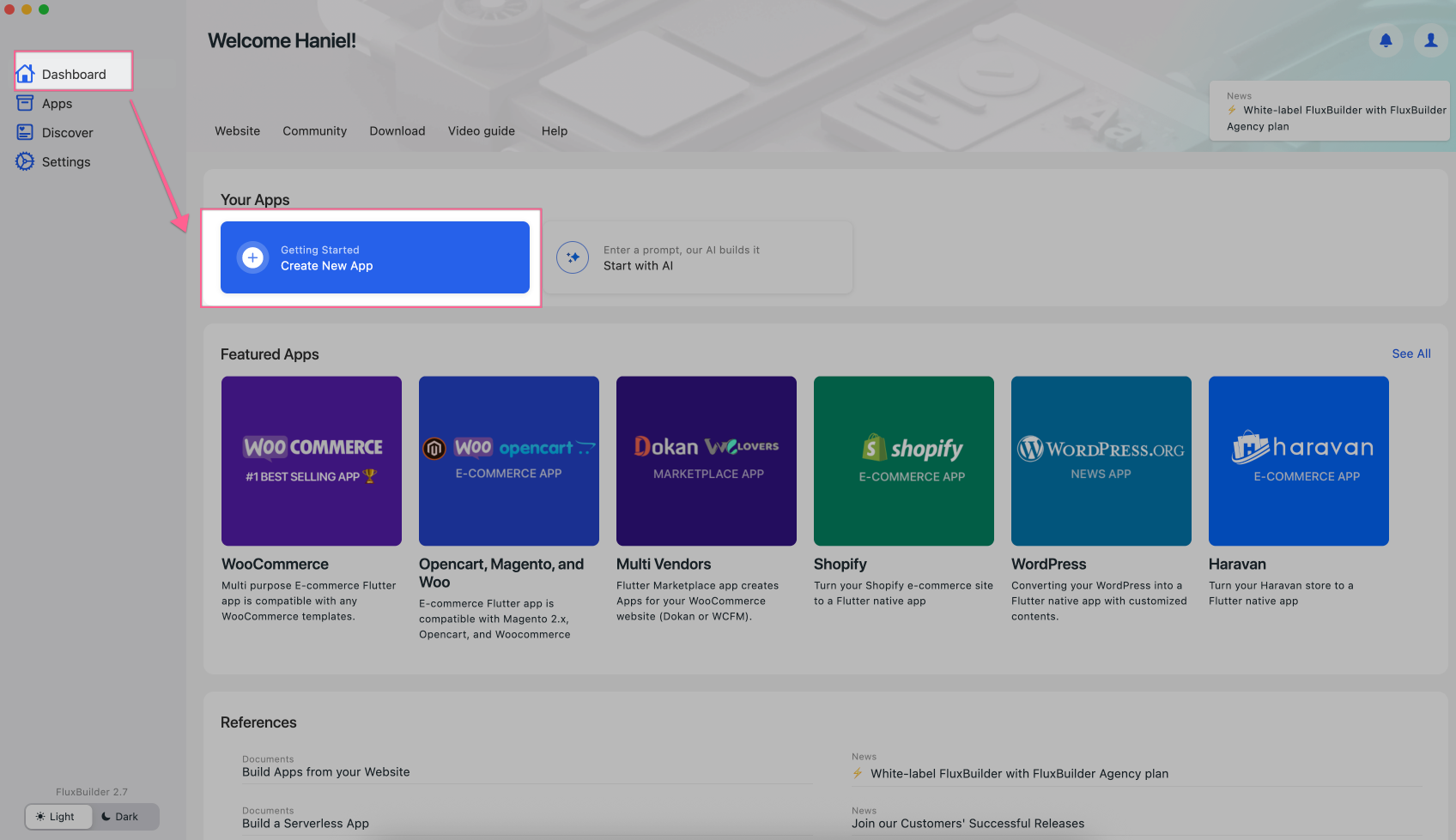
- If using the FluxBuilder Desktop version, open FluxBuilder, then select
Dashboard> chooseCreate New App:
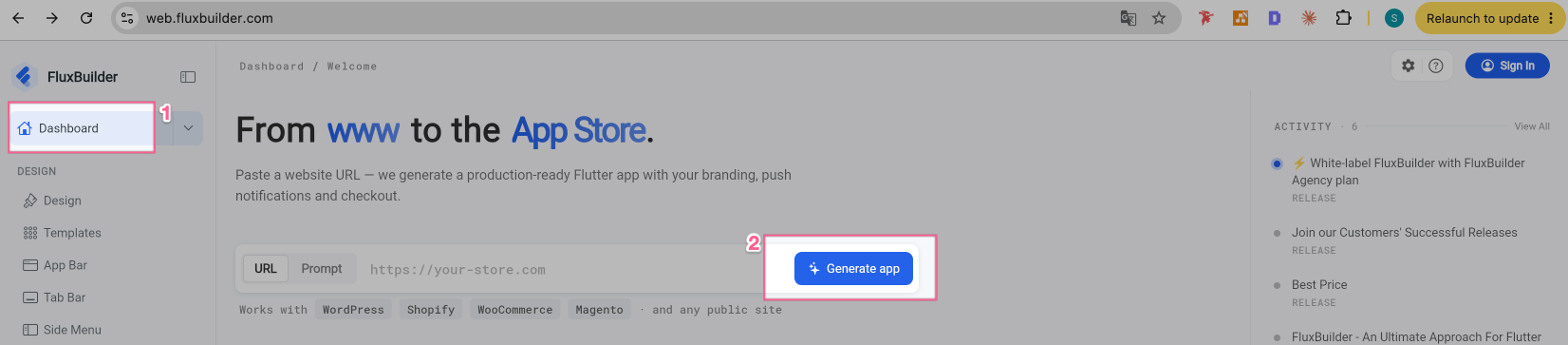
✨ If using the FluxBuilder Web version https://web.fluxbuilder.com : select Dashboard, and click Generate App:
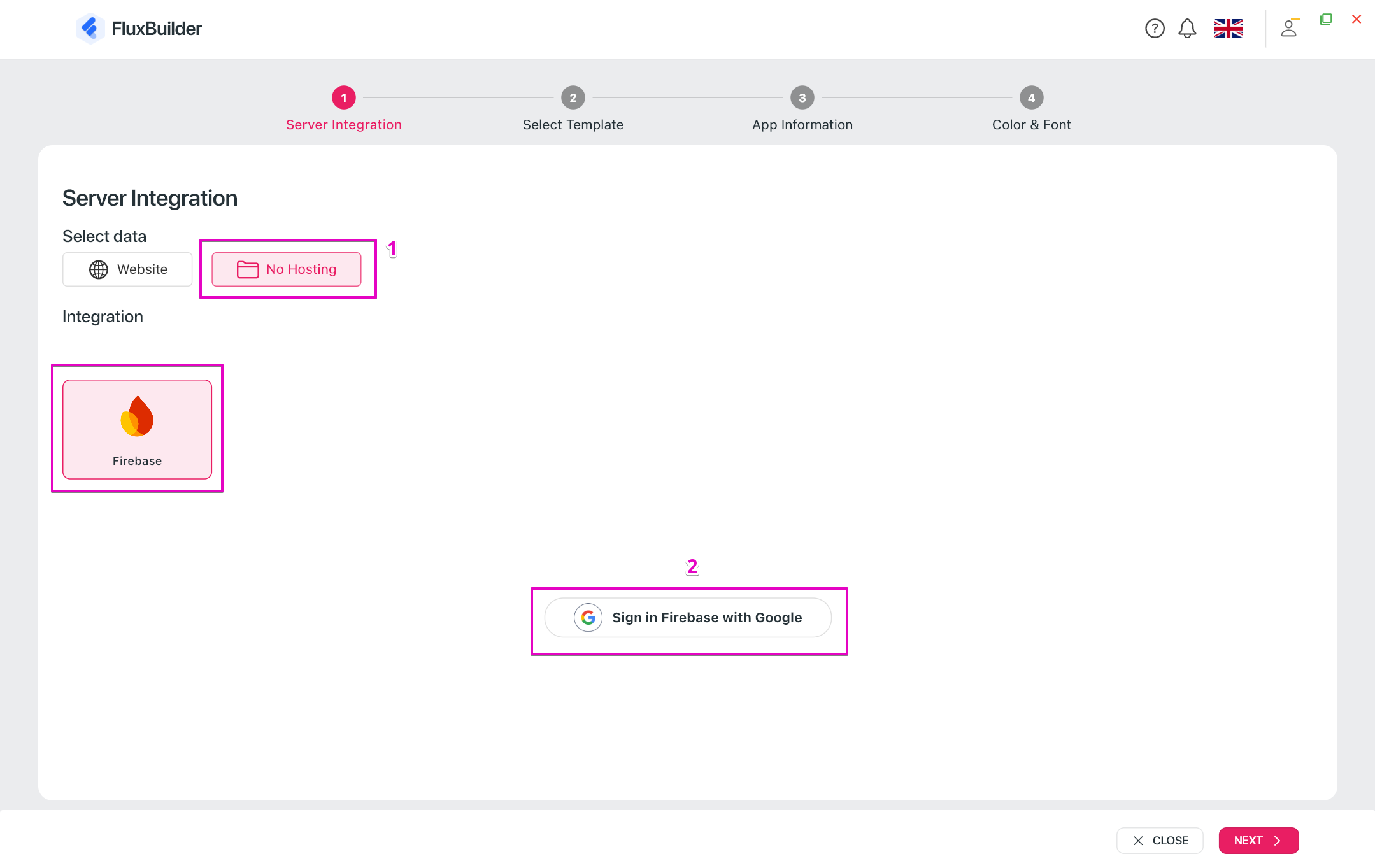
- Select the No Hosting option.
- Sign in to your Firebase Google account:
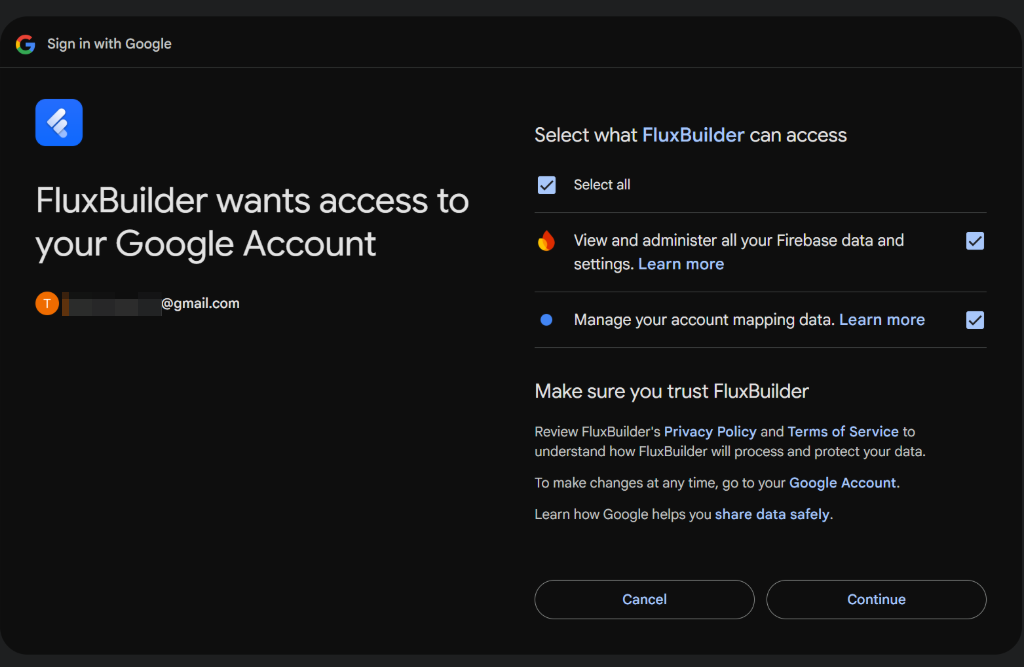
- Select All when Google askes for FluxBuilder access permissions:
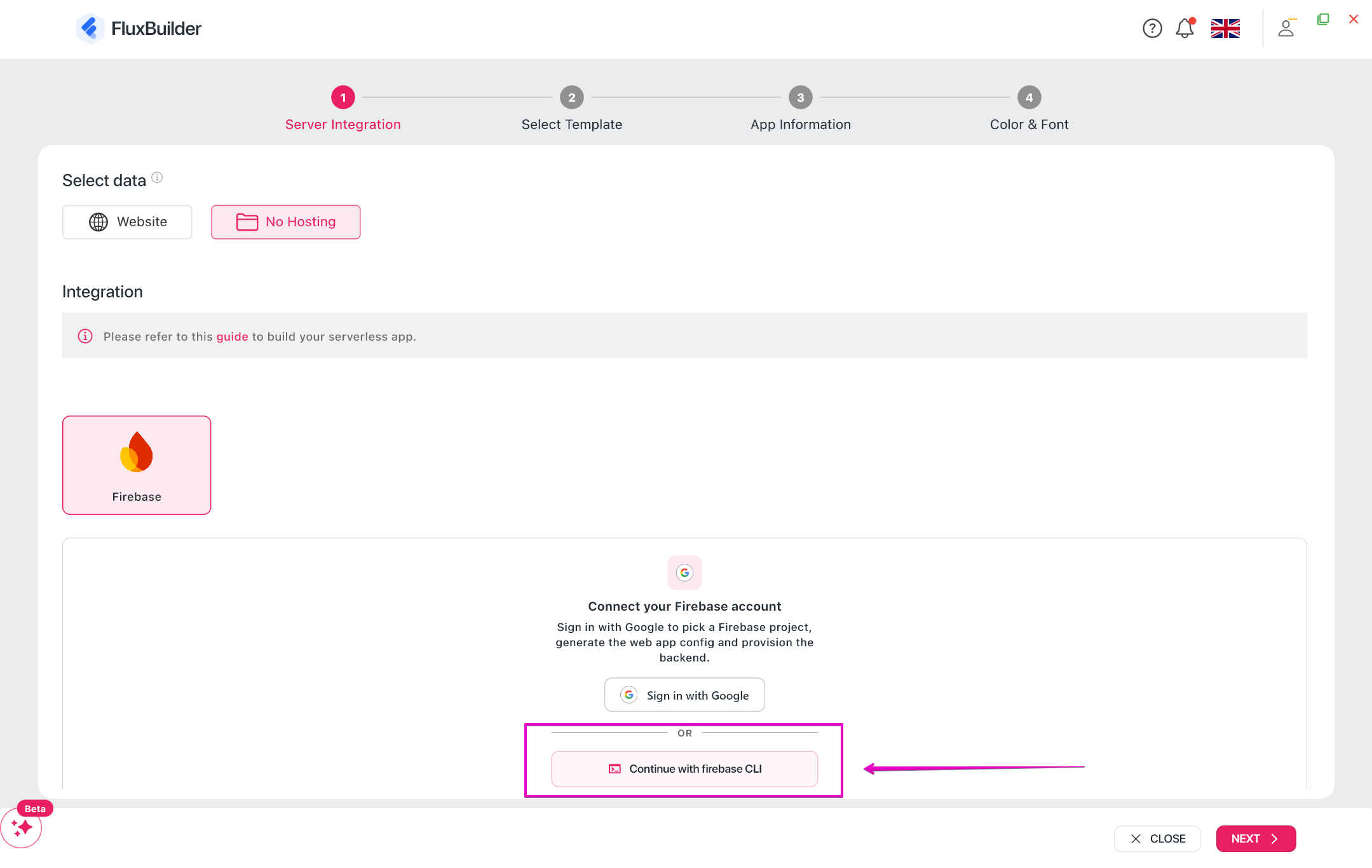
- After connecting to your Google account successfully, re-open FluxBuilder. Now, you will back to FluxBuilder dashboard and create No Hosting again:
Note: If you have a connected Firebase CLI, select Continue with Firebase CLI to quick login.
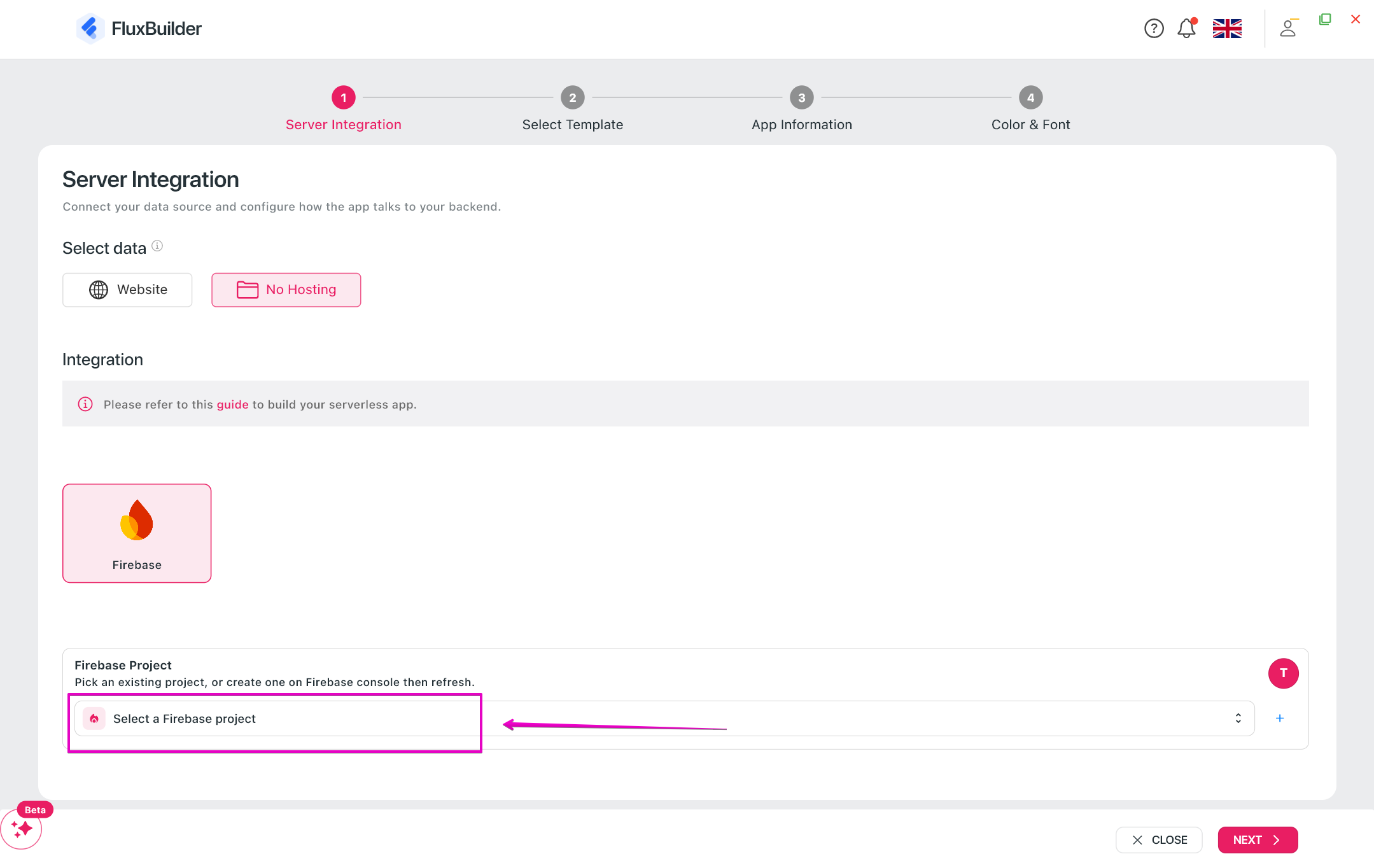
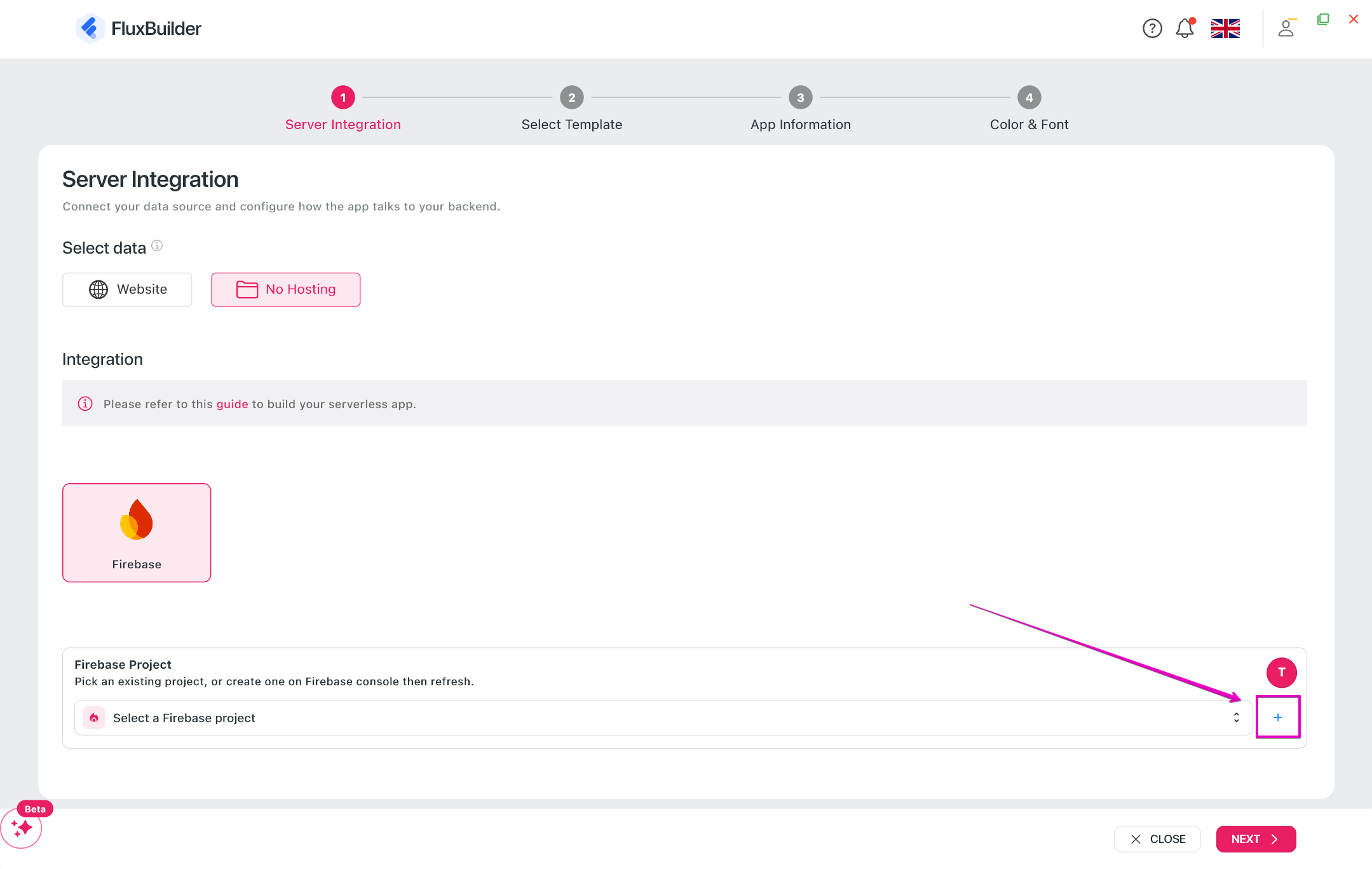
- After that, click Select a Firebase project to open your existing project:
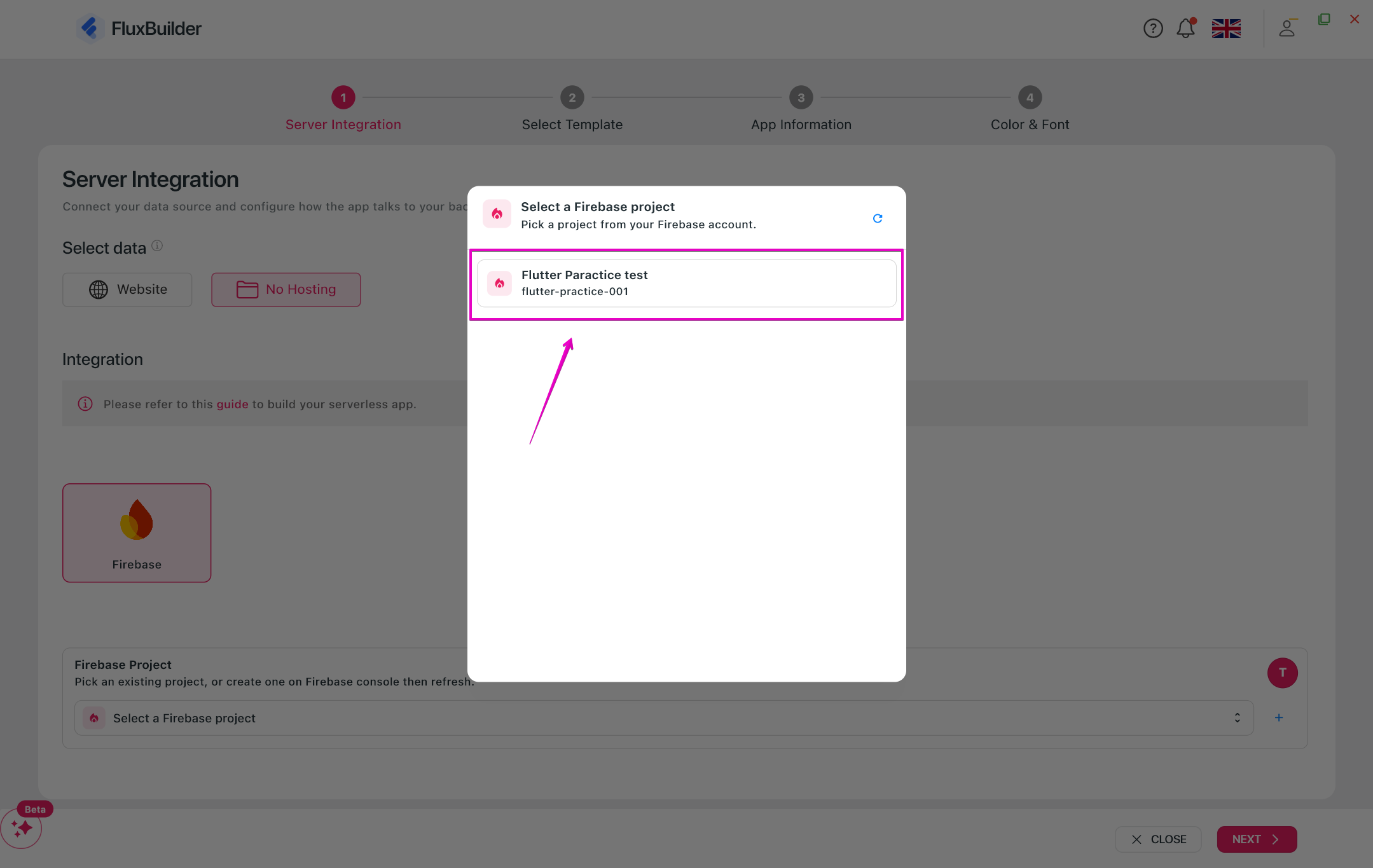
- If you have not had any project, click + button. This will navigate to the Firebase Console immediately to create a new project there. (Follow this guide to create new project on Firebase):
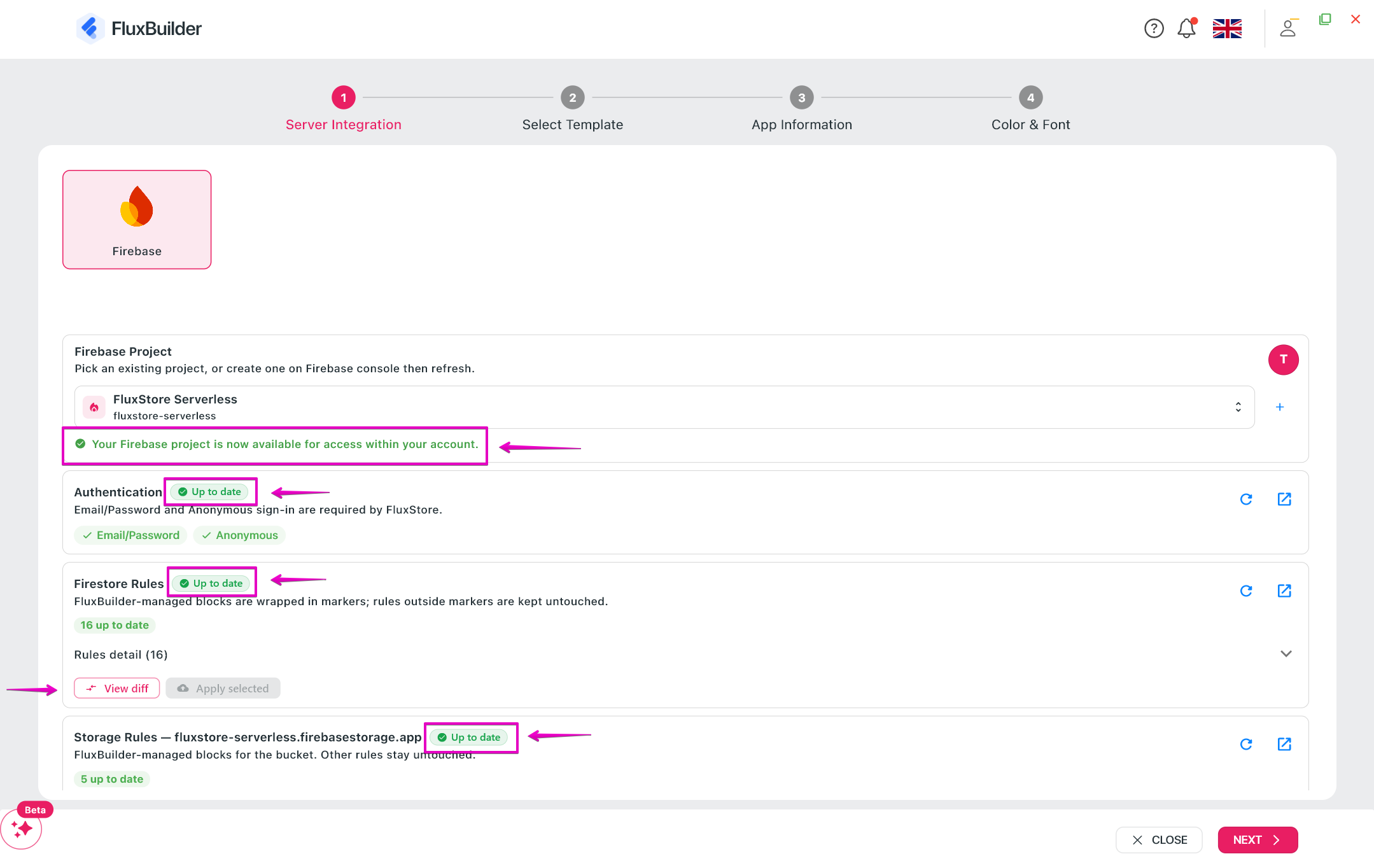
- Then, FluxBuilder will validate Firebase project. Please make sure that all options show Up to date green tag. Otherwise, click on the available button in the option, FluxBuilder will run automatically to re-check:
- Click Next.
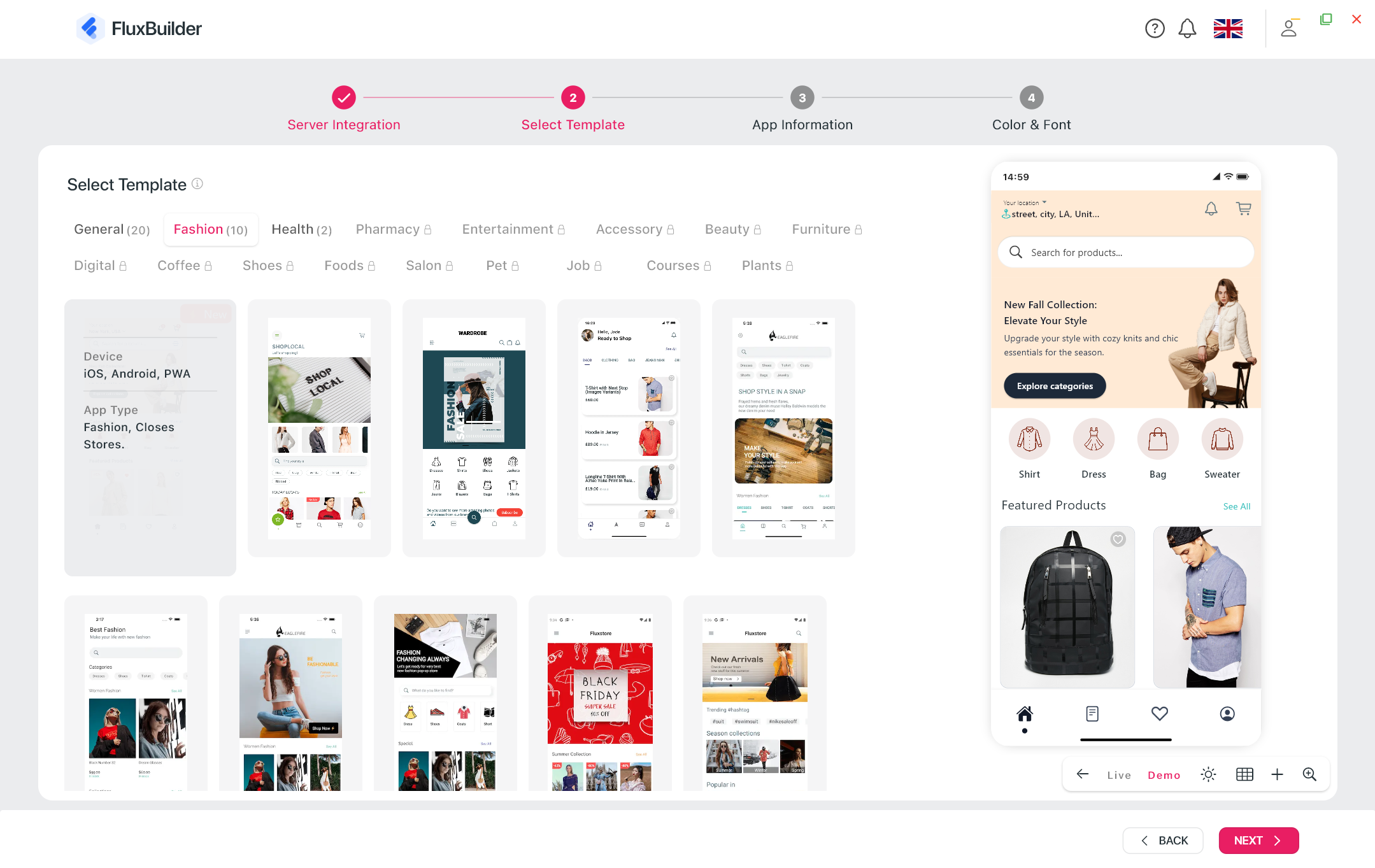
- In the next step, select Templates for your app. Continue to click Next:
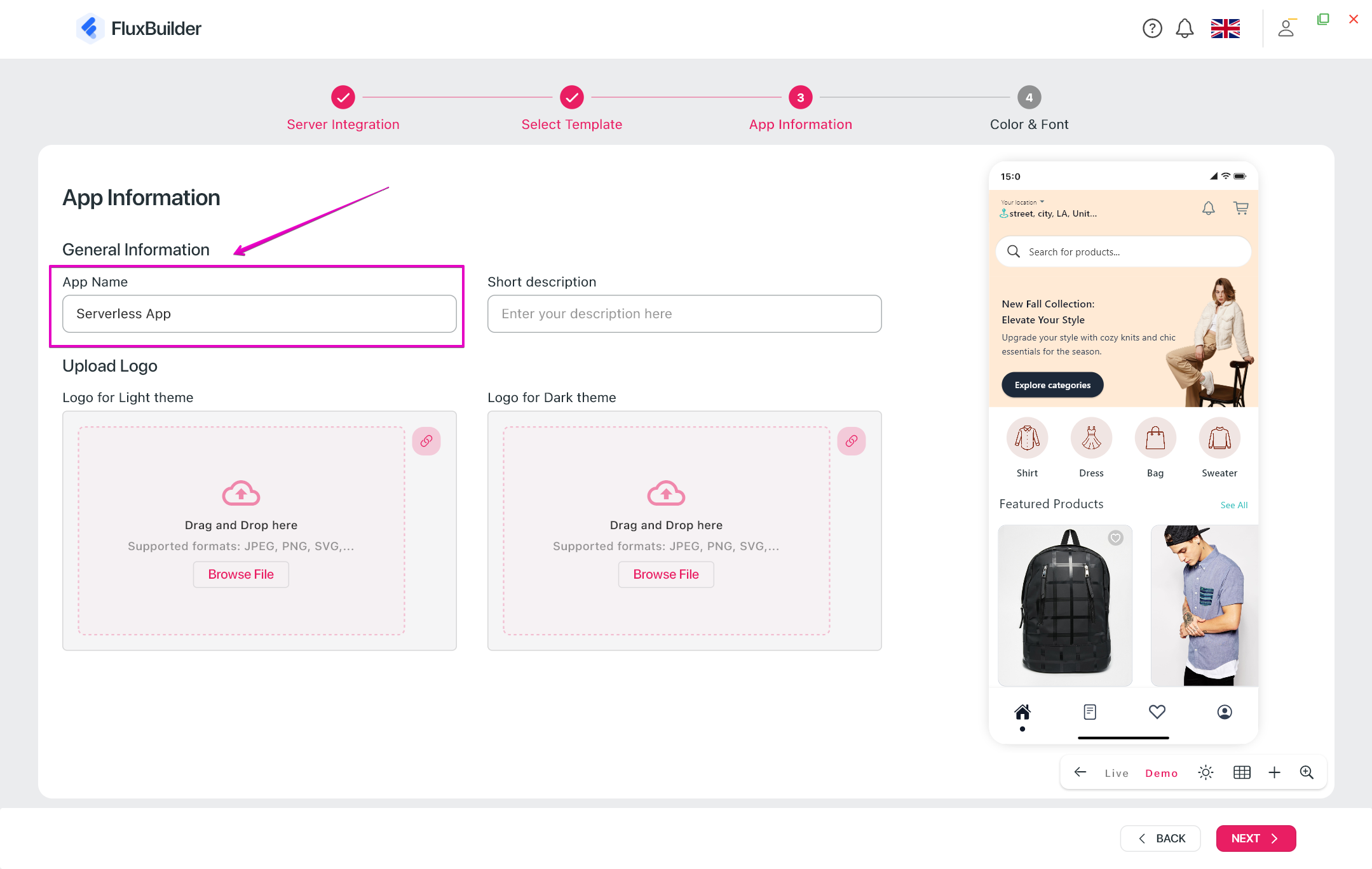
- In the next page, input the App Name and other fields (optional). Click Next:
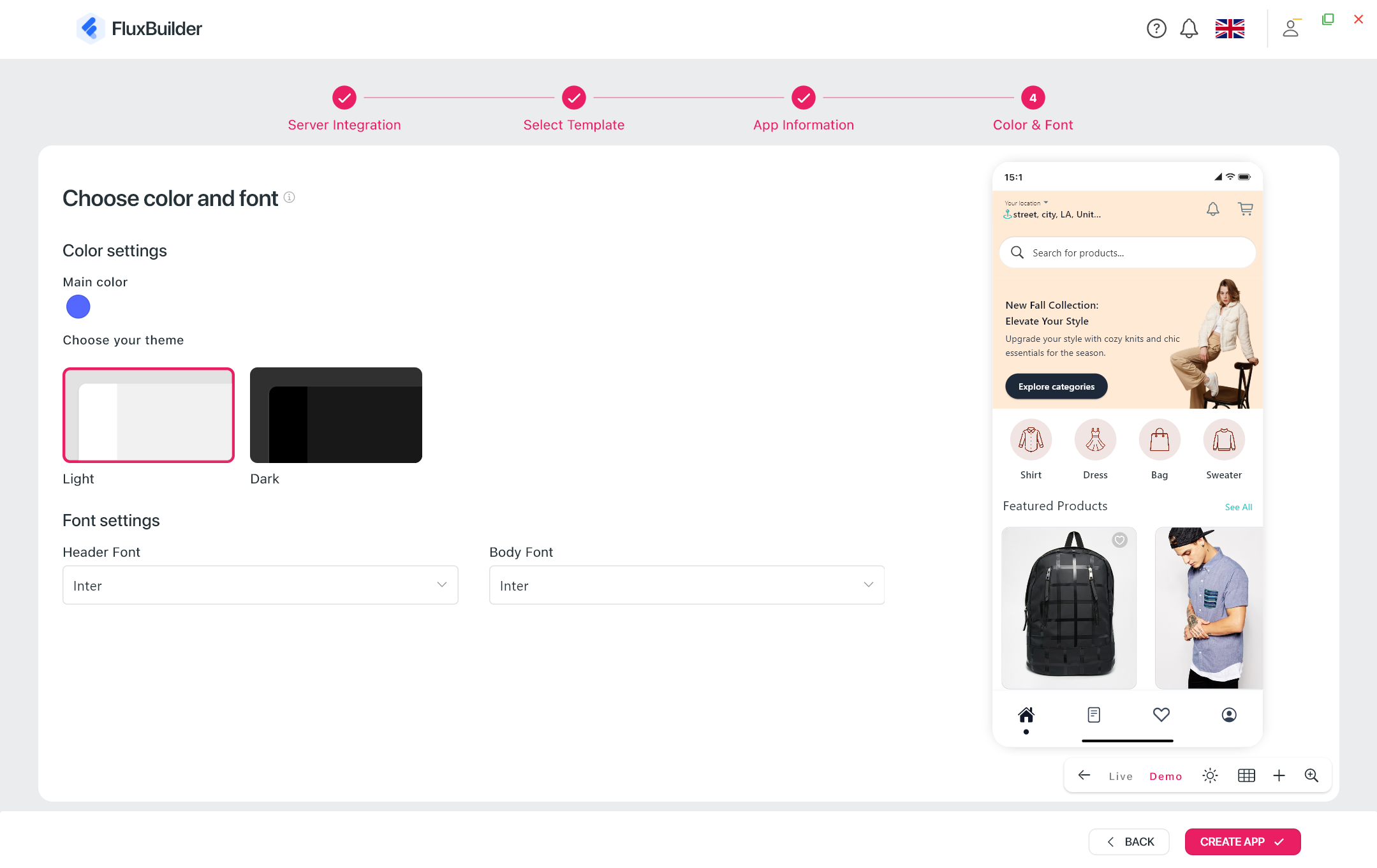
- Then, click Create App button:
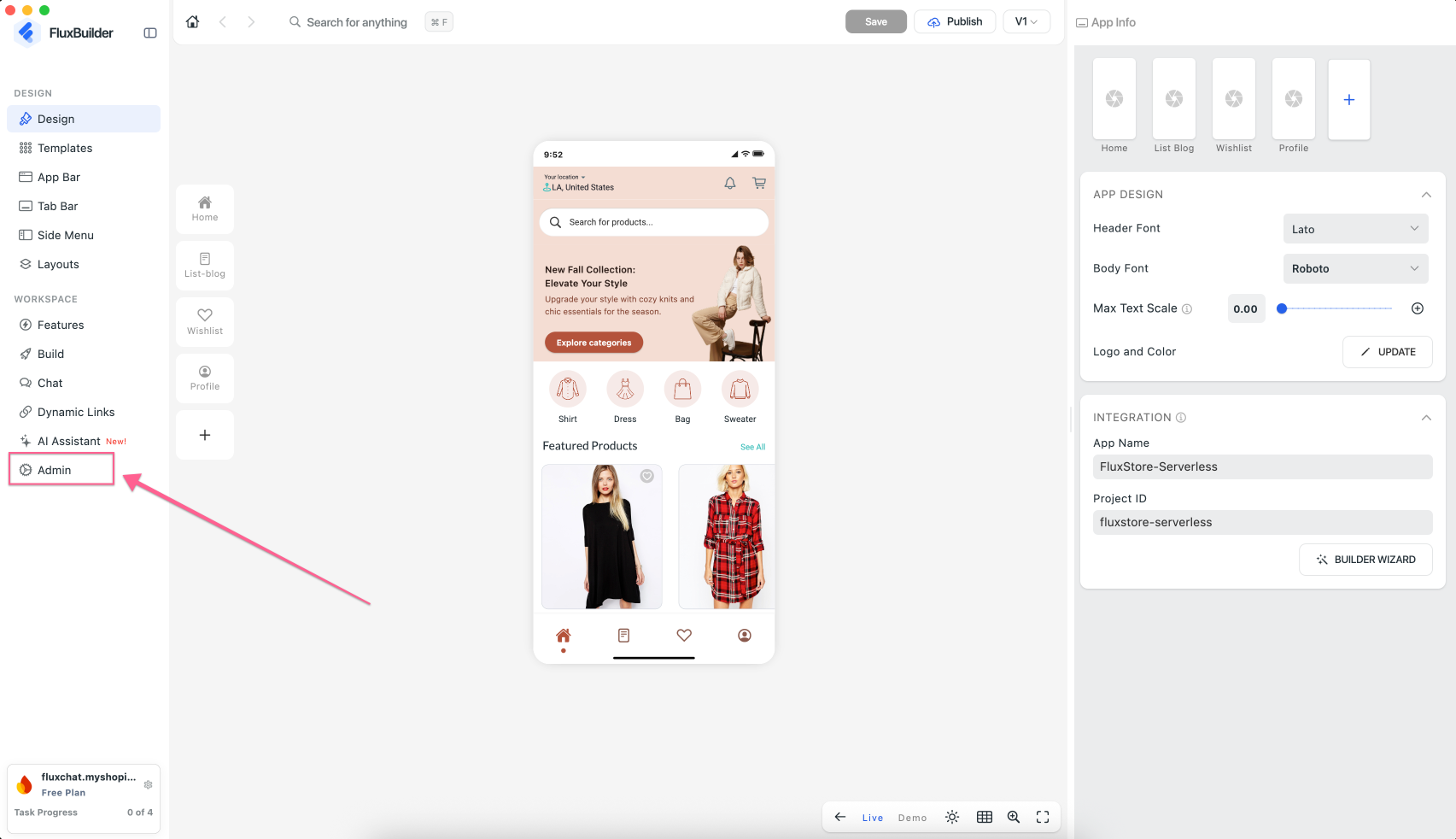
- Once the app is successfully created, navigate to the Admin section to configure your store within the app: