Ajax Search Pro & FiboSearch
Empower your users with advanced Search Methods to save time and enhance their shopping experience on your mobile app. Choose the solution that fits your store: FiboSearch, Ajax Search Pro, or SKU search.
1. FiboSearch
The most popular WooCommerce product search plugin. It gives your users a well-designed advanced AJAX search bar with live search suggestions.
- Seamless integration with the FiboSearch (Ajax Search) plugin
- Displays instant search results while typing, without page reloads
- Improves search accuracy and product discovery for users
Before enabling the feature on the app, make sure to install these plugins on your website:
- Mstore API plugin (version 4.18.3 or higher)
- FiboSearch – Ajax Search for WooCommerce plugin
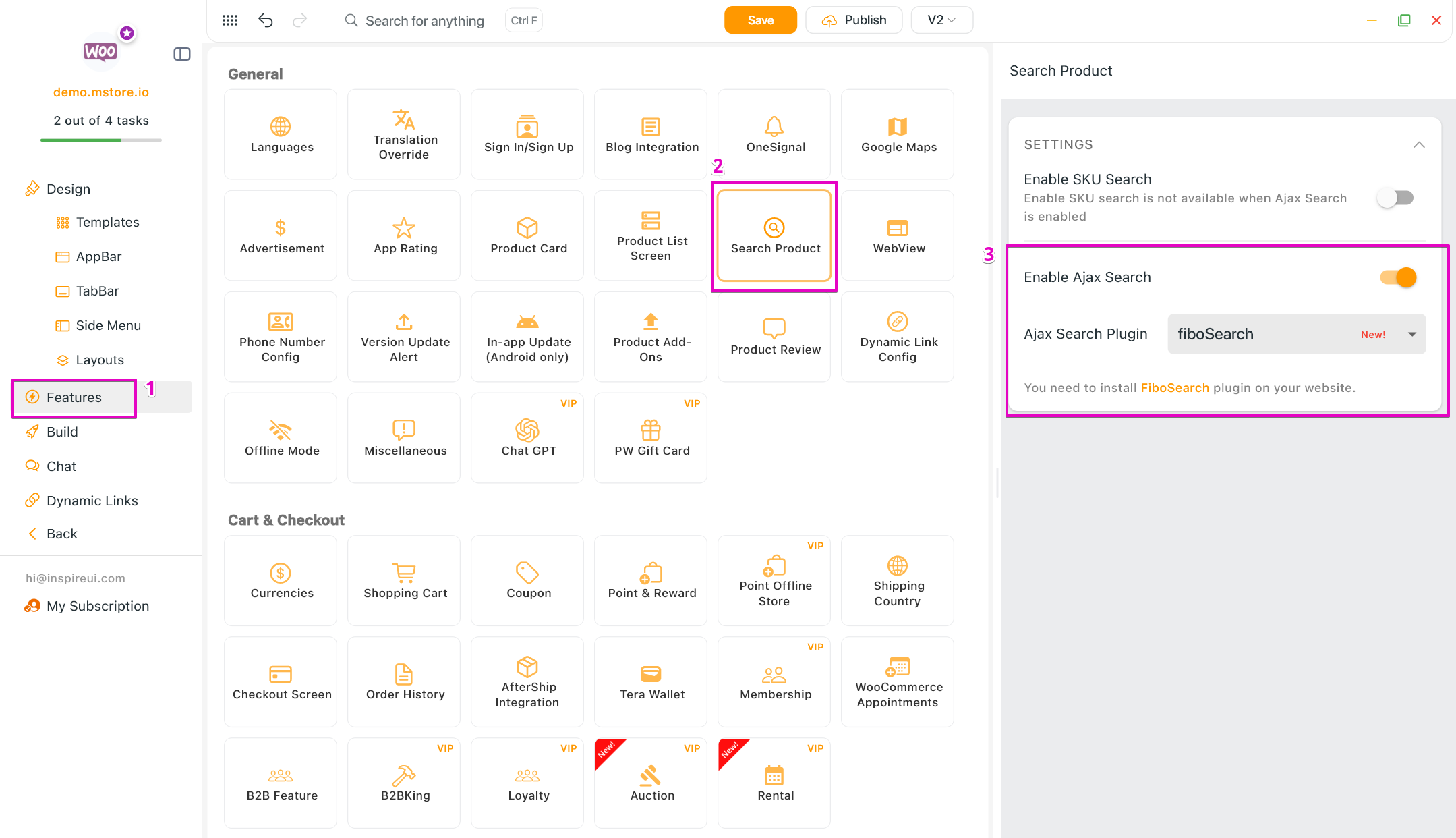
Enable this feature: create your app on FluxBuilder > Features > General > Search Product > turn on the Enable Ajax Search option > select fiboSearch.
2. Ajax Search Pro
Quick and precise results, in real-time. A unique, custom built search script – for more accurate and faster results. The Ajax Search Pro is used for WooCommerce apps.
To have the feature on the app, please follow these steps:
- Install and activate the Ajax Search Pro plugin for your website.
- Next, go to the "Compatibility & Other Settings" page of the Ajax Search Pro plugin. You can find this page by navigating to "Ajax Search Pro" in your WordPress dashboard, and then clicking on "Compatibility & Other Settings".
- In the "Compatibility & Other Settings" page, click on the "Other" tab.
- Make sure that the "Enable REST API" checkbox is checked.
- Click on the "Save options" button at the bottom of the page to save your changes.
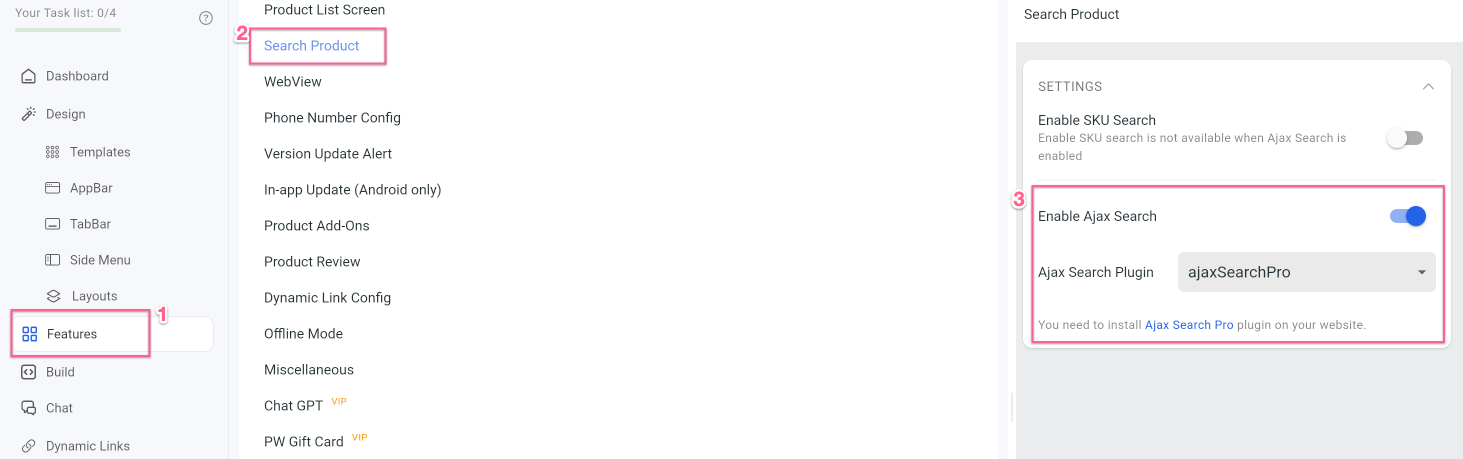
Enable this feature: create your app on FluxBuilder. Then go to Features, select Search Product, turn on the Enable Ajax Search option, select ajaxSearchPro.
3. Common search issues:
💊 Result page loop issues
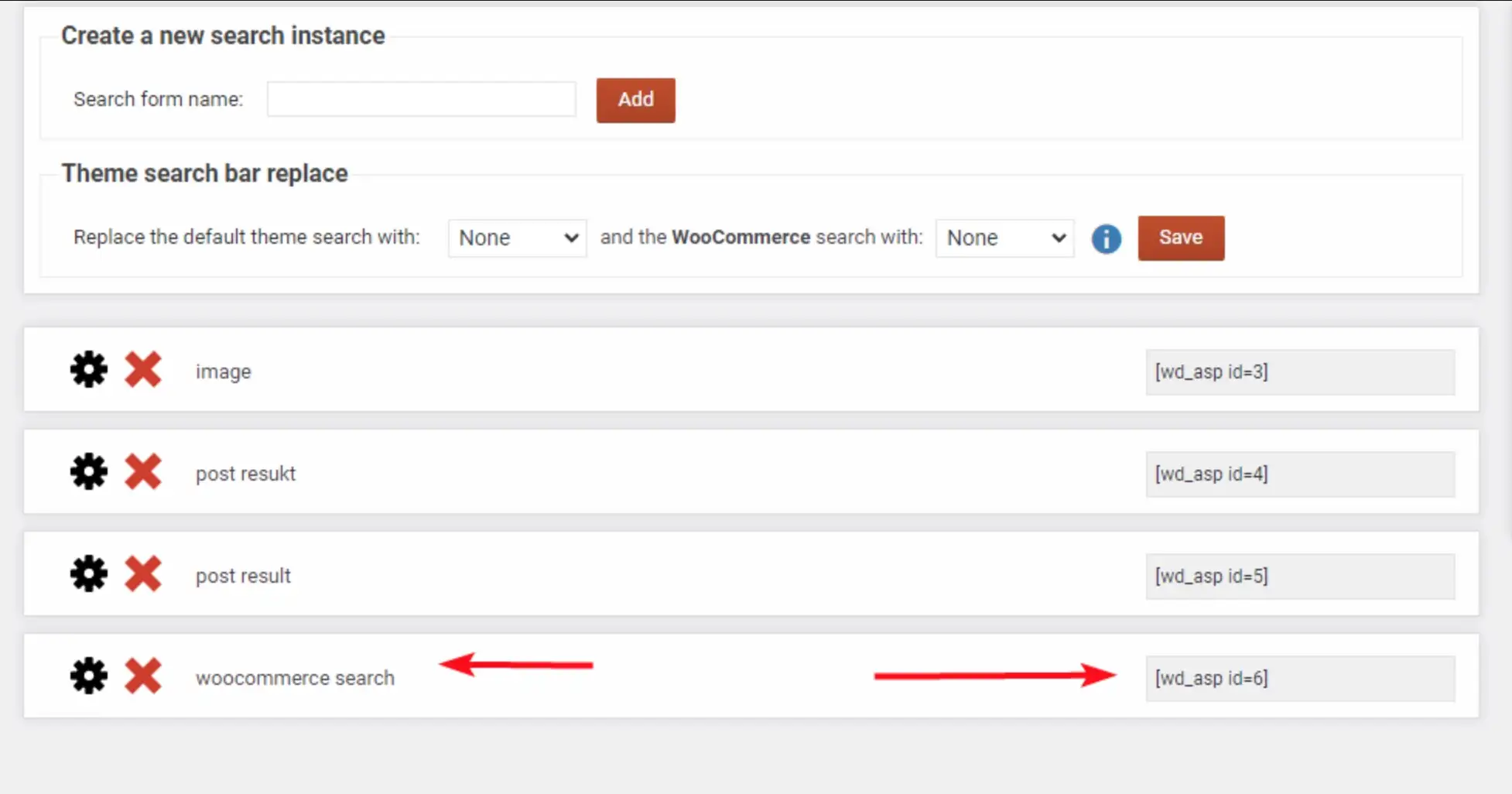
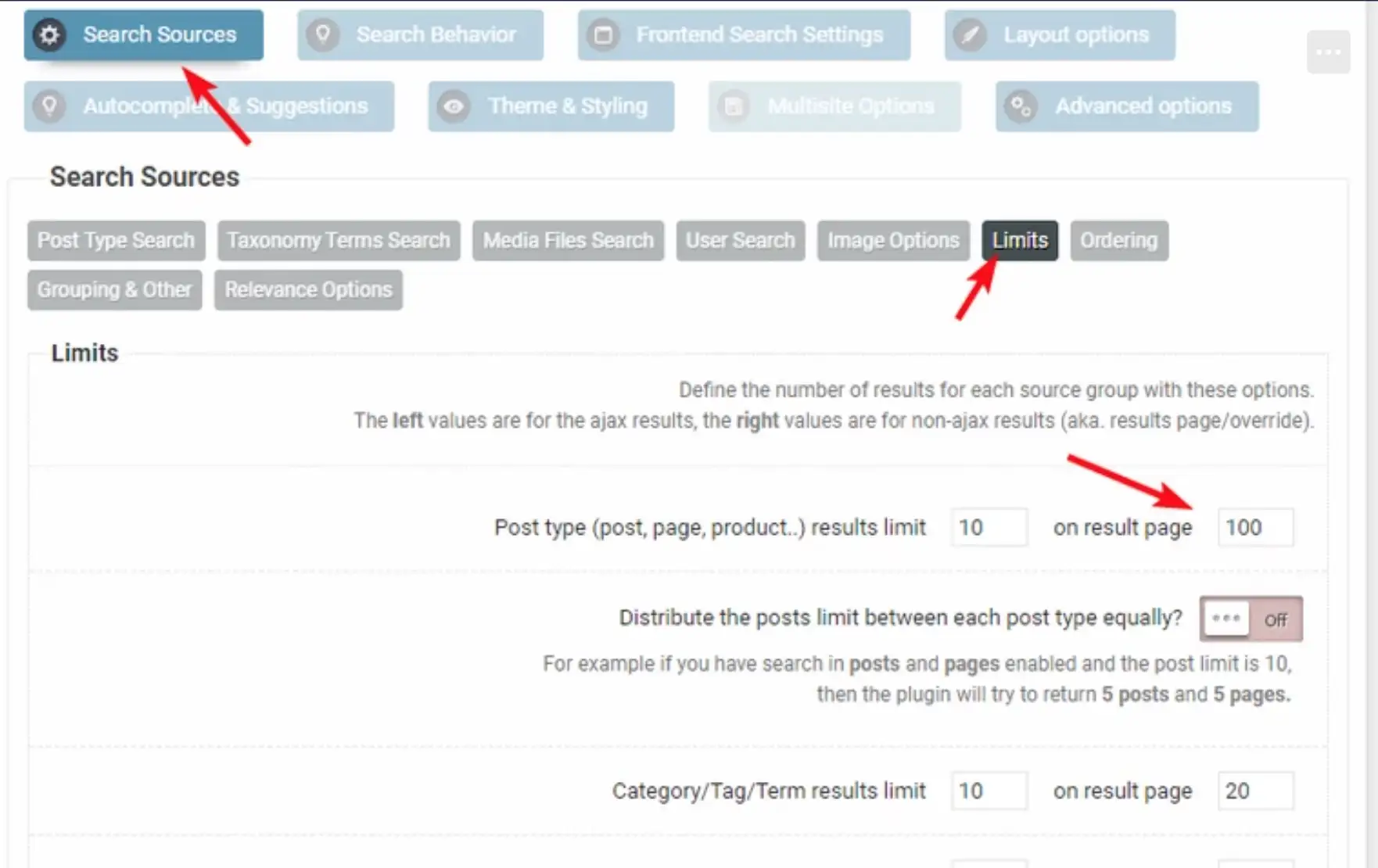
With the Ajax Search Pro plugin, the default search query returns 10 search results. To retrieve all search results, you need to edit the plugin to return all results.
Please log in to your website as an administrator and set the limit for the returned product results to the desired value, for example: 100
💊 Filter not working with ASP - If you use Ajax search, it can't apply the filter when loading the product
💊 The search product results cannot load images
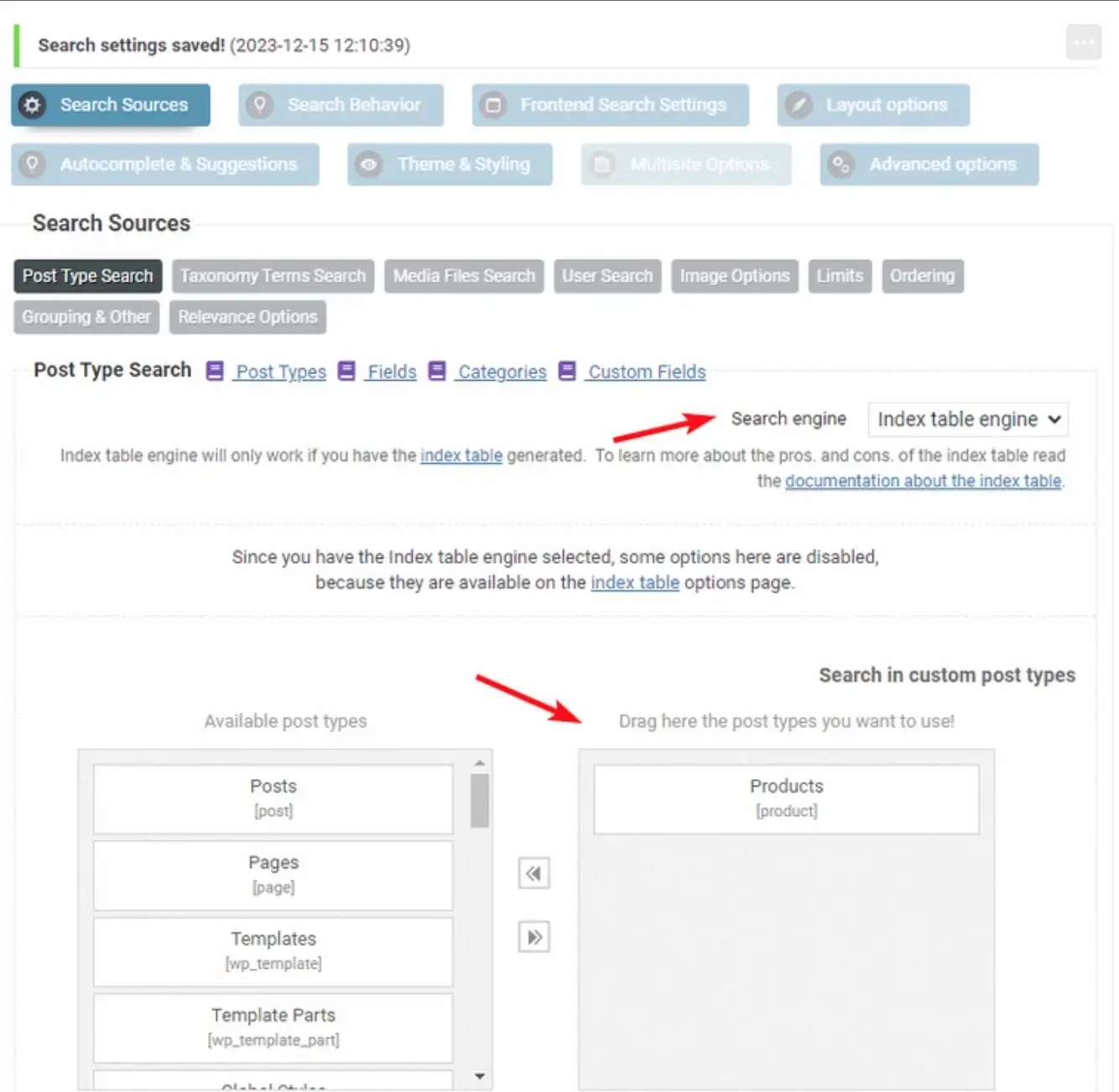
The issue arises from not specifying a search ID, leading to the default route being utilized, where images are not parsed by default. Please log in to your website as an administrator and create a search instance configured specifically for product searches.