WCFM Live Chat
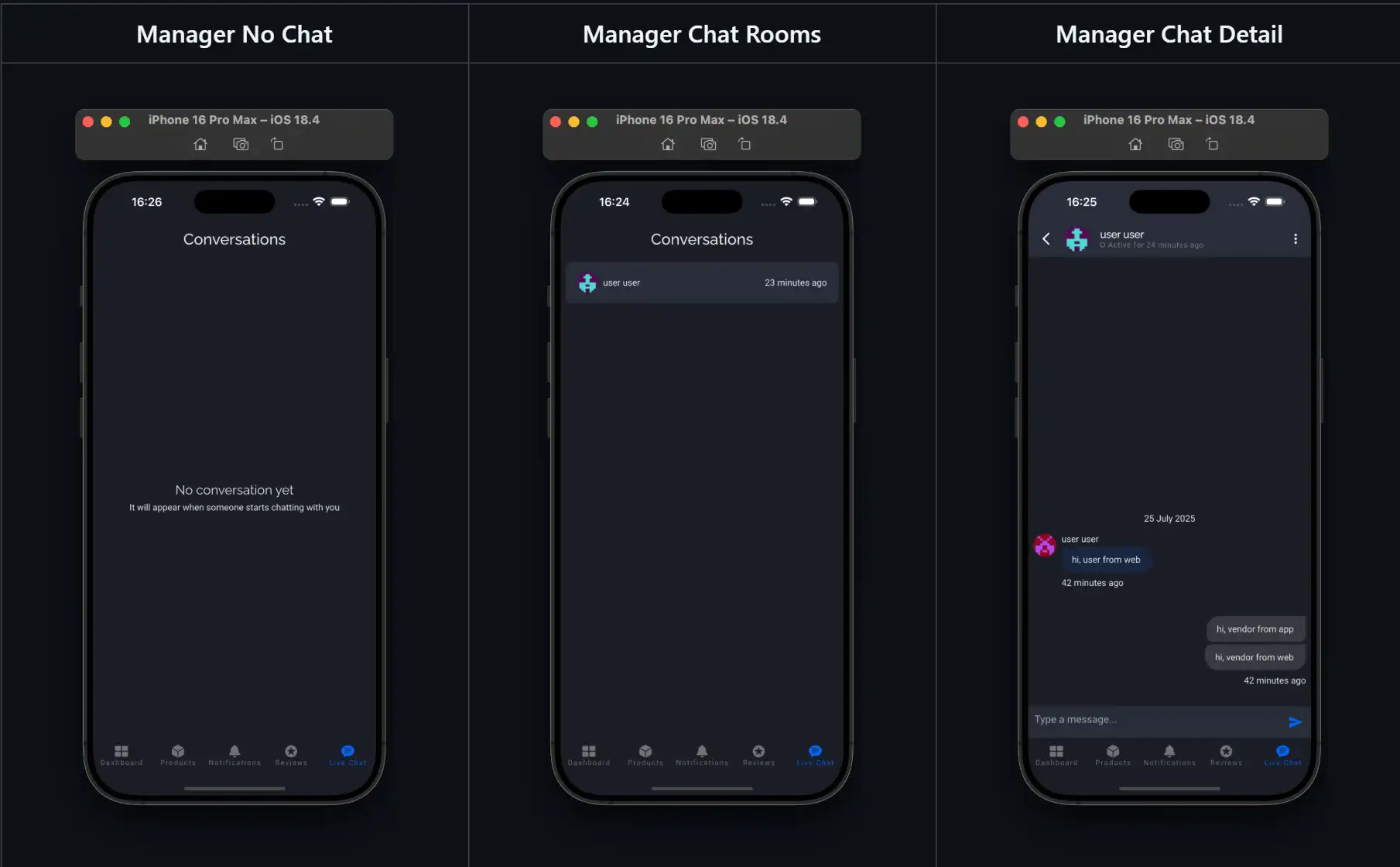
The WCFM Live Chat feature allows real-time communication between users, vendors, and admins directly within your app. It’s built for seamless multi-role support — whether your users are guests, registered customers, or vendors — ensuring smooth interaction without needing any third-party chat integration.

Key Features
Role-Based Chat
- Guest/User ↔ Admin/Vendor supported.
- User roles are auto-detected upon login.
- Vendors/Admins can chat with vendors, but Vendor ↔ Admin chat is not supported.
- To chat with a vendor → open product/vendor detail screen.
- To chat with an admin → open profile or a product without an assigned vendor.
Vendor Control
Vendors can enable/disable chat from the web dashboard.

The app reflects vendor chat availability accordingly.
Chat Session Management
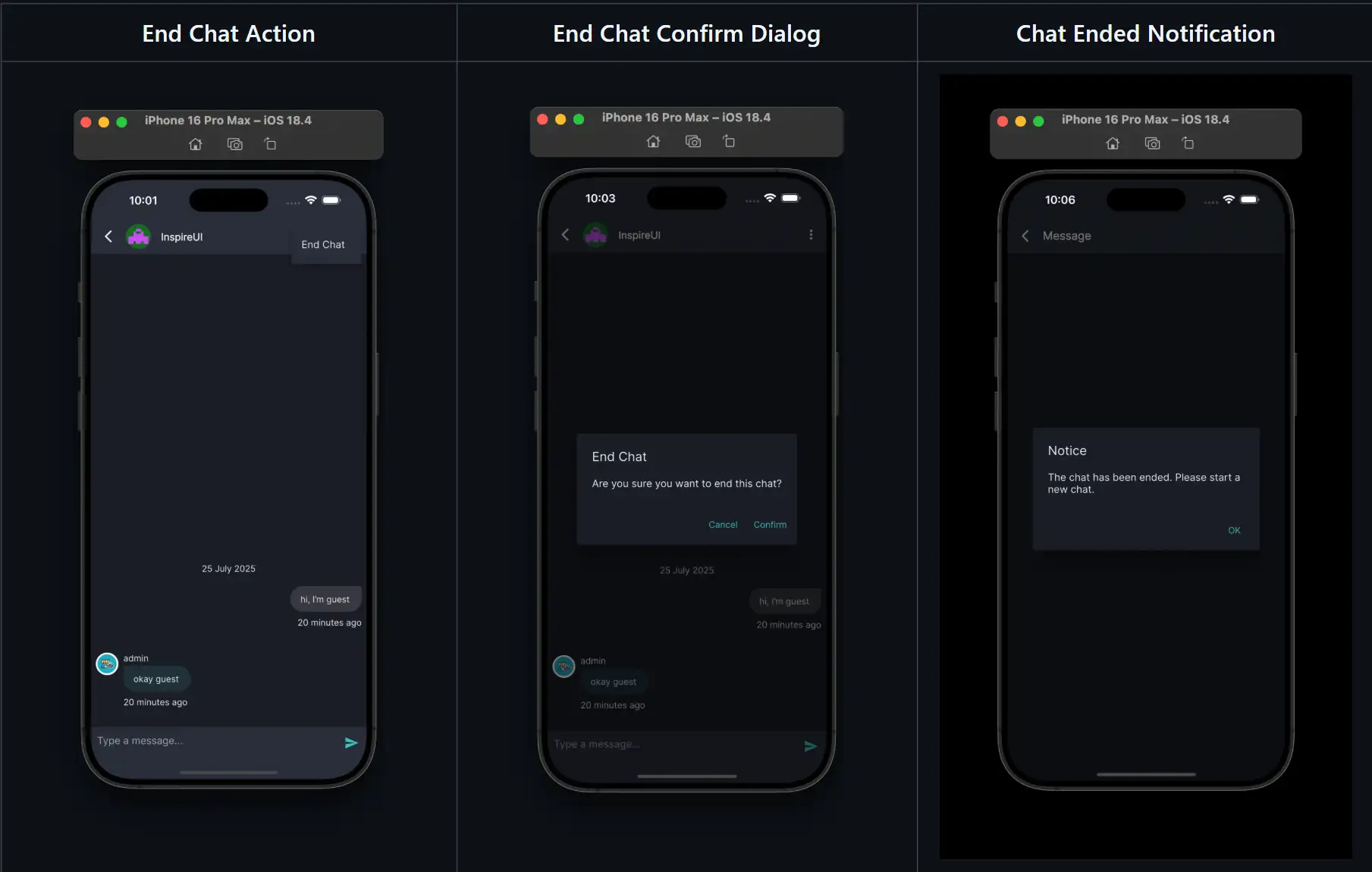
- Any participant (User/Vendor/Admin) can end a chat.
- If a user ends the chat, no notification is shown.
- If the other party ends the chat, the user is notified.
- Ended chats are automatically stored on the server.
Online & Offline Support
- Online status auto-updates when chat screen is open/closed (no manual toggle needed, unlike web).
- Users can still send messages to offline vendors/admins — messages are delivered once the recipient is online.
Real-Time Chat Features
- Supports typing indicators and online presence.
- Messages, notifications, and typing status behave consistently with real-time chat.
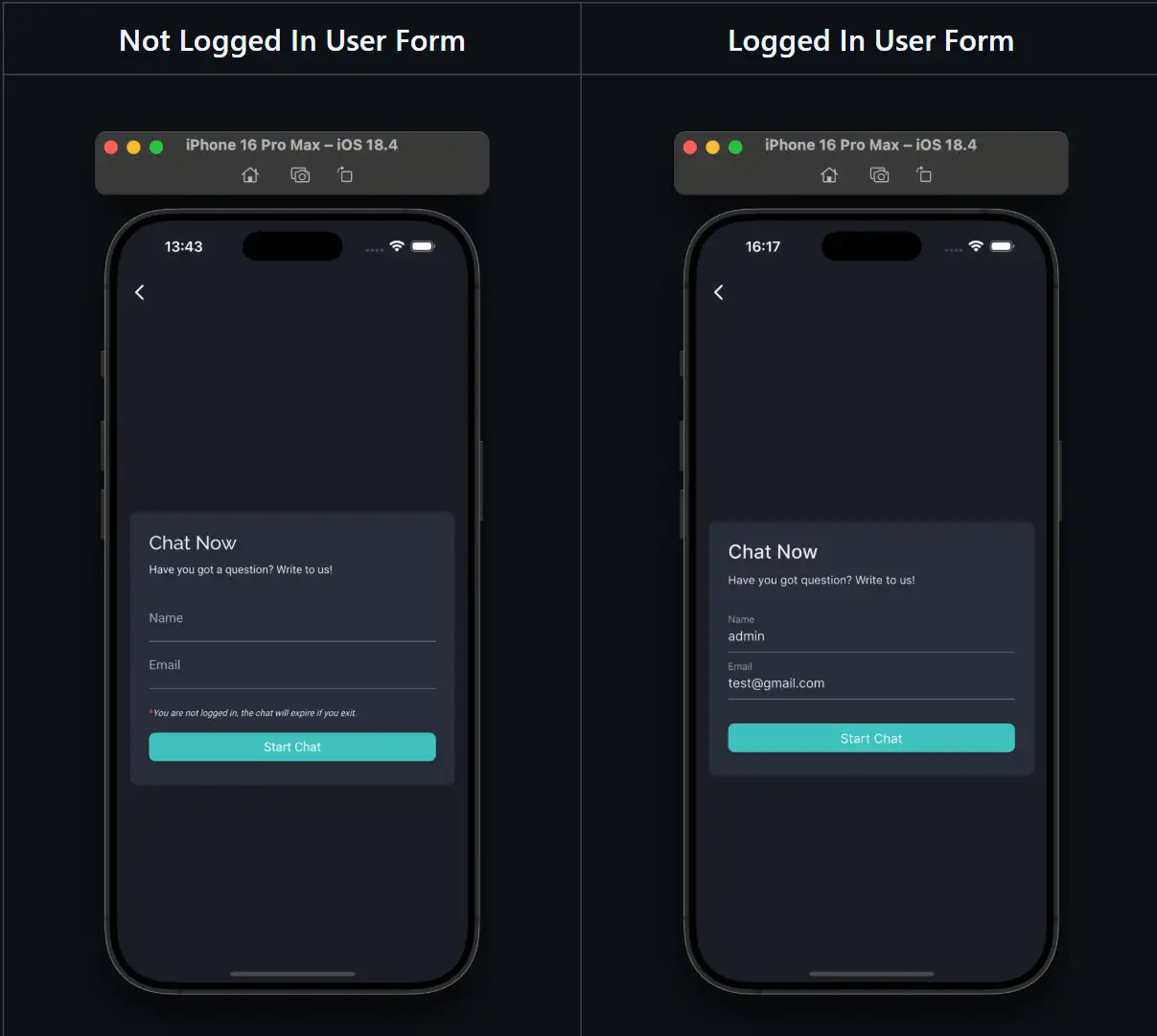
Guest User Handling
- Guests can chat, but once they exit, they cannot reopen past sessions.
- Guests still receive notifications from vendors for recent chats until the app is closed or login occurs.
- If a guest later logs in, vendors can still continue the conversation (though push notifications will no longer be sent).
- A warning message is displayed on the chat auth screen for guest users.
System Behavior
- Only one chat thread is shown per user-vendor or user-admin relationship.
- Admin messages in user-vendor chats will not display in the app (but remain visible on the web).
Configuration
Requirements
- Install and activate the new version of MStore API plugin.
- Setup the Firebase Realtime Database via this guide: https://docs.wclovers.com/live-chat/
- Re-deploy Firebase Cloud Functions for Notification.
- Requires WCFM Ultimate plugin
Configure Chat on App Side
Step 1: Activate WCFM Live Chat on app.
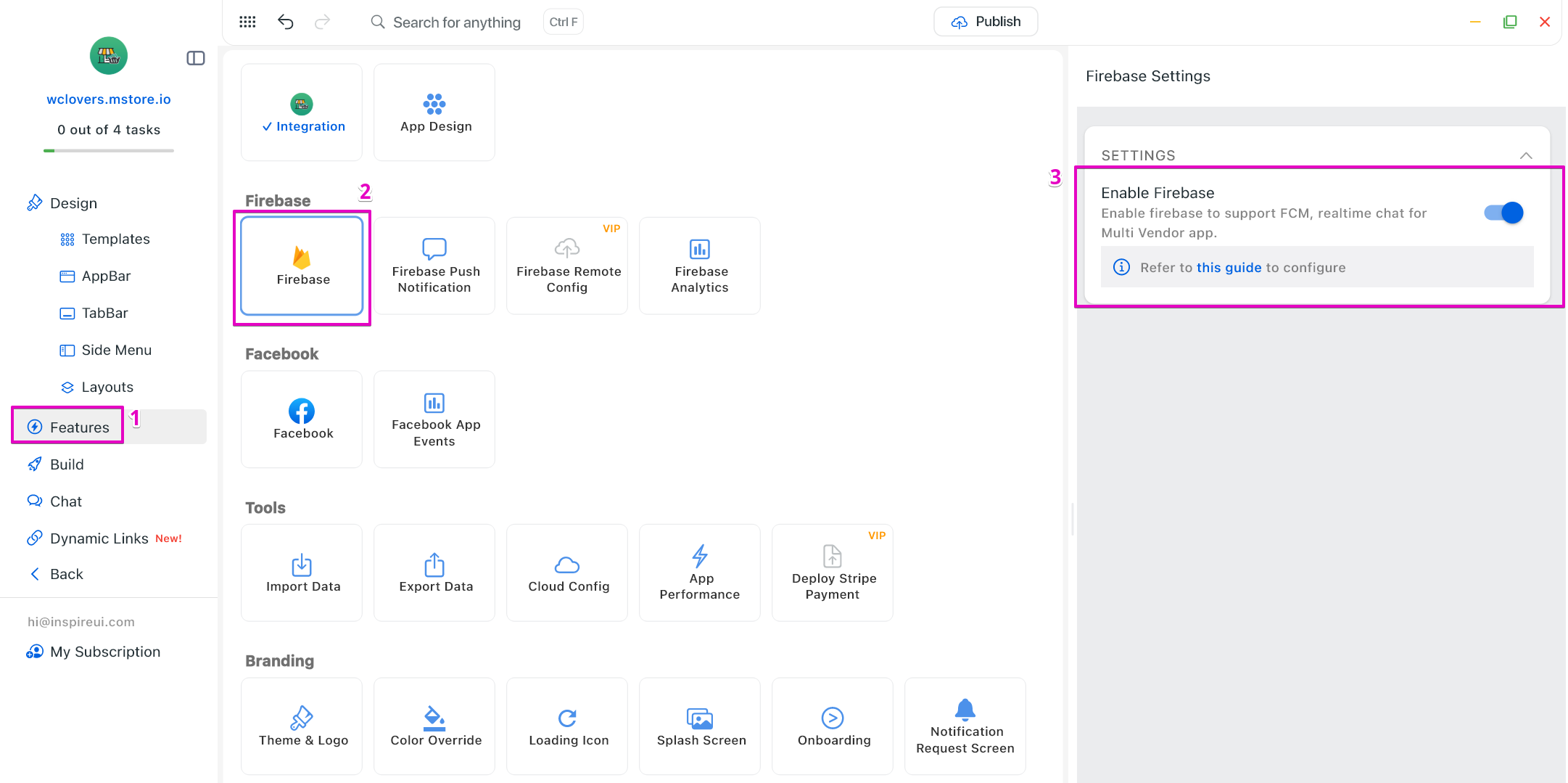
- Open your app on FluxBuilder.
- Select Features on the left menu, open Firebase.
- Turn on Enable Firebase.
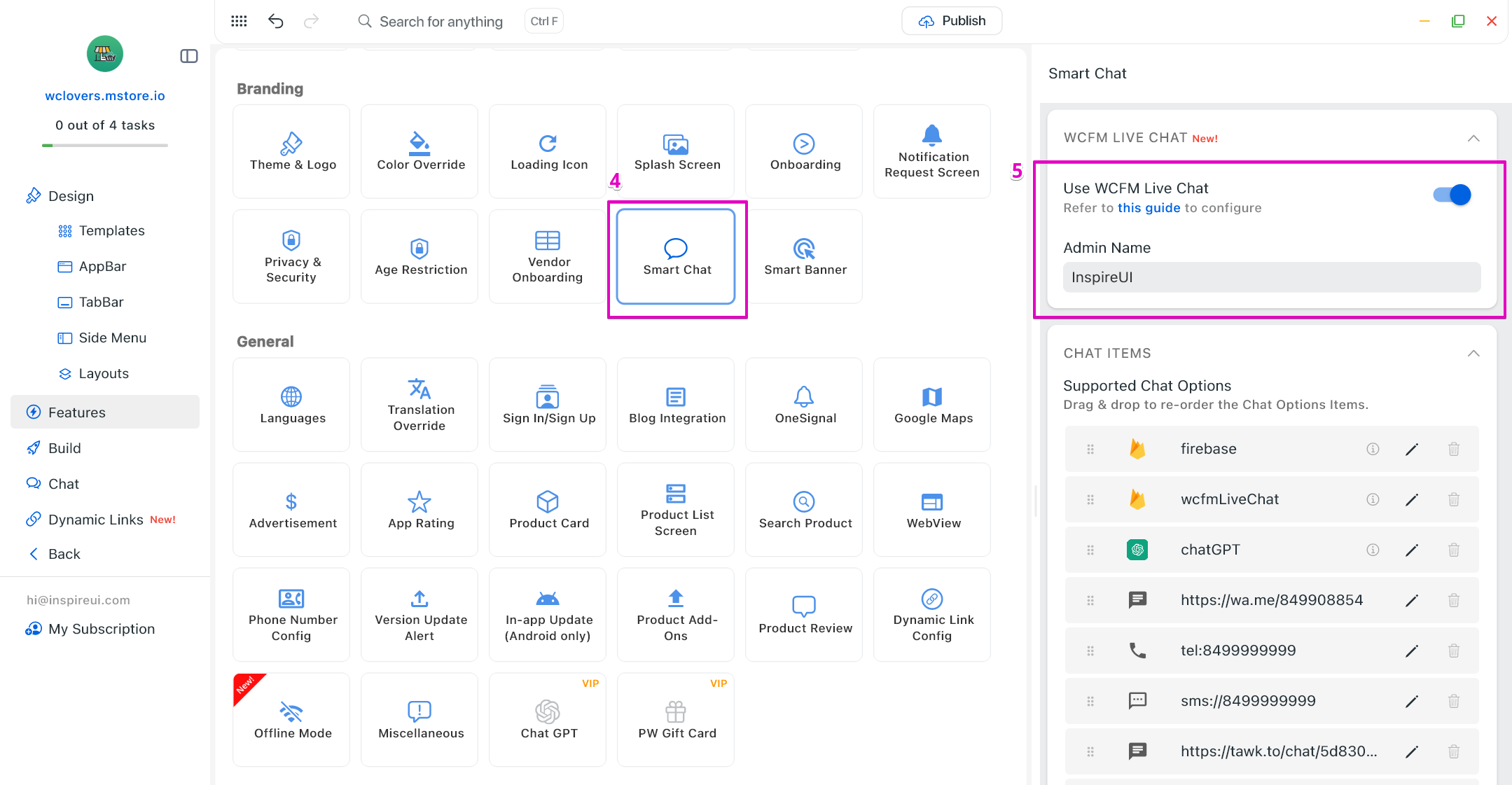
- In Branding, open Smart Chat.
- Enable the option Use WCFM Live Chat, and input Admin Name.
Step 2: Add WCFM Live Chat option.
- Open your app on FluxBuilder.
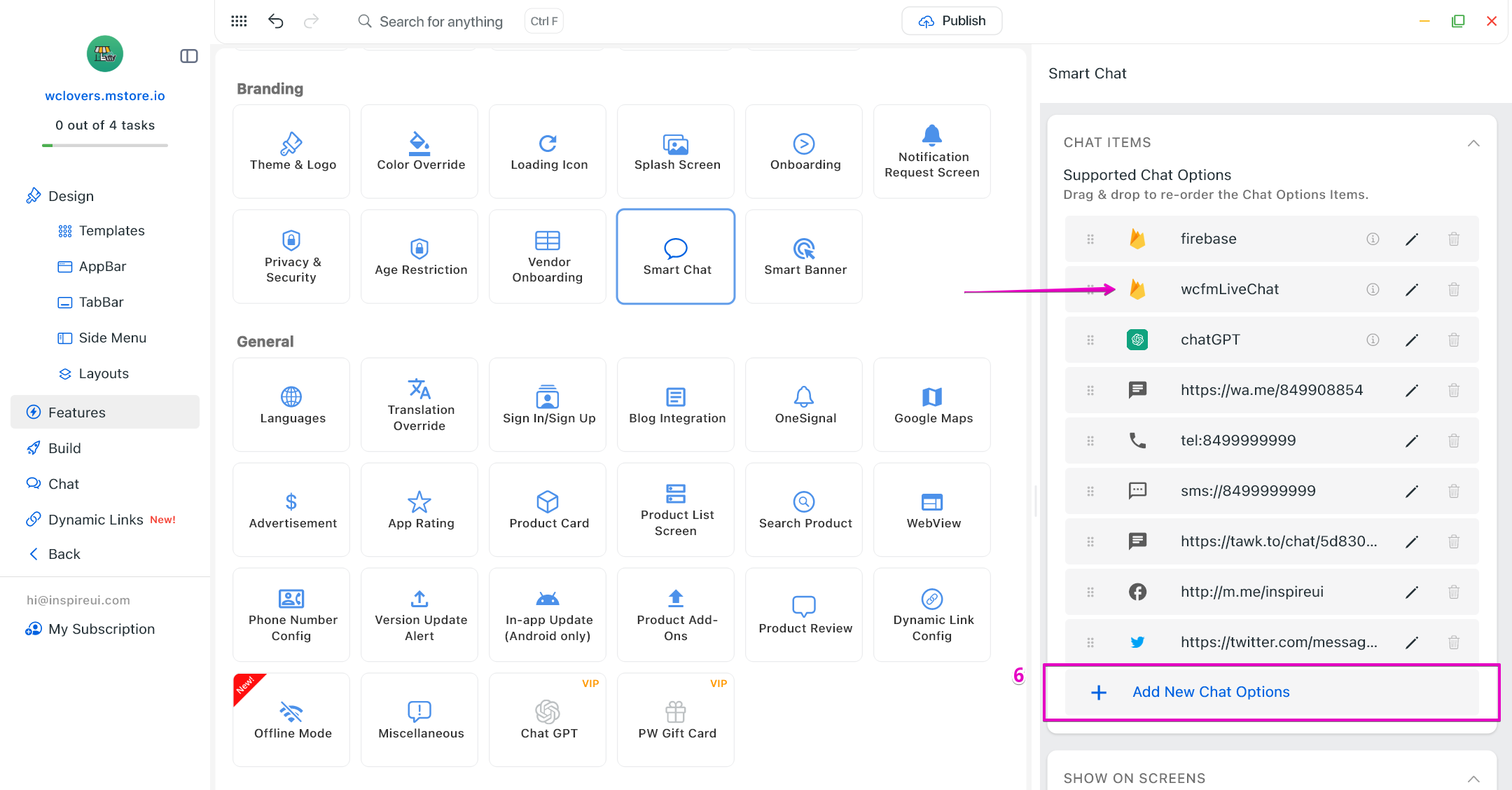
- Go to Features. In Branding, open Smart Chat.
- Enable Smart Chat → select Add New Chat Options.
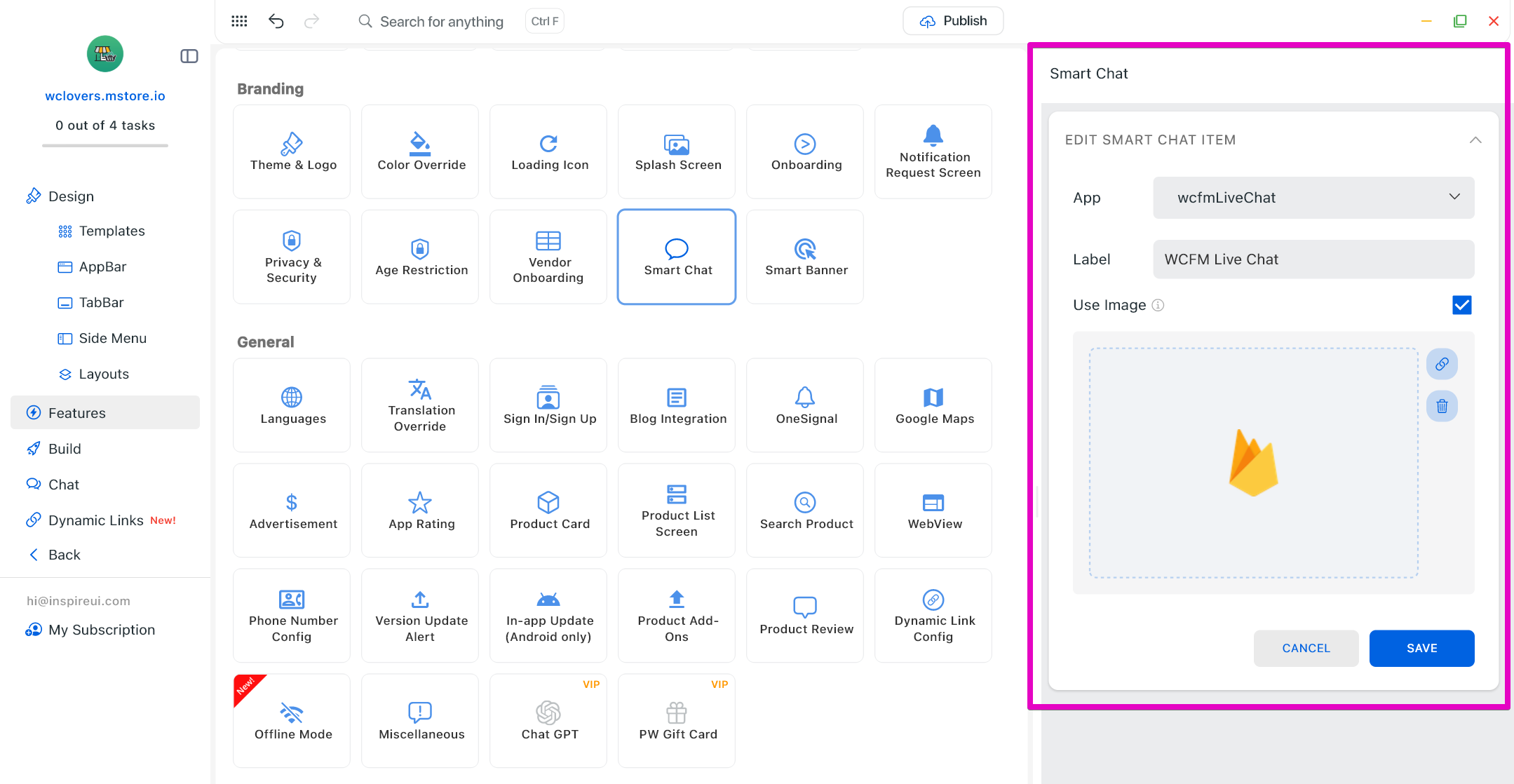
- On the Smart Chat Item setting, select wcfmLiveChat option in App.
- Input the option name in Label
- Enable Use Image Data to upload your own icon image for the chat option. Otherwise, disable it and select the available Icon Data.
- Click SAVE.