Woo Product Add-Ons & File Upload
This guide explains the way to configure WooCommerce Product Add-Ons, Upload File on the product (especially for drug store/ online medicine store, needs to upload prescription), short-description type, heading type; YITH WooCommerce Product Add-Ons.
1. Product Add-Ons Configuration
The Product Add-Ons plugin is supported on WooCommerce apps:
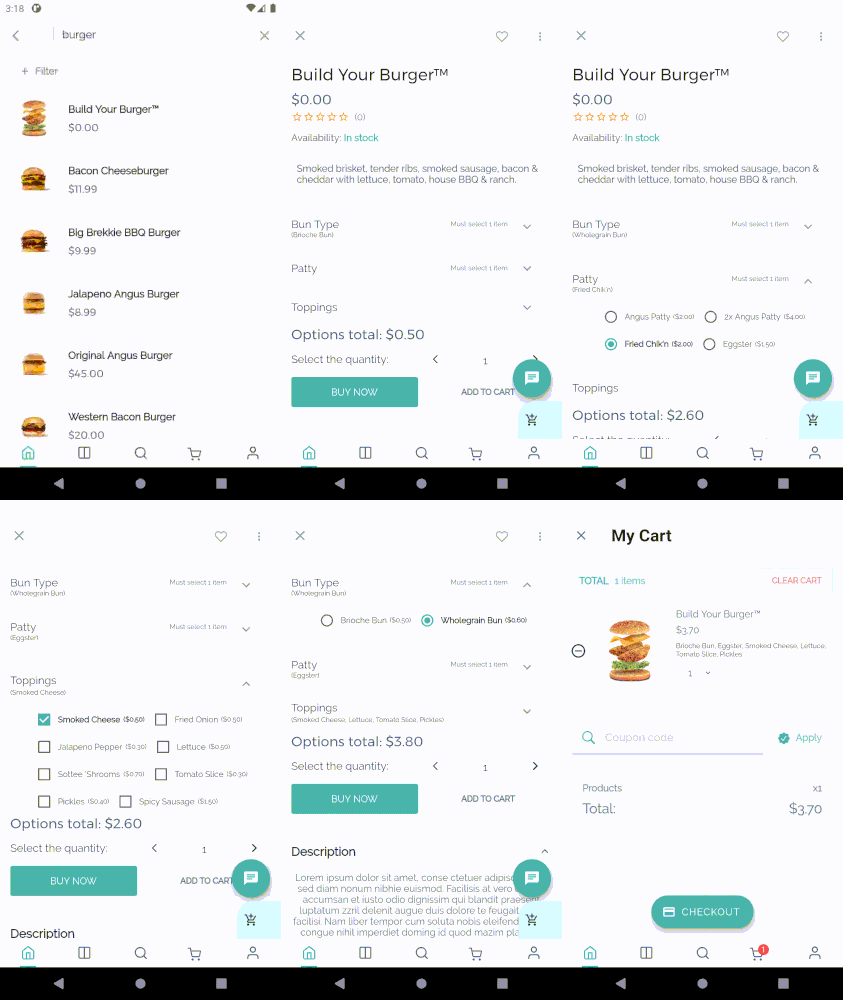
To use this plugin, make sure you are using our latest MStore-API plugin which supports this feature. Older versions will not work. Refer to image below:

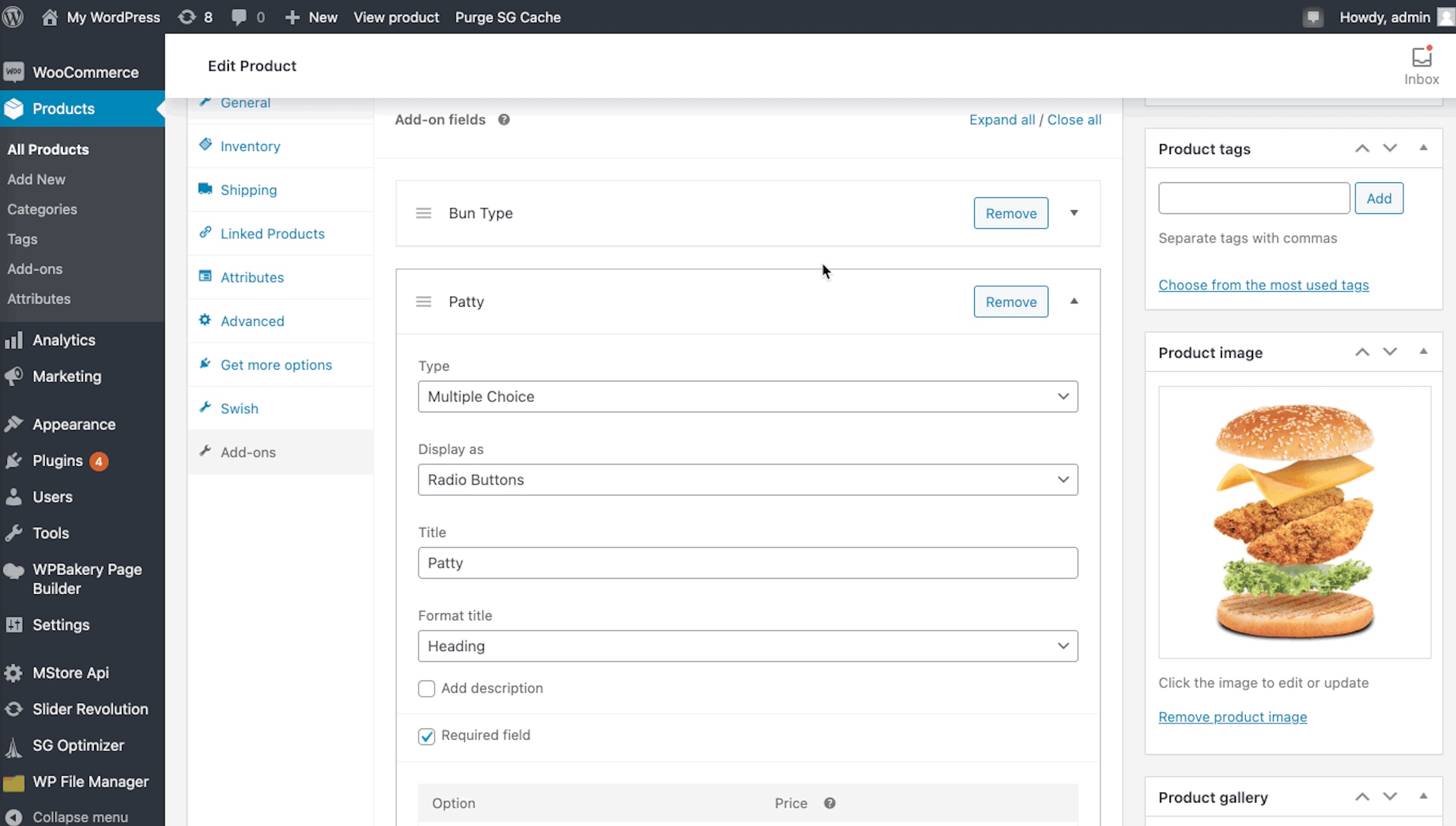
Then you can choose to create either Global Product Add-Ons or Per-Product Add-Ons by following their documentation:
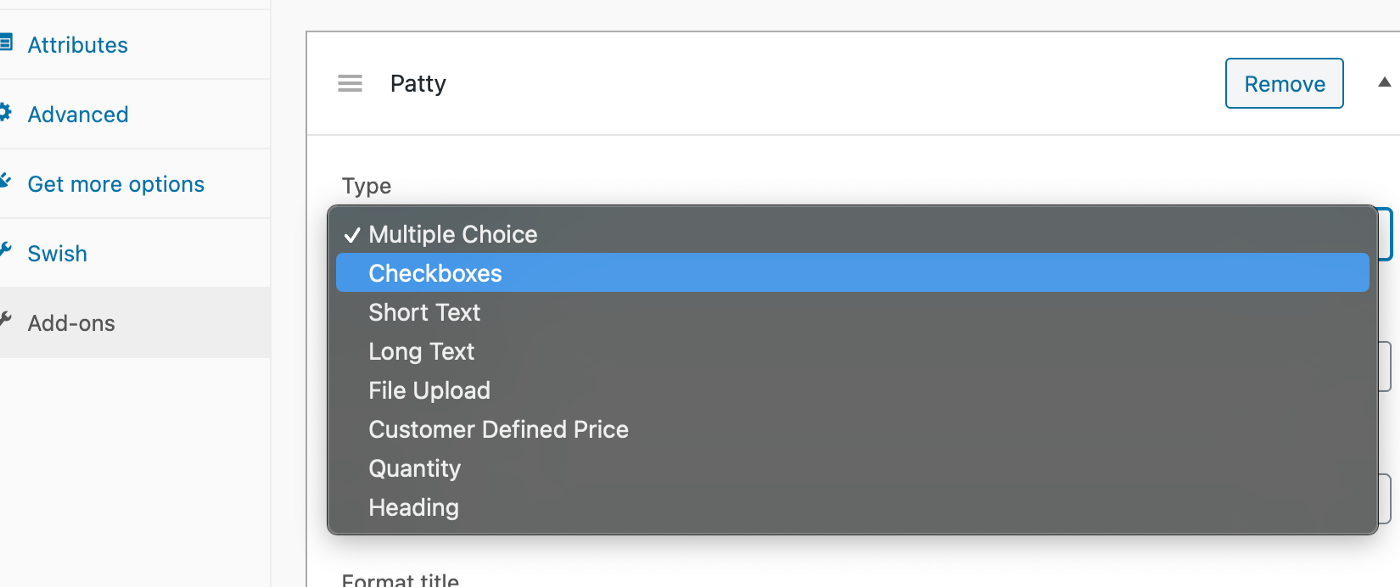
Supported types: Multiple Choice, Checkboxes, Short Text, Long Text, File Upload, Heading.
Other types are not supported.
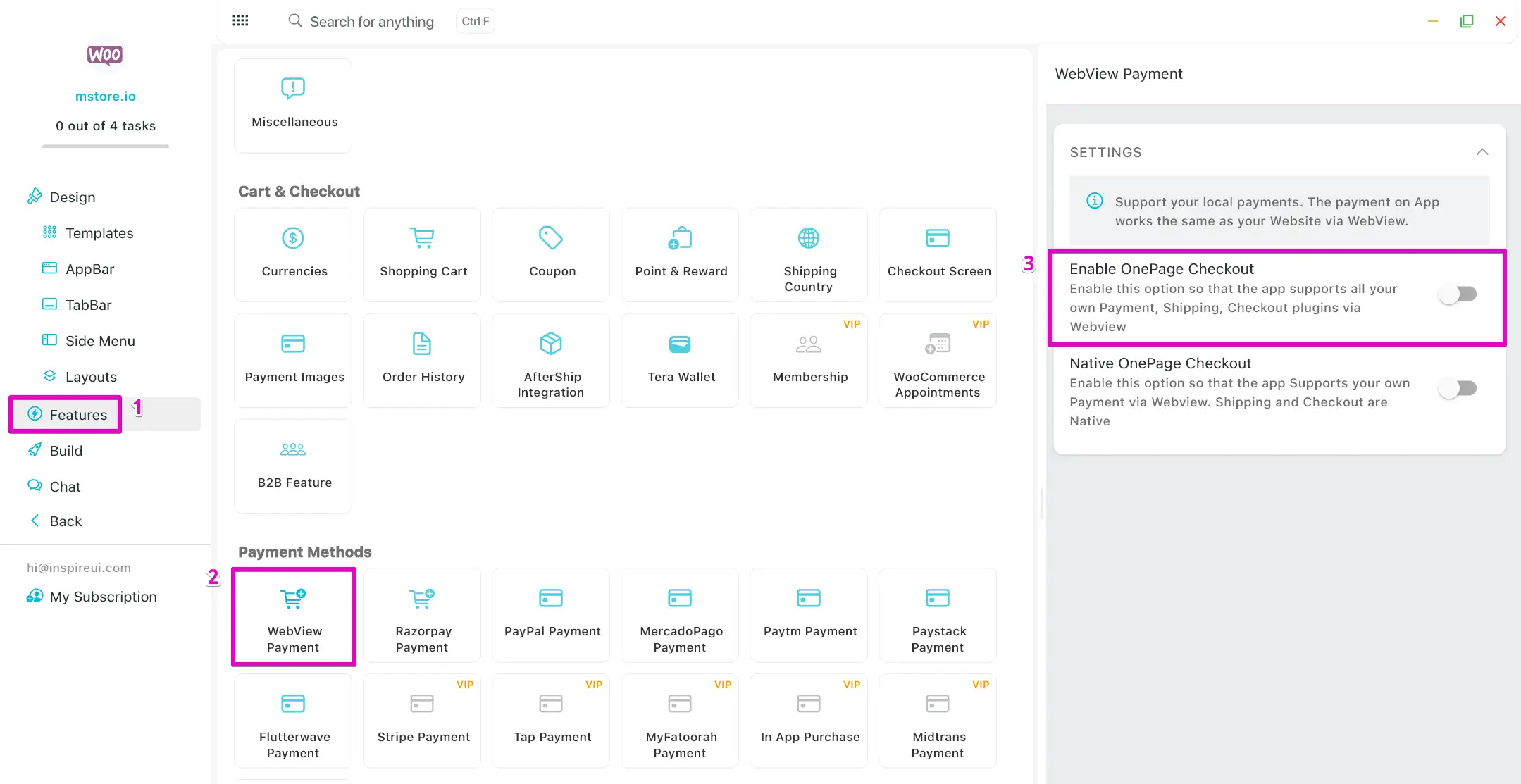
Please note that the Product Add Ons that only compatible when the [Enable OnePage Checkout] is Off.
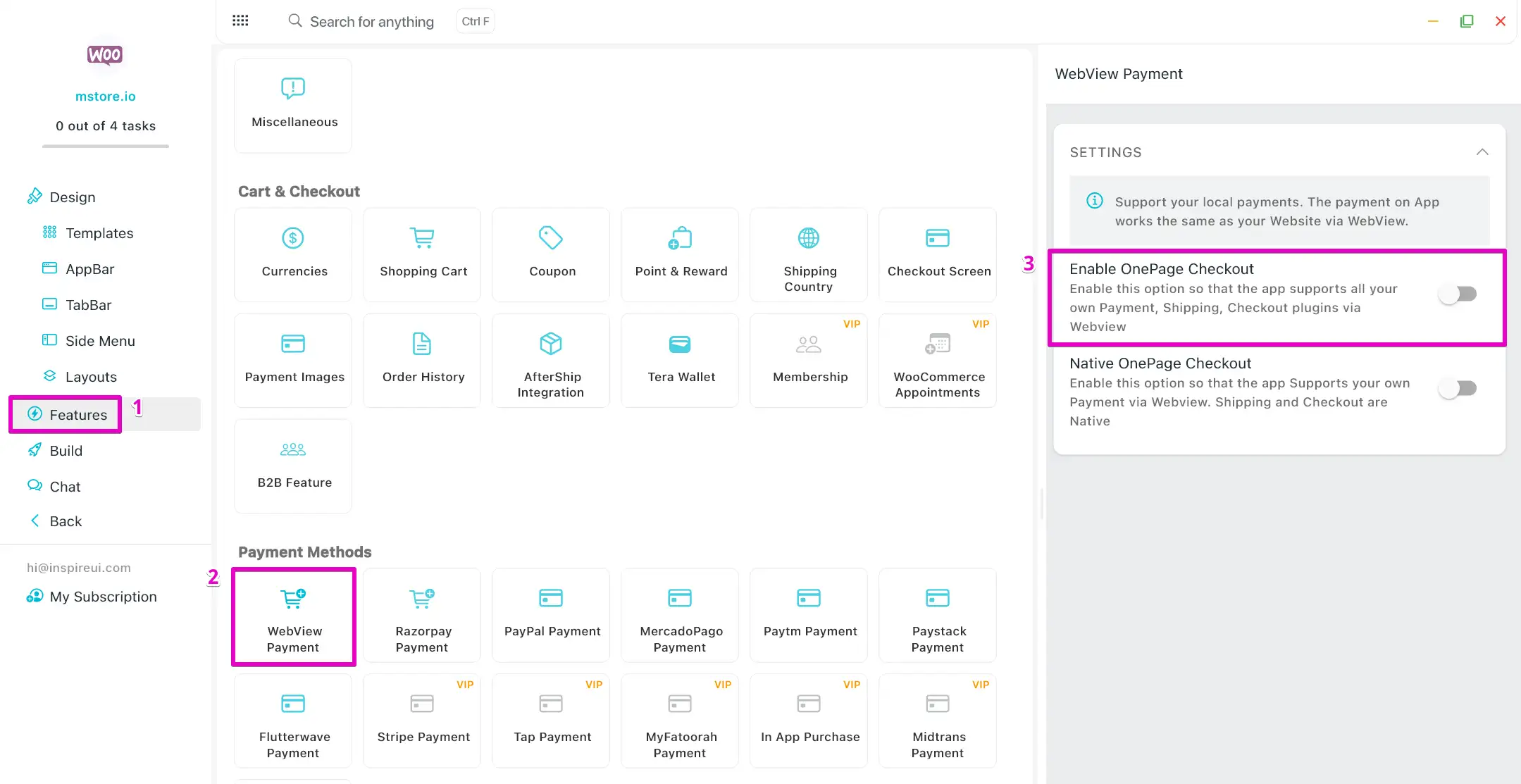
Disable OnePage Checkout by following these steps:
- Open your app on FluxBuilder.
- Go to Features. In Payment Methods, open Webview Payment.
- Turn off the option Enable OnePage Checkout.
- Click Save button.
2. File Upload
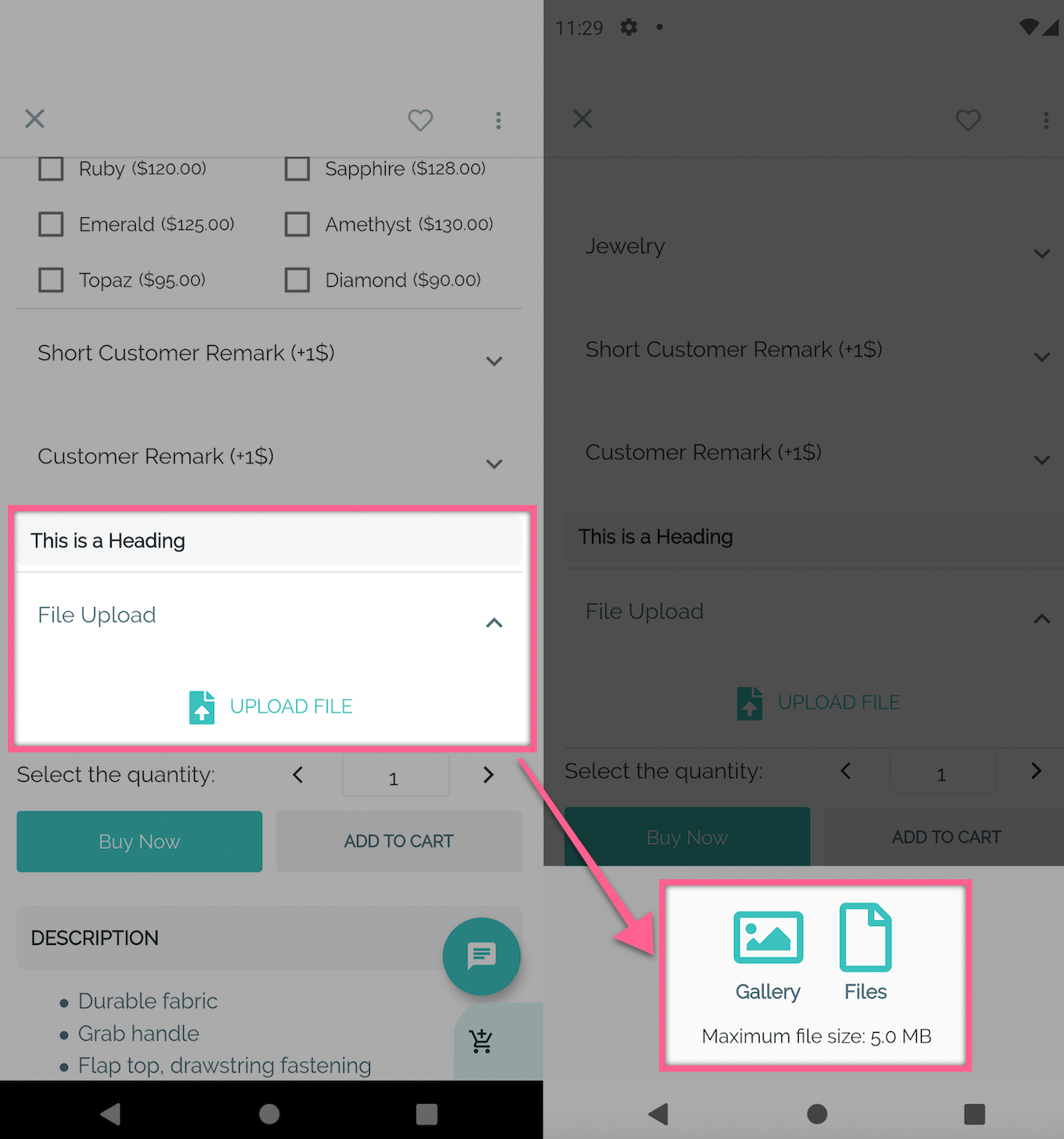
Users can upload files to products (example: for drug store/ online medicine store, needs to upload prescription). This feature is available with WooCommerce (single and muli-Vendor) and compatible with Product Add-Ons.
- Open your app on FluxBuilder.
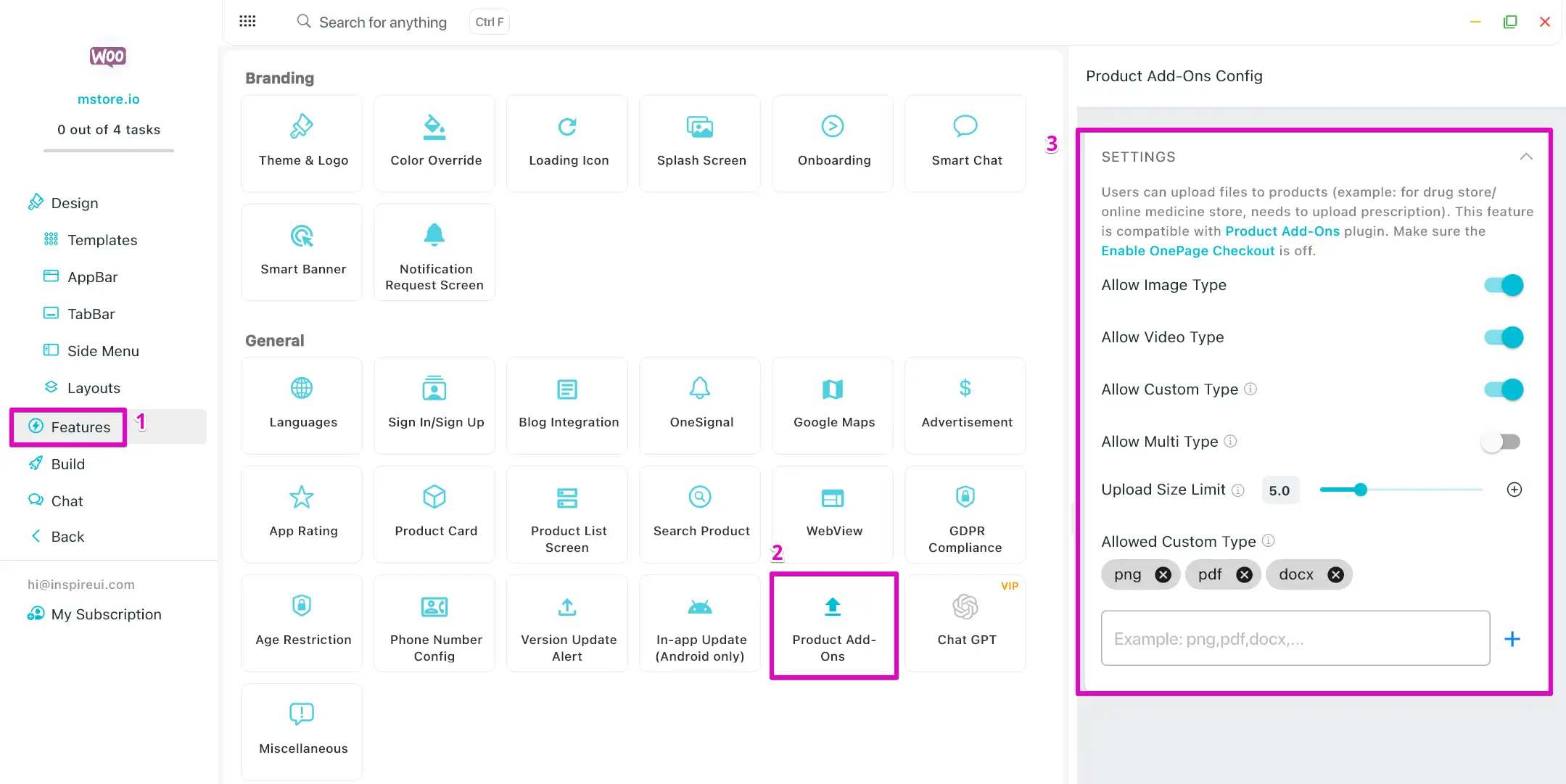
- Go to Features. In General, open Product Add-Ons.
- Activate the types you need and adjust the Upload Size Limit.
- Click Save button.
Once again, make sure the [Enable OnePage Checkout] is off:
3. Yith WooCommerce Product Add-Ons
FluxStore from version 5.4.0 supports the YITH WooCommerce Product Add-Ons plugin on Woocommerce site, allowing merchants to offer customizable product options such as checkboxes, radio buttons, text fields, and more directly within the app.
This integration enhances the product configuration experience and enables more flexible product offerings — ideal for stores that sell personalized or build-to-order items.
Install the plugin YITH WooCommerce Product Add-Ons and then start using the feature on the app.