App UIs
Design other UIs of your App easily and flexibly by drag&drop.
You can also configure to update your App’s UI without republishing app to App Store and Google Play.
Deliver and Manager apps do not support the following App UIs.
App Templates
More than 30 app templates are available:
Logo on Login screen, Colors
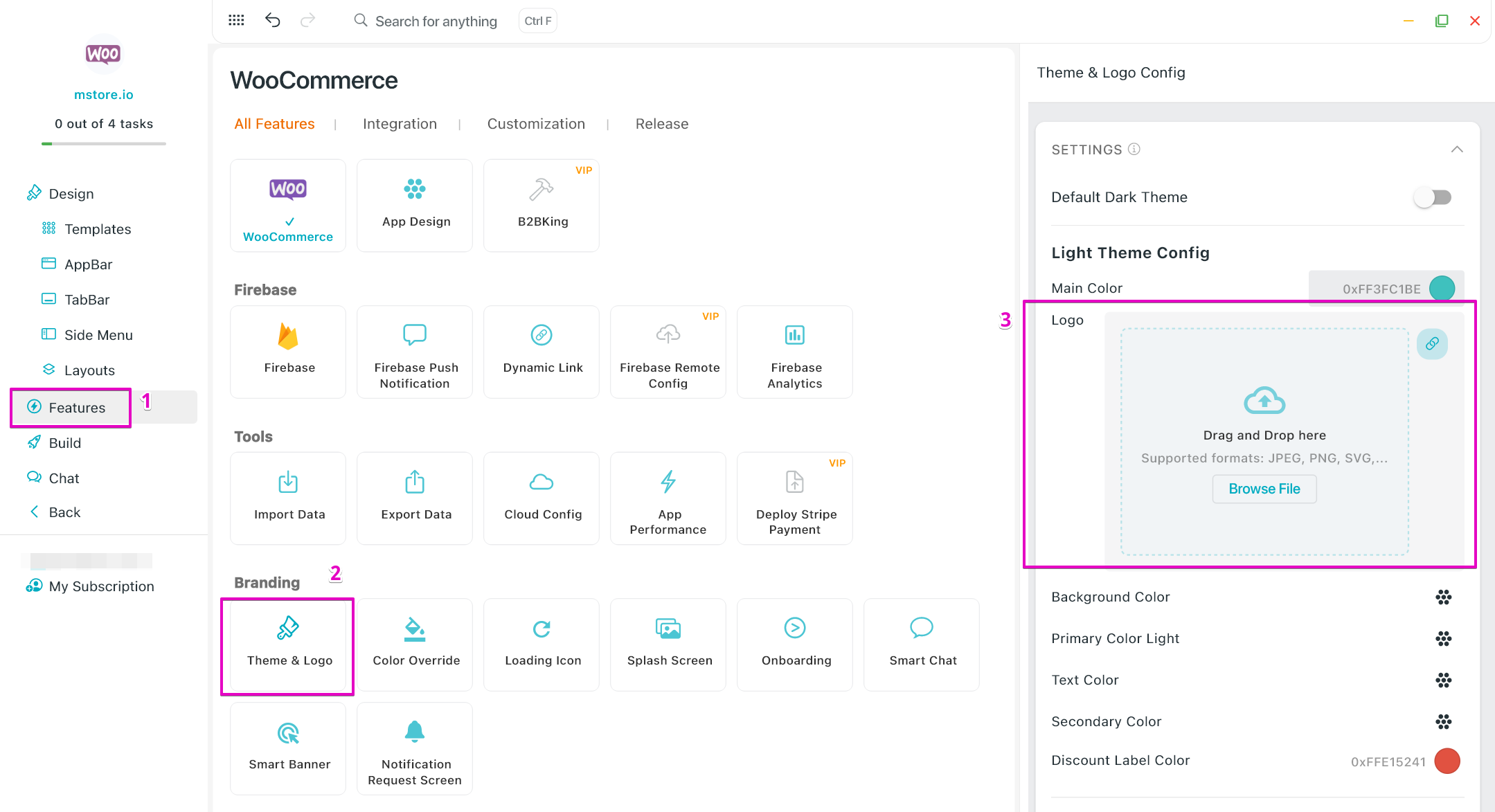
Edit the Logo on Login screen: go to Features, select Theme & Logo, upload image for the Logo on the right panel:
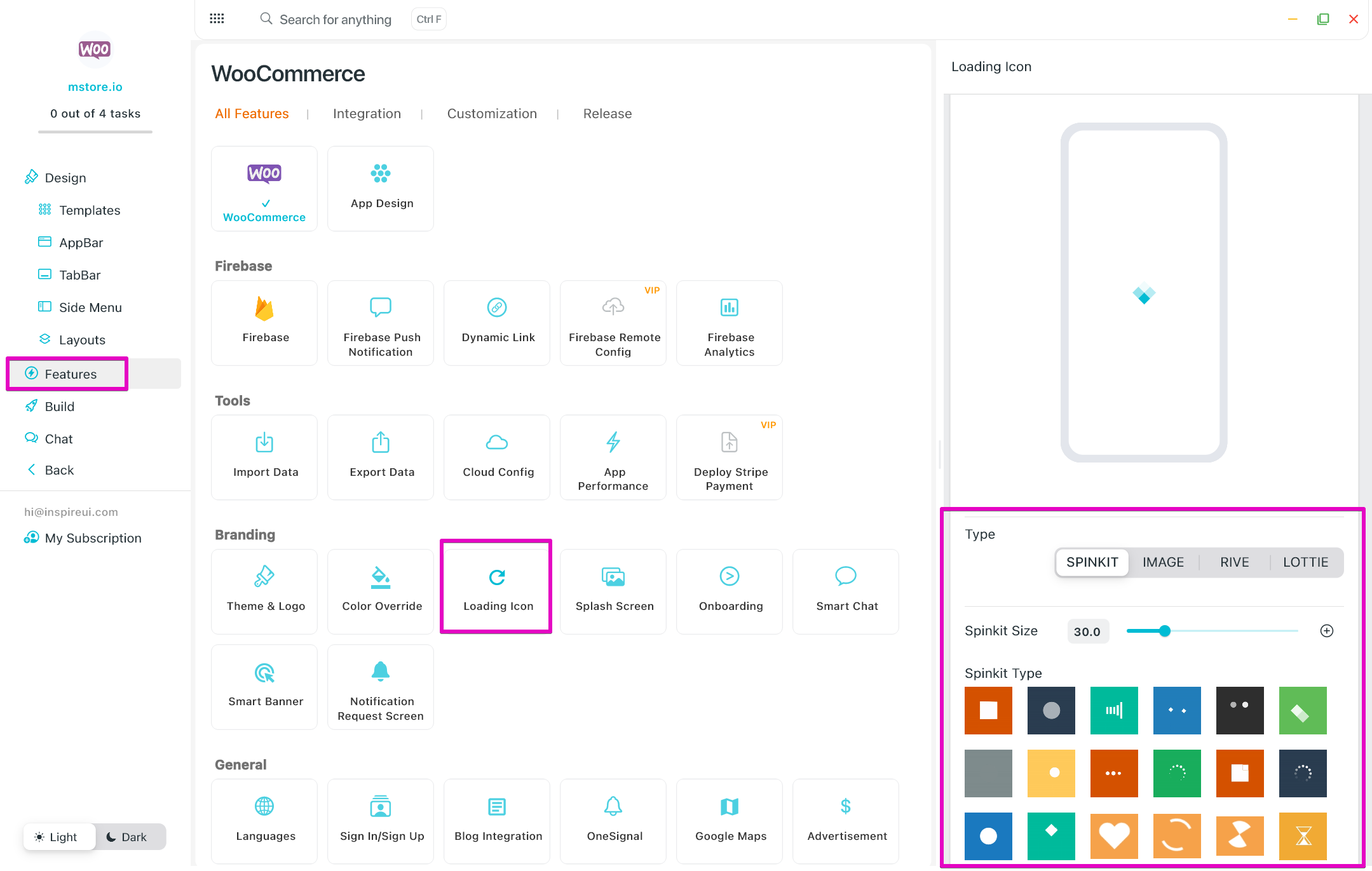
Loading animation
Smart Engagement Banner
Display the Smart Engagement Banner on Home Screen.
A Smart Banner is a banner at the top of the screen that presents an option to download or open the app if the user chooses. Help your customers easily view an event, sale, or an important announce.
Product Horizontal
Add the Horizontal Products on Homepage of app:
Menu List
List Card
Animated Stack
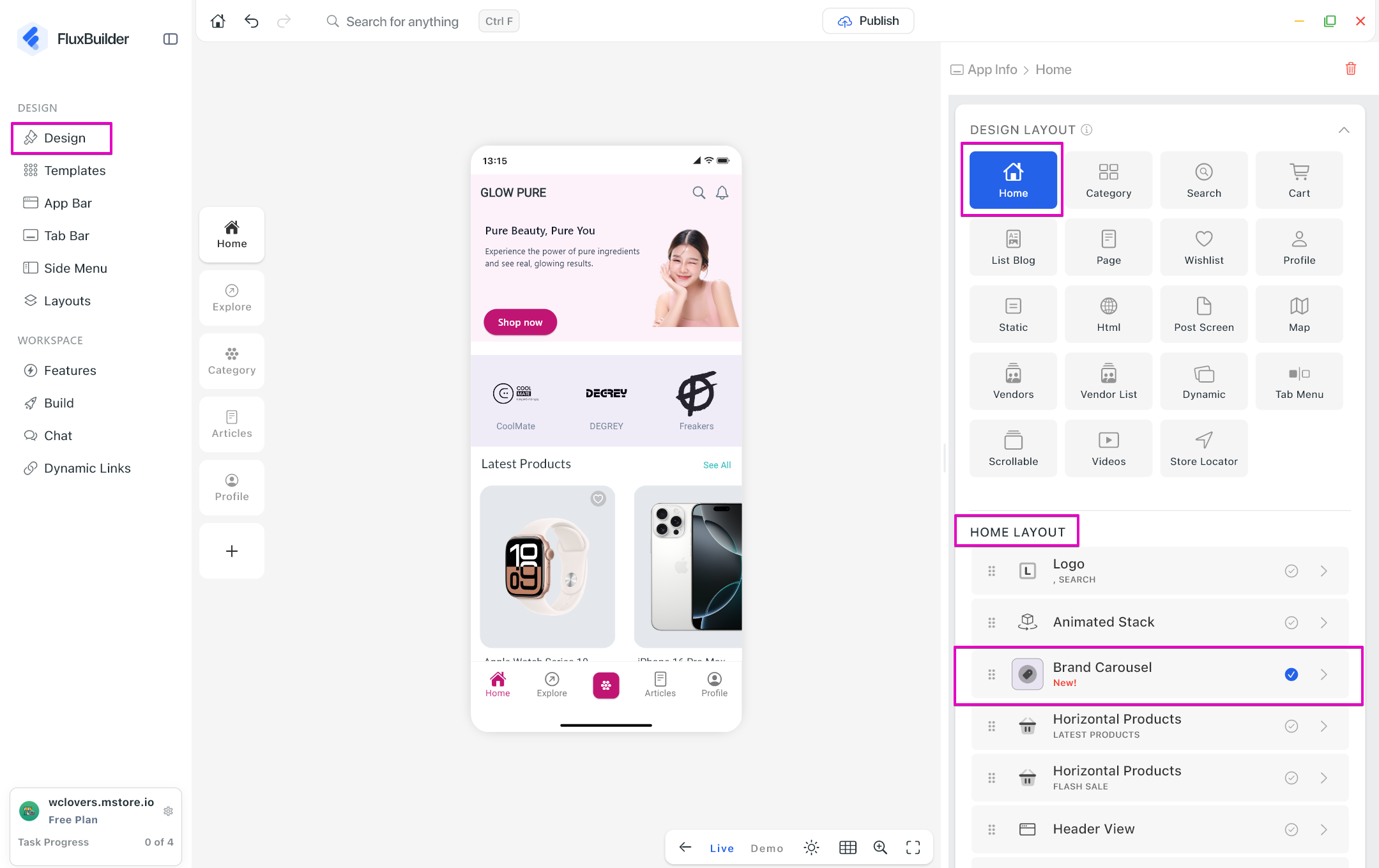
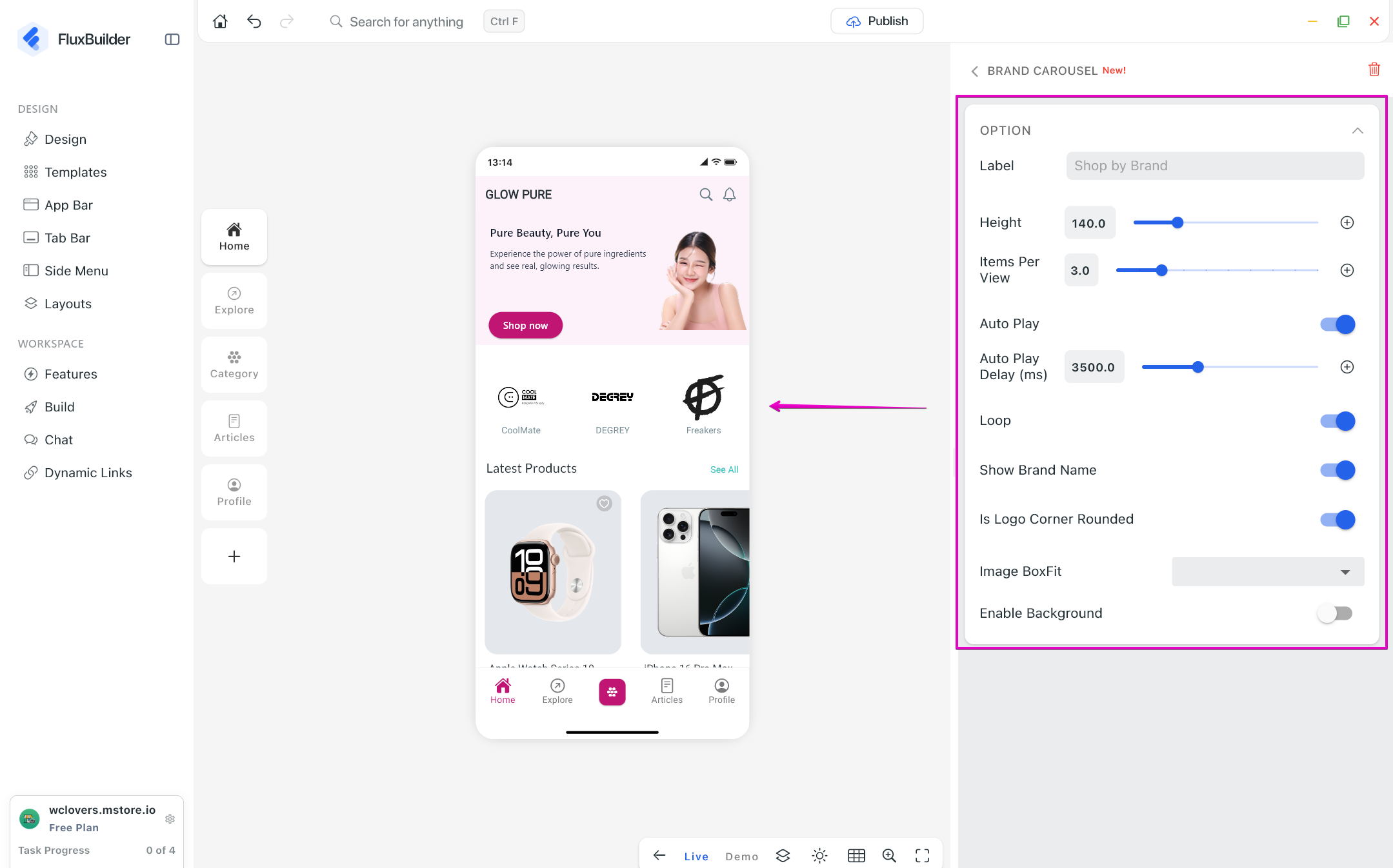
Brand Carousel
On Home page, display brands in a carousel layout, making it easier for customers to browse and discover products by brand.
Blog
Dynamic Blog Layout
Testimonial
Add the Testimonial Review on Homepage of your app. Help customers trust you:
Show the Instagram on your app’s Homepage:
Story slider
Show stories on your app’s Homepage:
Image Compare Widget
Add an Image Compare widget on Home page that allows customers to compare two images by dragging a slider, making it ideal for before-and-after showcases or product comparisons.
Videos
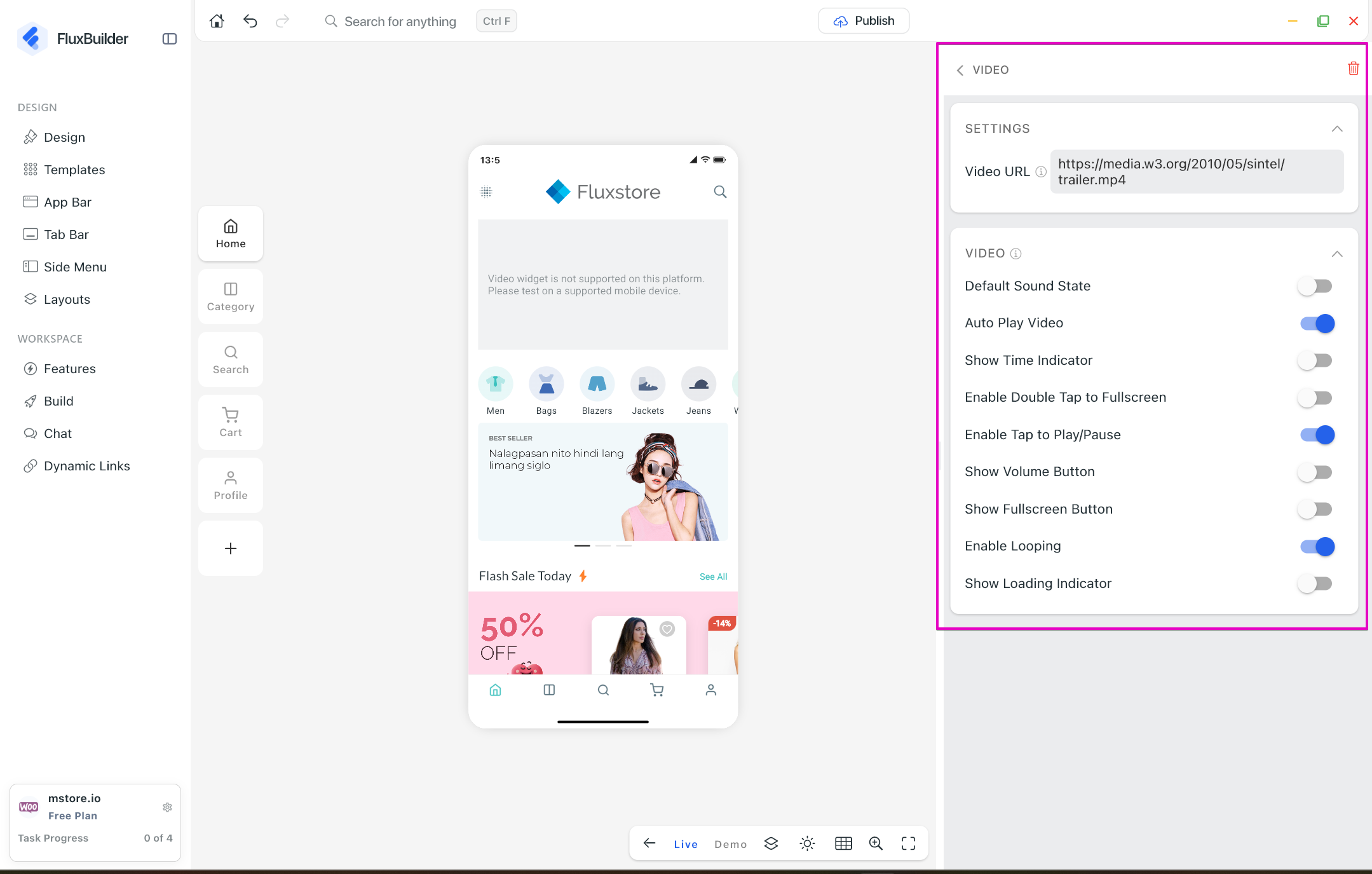
Introduce a dedicated Videos layout to showcase video content within the Home layout in your app. Easily add a video to play on Home by adding Youtube link, or direct video file url (mp4, m3u8,ect.).
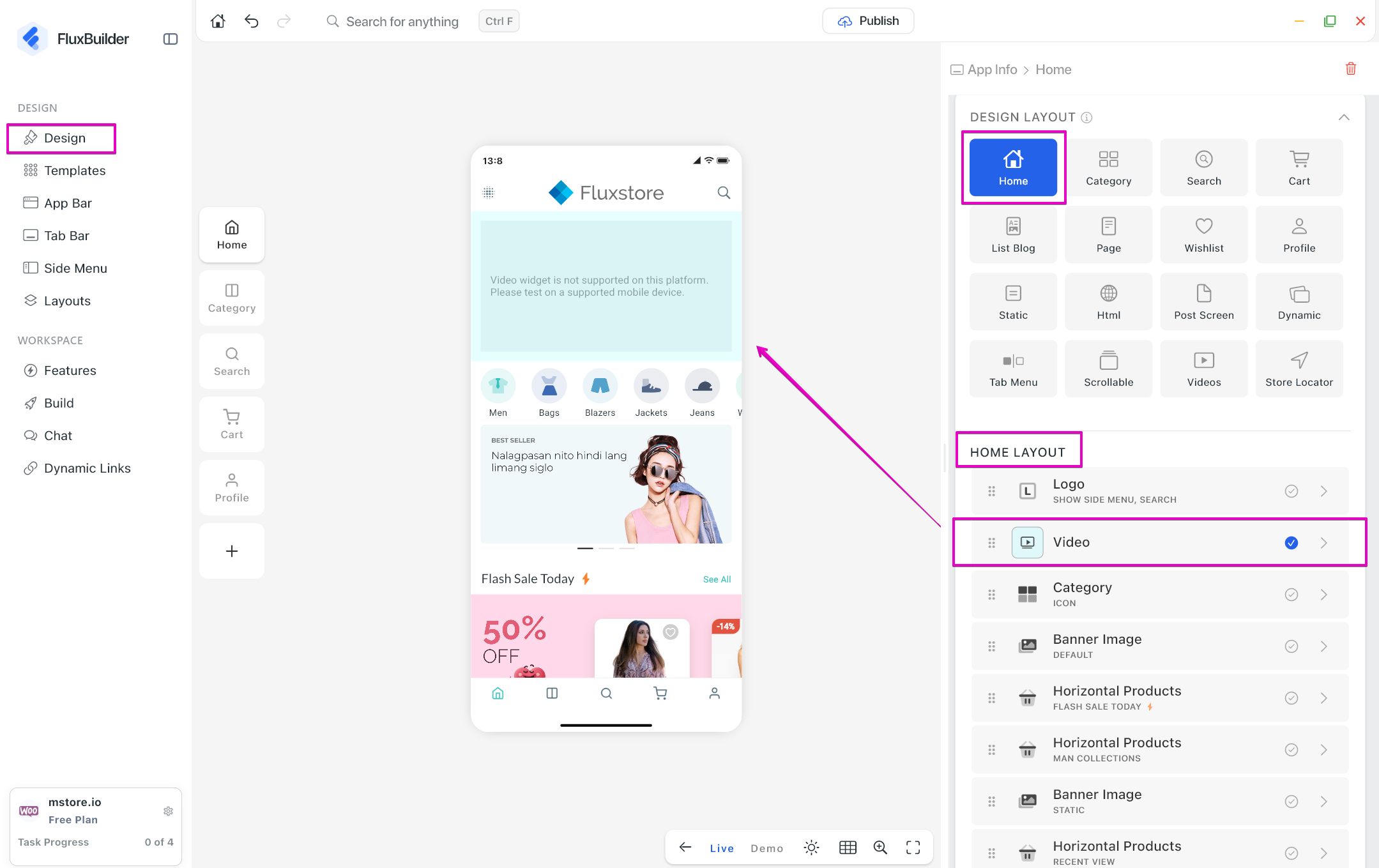
Note: the configurations in VIDEO are not applied for Youtube link.
Web Embed
Flexible to Add new layout Web embeds into the Dynamic layout on Homepage. Users can set URL, iFrame or embedded HTML code.
TabBar
Edit the Tabbar of your app:
AppBar
Add the AppBar to your app:
Left menu (Side menu)
Edit the Side menu of your app: