Multi Payment (Webview)
The payment on the app works the same as your website via Webview Payment. This feature is available in source code, and technical support is available for the extended license.
Compatible with: Woocommerce, Opencart, Shopify, Multi Vendor, Notion, BigCommerce and Prestashop.
1. Enable Webview Checkout
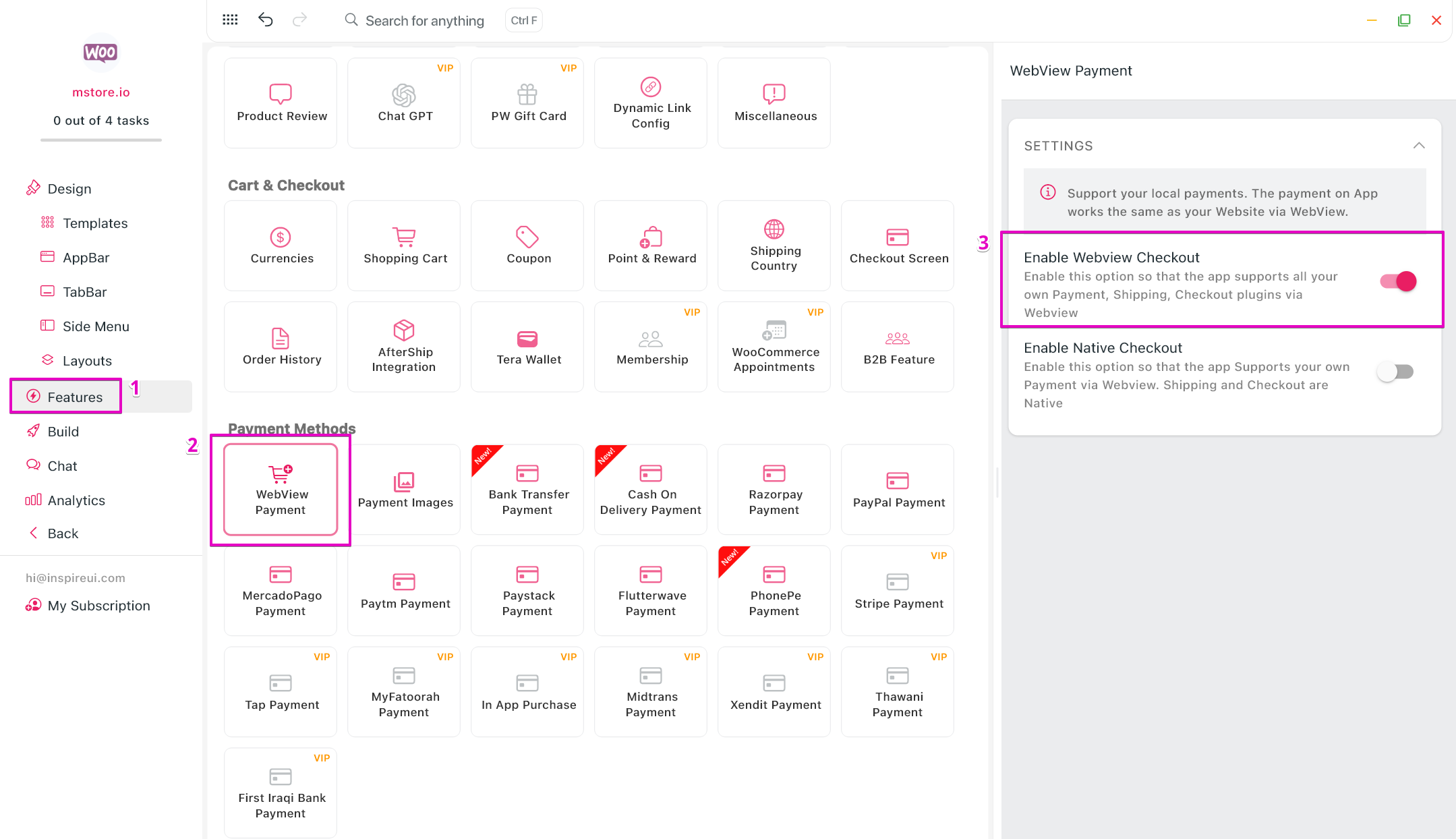
This Webview Checkout feature allows open WebView when processing the order, if you are using some extra plugin Shipping, Checkout plugins, this is a great feature that supports out the box the checkout function right on your Webview (works the same as on your website).
2. Enable Native Checkout
FluxStore also supports the Payment that combines both Native and WebView, enable the Native Checkout as below:
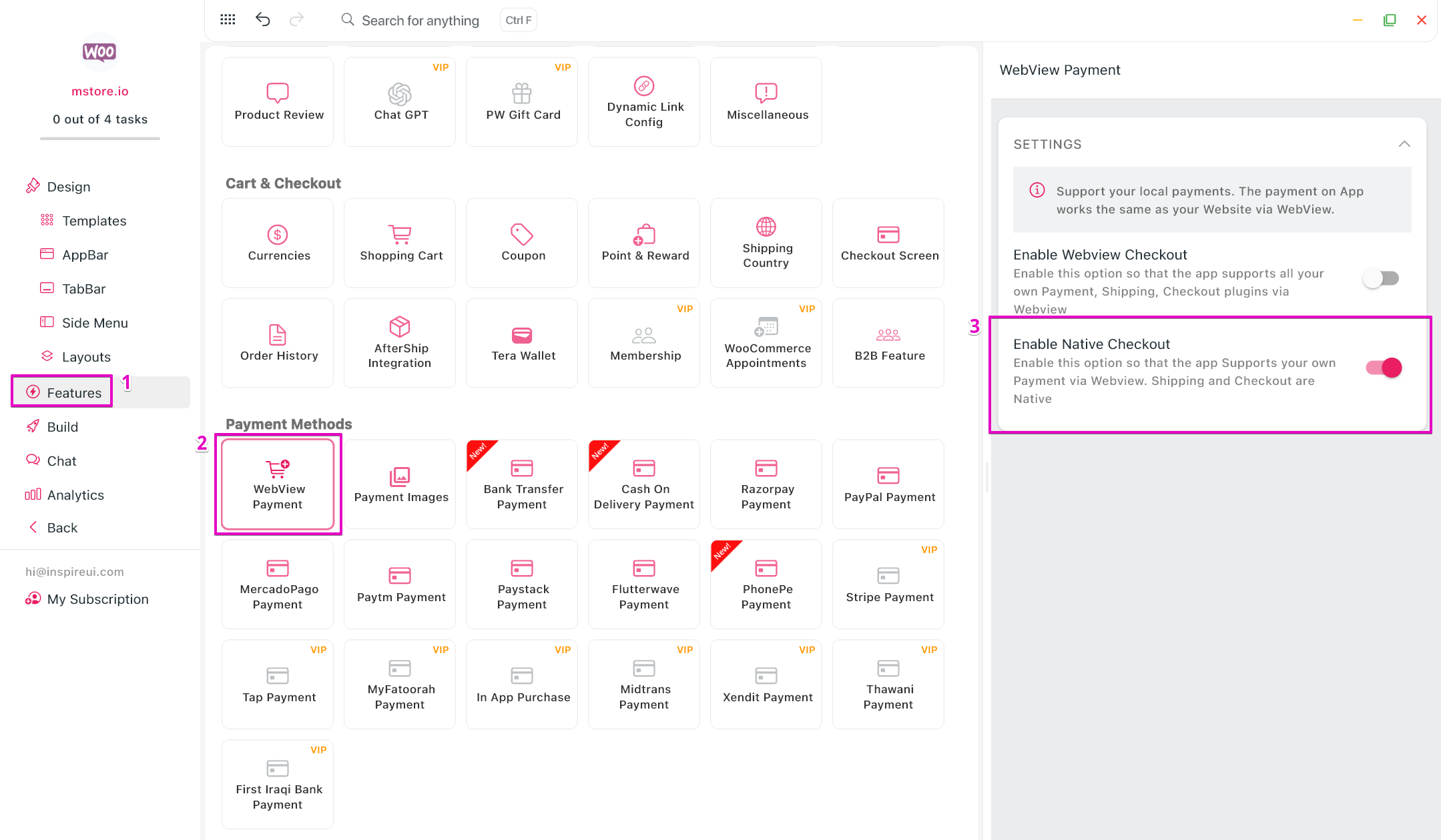
The default option of Native OnePage Checkout is set to support the Payment that combines both Native and WebView. If you would like to disable this option and enable the Webview Checkout, please select Enable Webview Checkout.
3. Hybrid Payment
For WooCommerce and Listeo apps: This new Hybrid Payment flow allows users to stay within the native app for most of the checkout process, opening a WebView only for the final payment authorization.
How the Flow Works
- Native Address & Shipping: The customer enters their address and selects shipping methods directly in the native app UI.
- Order Creation: The app creates the order via API.
- Secure Payment Webview: A targeted Webview opens only for the payment page (instead of the entire checkout website).
- Completion: Once payment is confirmed, the customer is automatically redirected back to the app’s "Order Complete" screen.
One of the key benefits of this flow is how it handles interruptions:
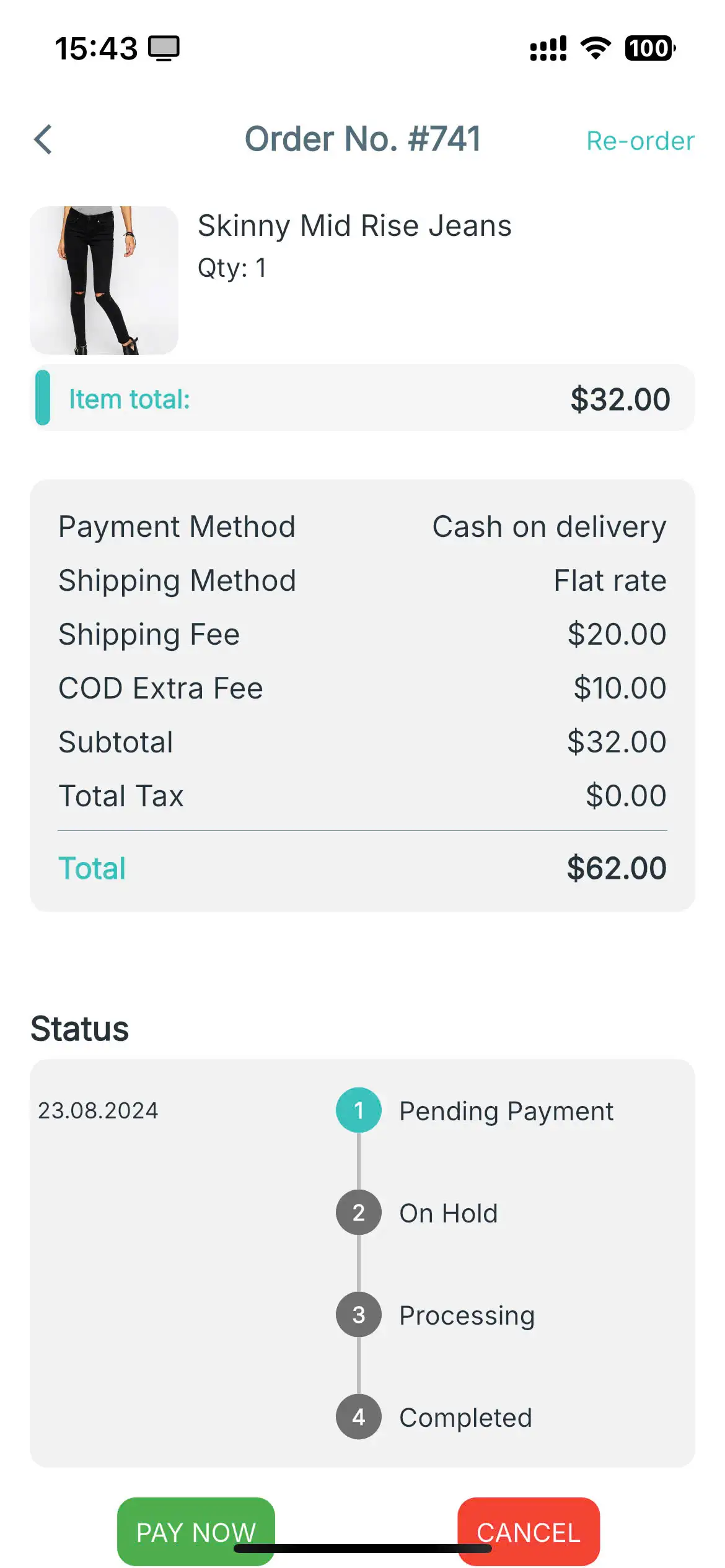
If a customer cancels the payment or closes the Webview, the order is still saved on your website with a "Pending payment" status. A PAY NOW button will automatically appear on the Order Confirmation and Order History screens, allowing the customer to try again without re-entering their address or shipping info.
Configuration
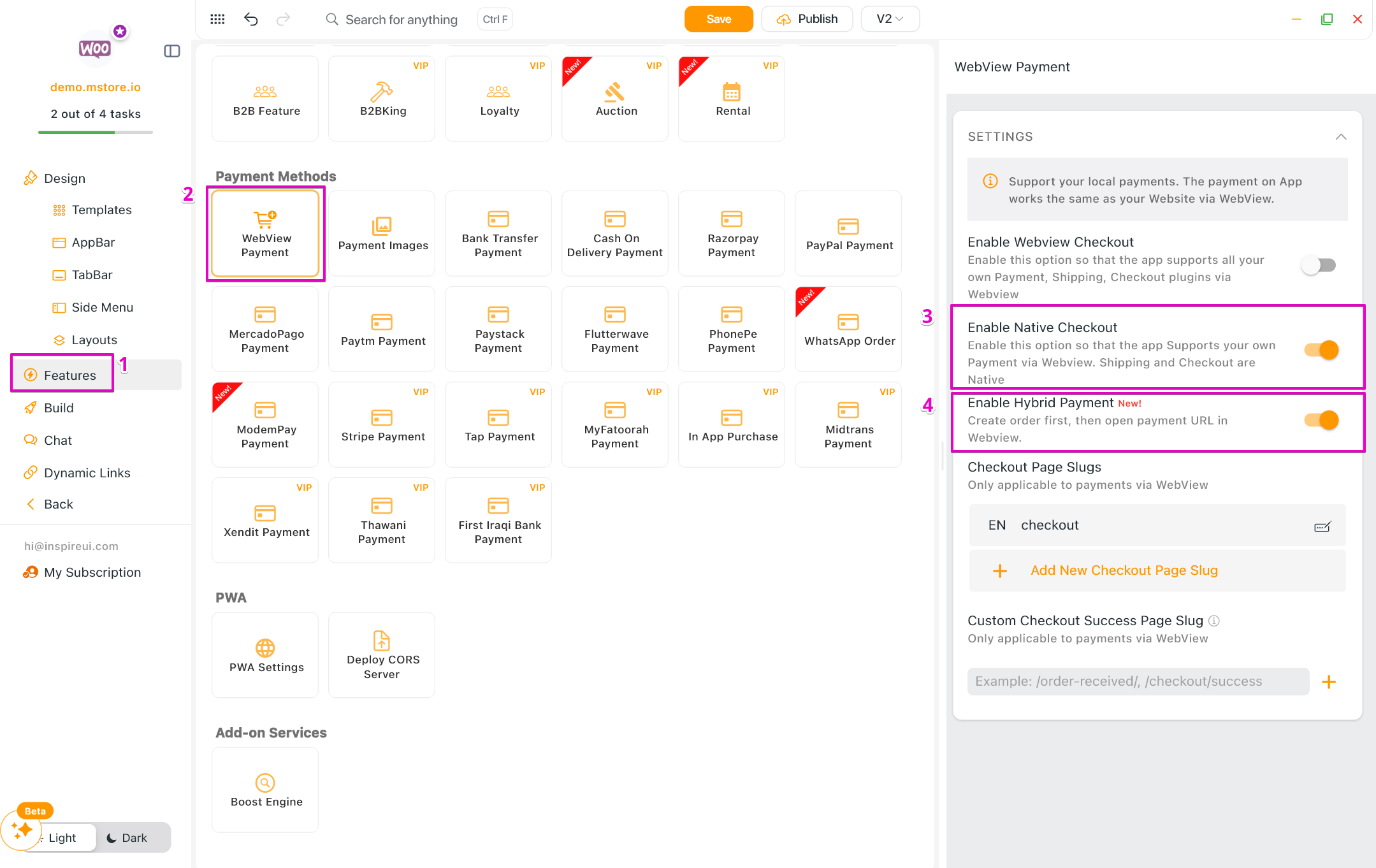
- Open your app on FluxBuilder.
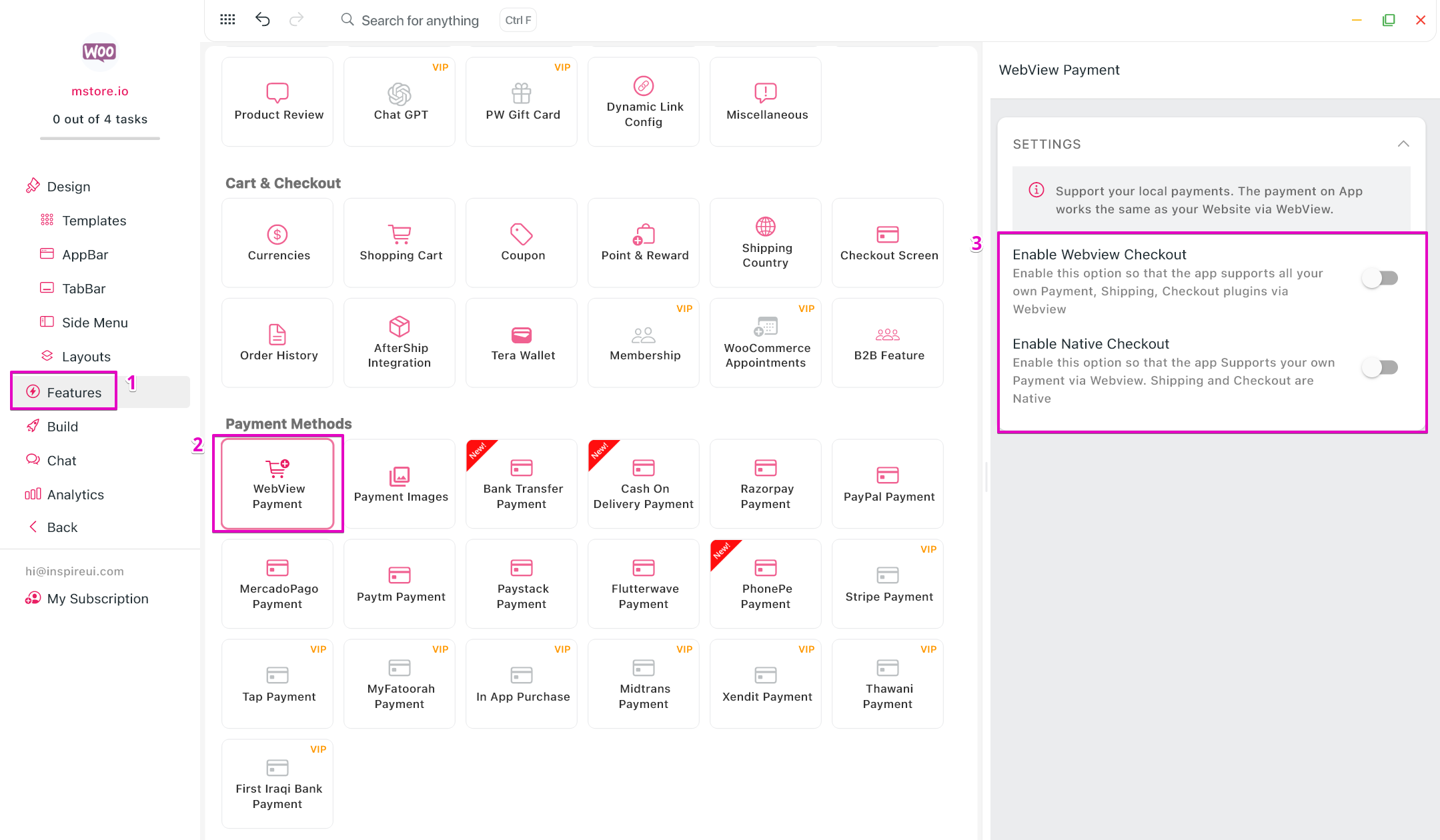
- Go to Features > in Payment Methods, open Webview Payment.
- Select Enable Native Checkout.
- Select Enable Hybrid Payment.
4. MStore Checkout Webview
(Not recommended) This feature is available for woocommerce. It uses MStore Checkout page. You need to disable Webview Checkout and Native Checkout to make it work.
Use FluxBuilder:
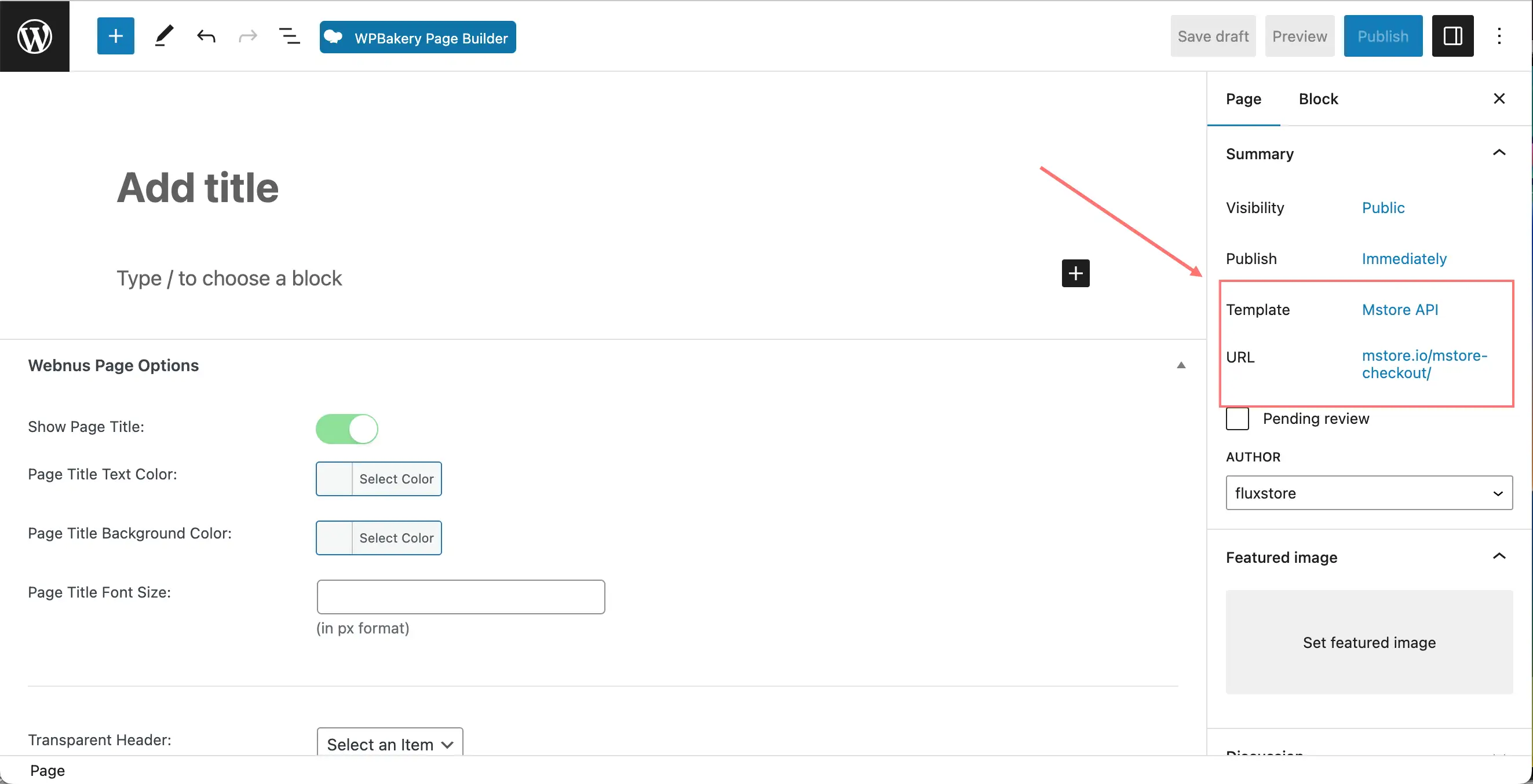
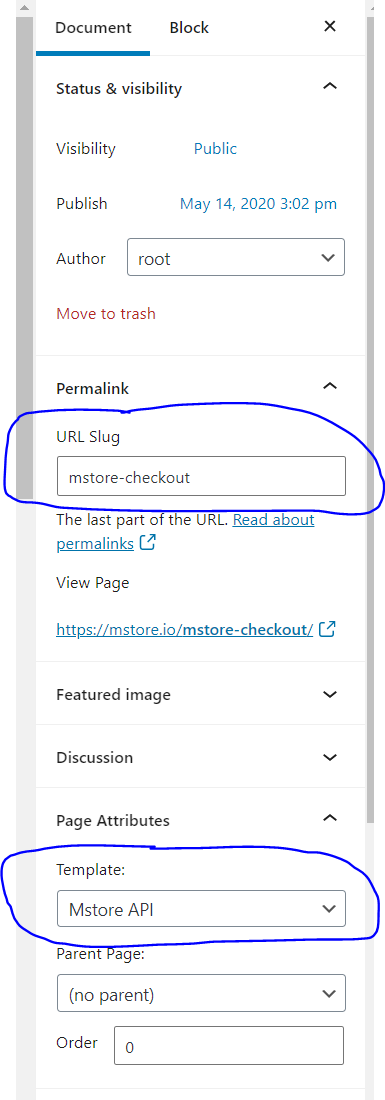
In the admin website, you need to create a new page with the slug "mstore-checkout" and template "MStore Api".
Please note that you need to require to login to use this feature. if you don't login, the app will use Native OnePage Checkout instead of MStore Checkout Webview.
Please note that the multi payment gateway is available for the WooCommerce and Opencart integration, other frameworks are not supported yet.
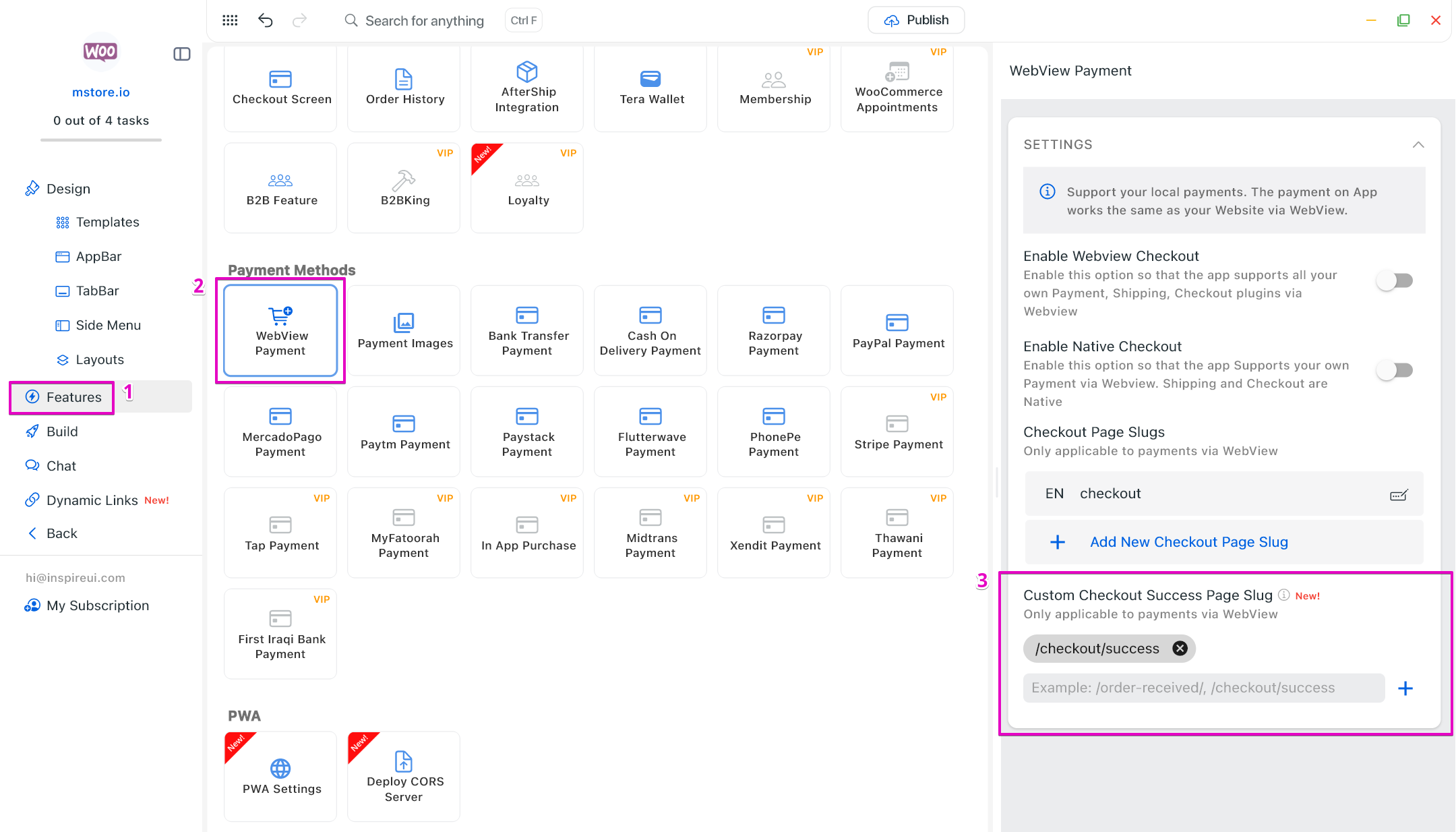
5. Custom Success Checkout Page Slug
Support custom or translated checkout success URLs so the app can correctly determine when the order is placed successfully and closes the webview checkout screen, trigger the cart deletion action. The app will also displays the native thank you page then.
- Open your app on FluxBuilder.
- Go to Features. In Payment Methods, open Webview Payment.
- in Custom Checkout Success Page Slug, add possible slugs for the successful checkout page on the website.
Common problems:
1. WebView Payment returns 404 Error, Page Not Found.
Solution: Go to admin panel, create a page with slug: mstore-checkout and template is MStore Api.